
Connection Management
Tabularis stores connection profiles as JSON in connections.json. With Save passwords in Keychain enabled, secrets go to the OS keychain instead — Keychain Access on macOS, Windows Credential Manager on Windows, and the Secret Service (GNOME Keyring / KWallet) on Linux. With the option off (the default for a new connection), the database and SSH passwords are written to connections.json in plain text, so enable it for any connection whose password you want to keep off disk.
Supported Drivers
The following drivers are registered at startup and available natively, with no plugin required:
| Driver ID | Database | Default Port | Multi-database |
|---|---|---|---|
postgres |
PostgreSQL | 5432 | — (uses schemas) |
mysql |
MySQL / MariaDB | 3306 | Yes |
sqlite |
SQLite | (file path) | — (file-based) |
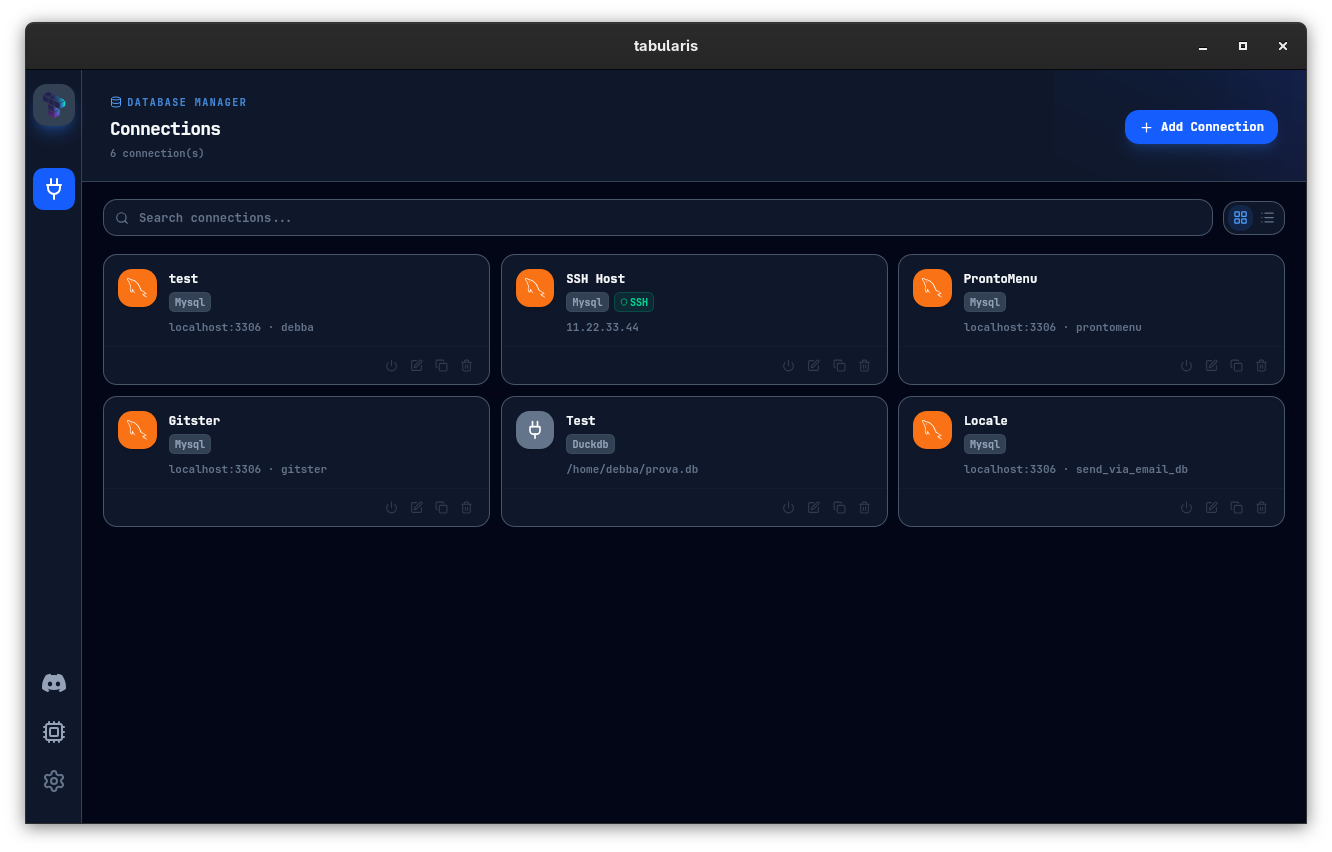
Each built-in driver renders with its own branded icon in the Connections page — the PostgreSQL elephant, MySQL dolphin, and SQLite cylinder — displayed in the driver's official color. Plugin drivers use any icon declared in their manifest, or a generic fallback.
Additional drivers can be installed as plugins.
Deprecated Built-in PostgreSQL Driver and Plugin Migration
Since v0.23.0 the built-in postgres driver is deprecated in favour of the PostgreSQL plugin (postgresql), with a tentative removal date of 2026-10-05. The migration is opt-in in this release: nothing changes unless you click.
- Automatic plugin install. At launch, if at least one saved connection uses the built-in
postgresdriver and a compatible plugin release is available, Tabularis installs and activates thepostgresqlplugin in the background. This re-triggers on every launch while such a connection exists, so uninstalling the plugin reinstalls it next time. - Deprecated badge. The built-in entry carries a Deprecated badge (tooltip: replacement and removal date) in the connection catalogue, on its card in Settings → Plugins, and on every connection row still using it. The plugin's catalogue entry sorts ahead of the built-in one.
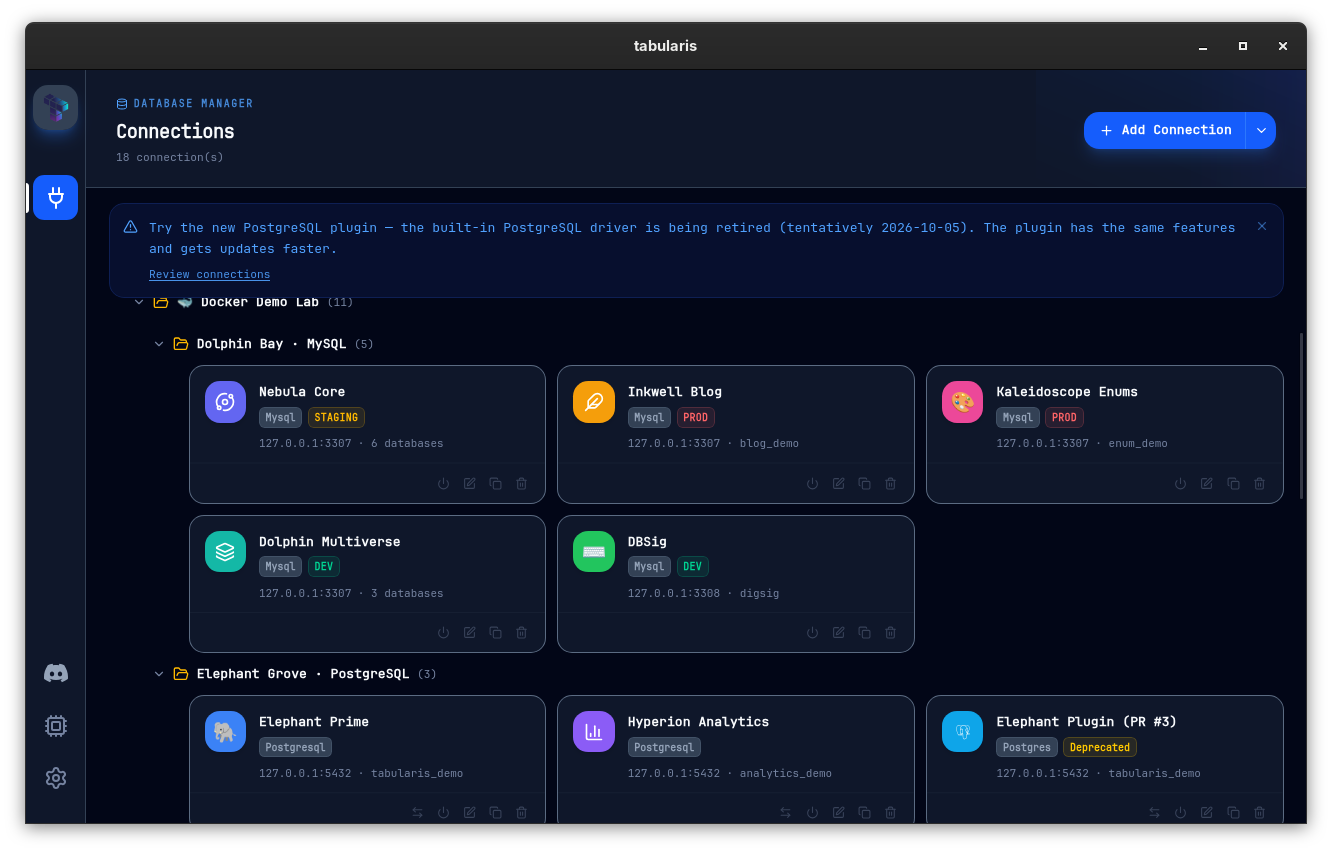
- Banner. The Connections page shows a dismissible Try the new PostgreSQL plugin banner once the plugin is ready (or a couldn't be downloaded, we'll retry on the next launch variant when the registry was unreachable). Dismissing hides it for the connections that existed at that moment; a new built-in connection brings it back.
- Switch to plugin. Each built-in PostgreSQL connection has a migrate button on its card and a Switch to plugin entry in its context menu. After confirmation the driver flips to
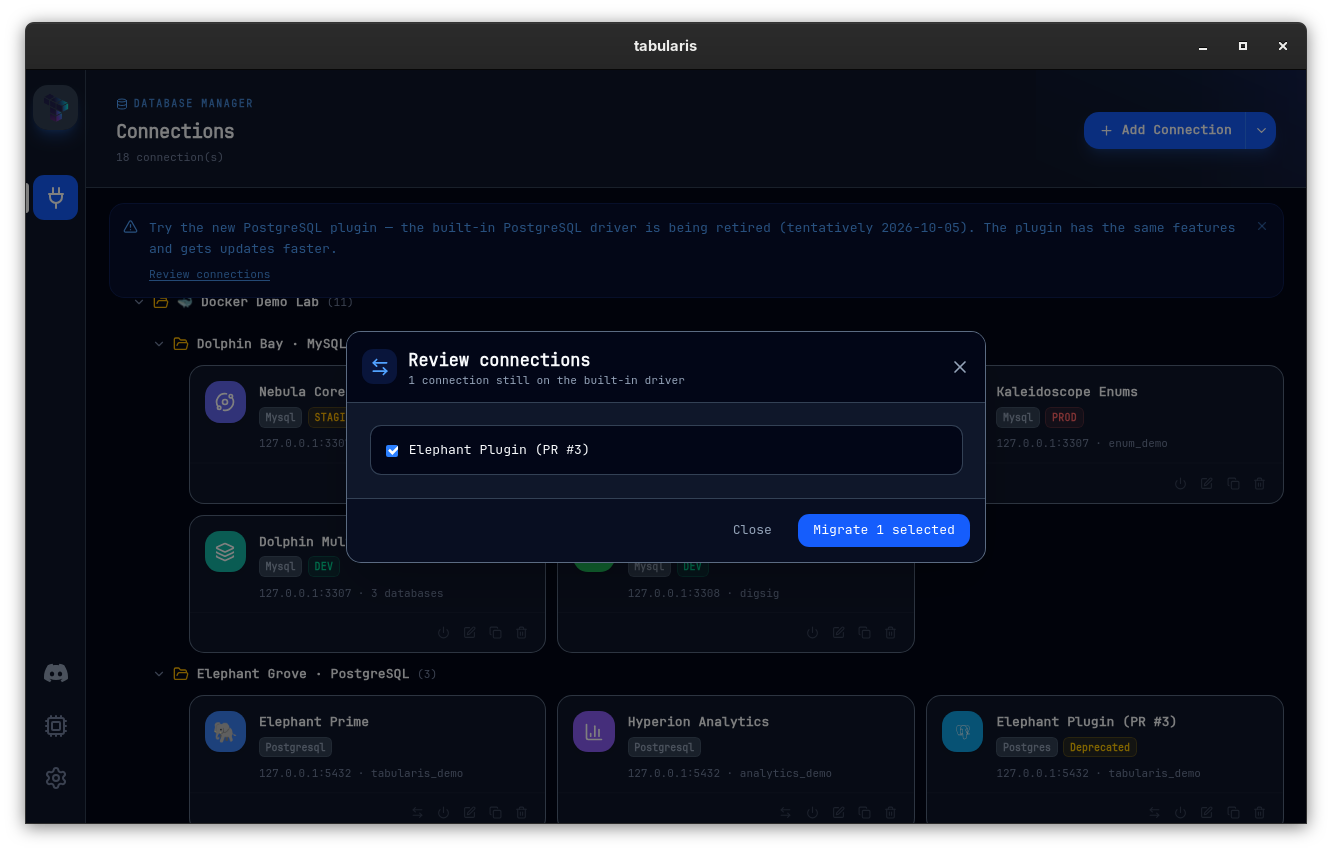
postgresql, the connection is reconnected if it was open, and a connection test runs. The resulting toast always offers Undo (which flips back and reconnects) and, on failure, Report an issue, which opens a pre-filled GitHub Issue Form in the plugin repository. A connection whose connection string is stored in the keychain gets a different confirmation: the secret does not carry over to the plugin and must be re-entered afterwards. Already migrated connections offer Switch back to built-in. - Review connections. The banner link opens a bulk checklist of every connection still on the built-in driver. Connections that use a capability the installed plugin does not declare (SSL or connection strings) are listed unchecked with the gap named inline and a Report this gap action; keychain-stored connection strings are unchecked with the re-entry warning; everything else is checked. Migrate N selected works through the rows sequentially with per-row status, one failure does not stop the rest, and migration continues if you close the modal.
- Migrations are recorded in a persisted history. MySQL and SQLite are not deprecated yet and show no badge or migration action.
Connections Page
The Connections page (Cmd/Ctrl + Shift + C) lists all saved profiles and supports two display modes, switchable from the toolbar:
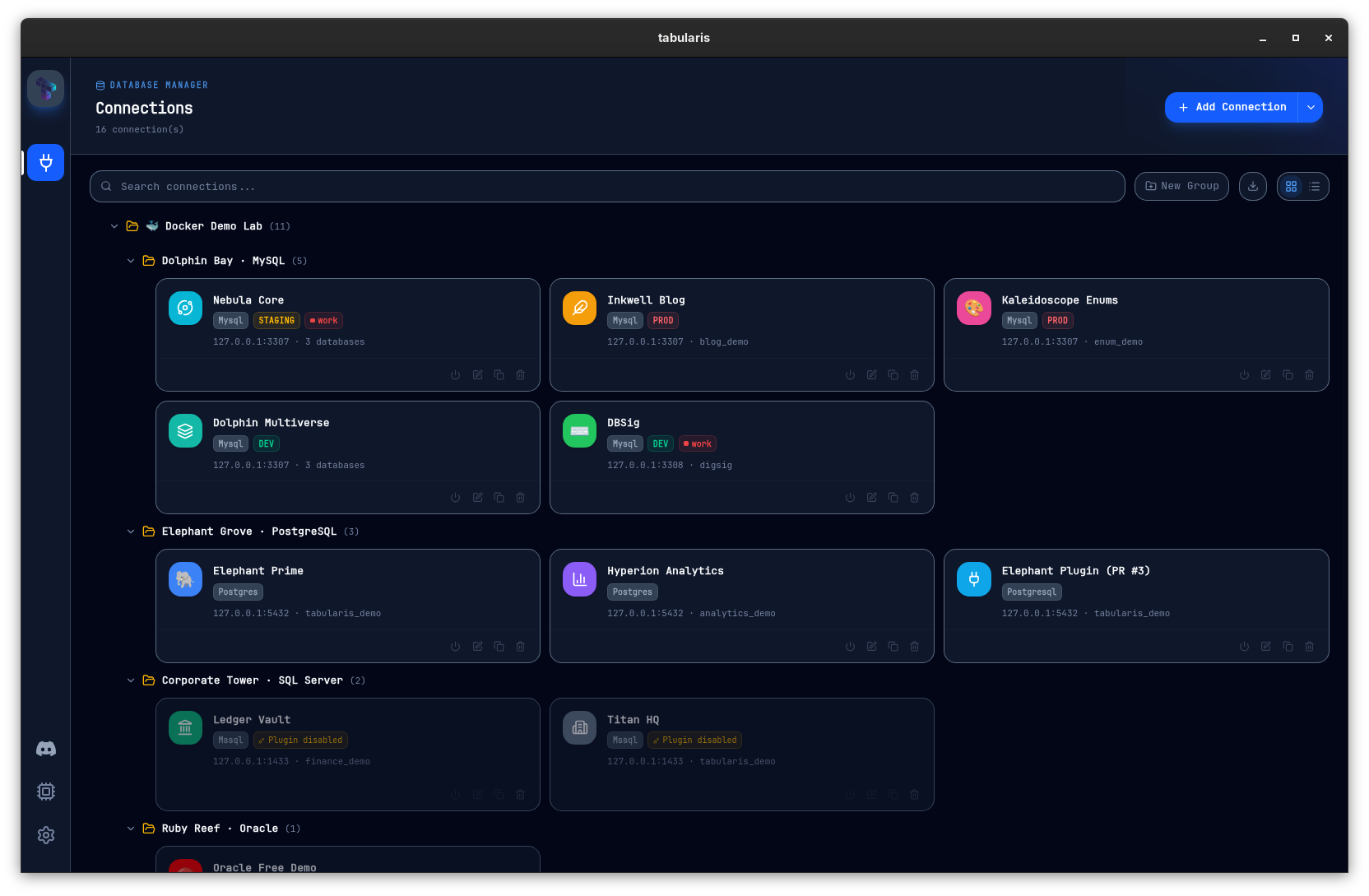
- Grid — each connection is a card with the driver icon, status badge, host/database info, and SSH indicator.
- List — the same information in compact rows, better suited for large numbers of connections.
A search bar filters by name or host in real time.
Double-click a card or row to connect immediately.
Since v0.27.0 connections can be reordered within a group, in both views: drag a card or row onto another connection of the same group (or both ungrouped) and it takes that slot, with a dashed outline marking the target. The order is saved. Dropping onto a connection in a different group moves it there, at the end of that group. New, duplicated and imported connections sort after the ones you have ordered.
With Reopen Last Connections (Settings → General, on by default), Tabularis reconnects at startup to the connections that were open when you last closed it.
Connection Profile Fields
When creating a connection (+ button in the sidebar or Cmd/Ctrl + Shift + N):
| Field | Required | Description |
|---|---|---|
| Name | Yes | Display label in the sidebar |
| Driver | Yes | Selects the database type |
| Host | Yes* | Hostname or IP address |
| Port | Yes* | Auto-filled from the driver default |
| Database | Yes* | The database name to connect to |
| Username | Yes* | Database user |
| Password | No | Stored in the OS keychain when Save passwords in Keychain is checked; otherwise written to connections.json in plain text |
| Save passwords in Keychain | — | Off by default. When checked, the database and SSH passwords are kept in the OS keychain and removed from connections.json |
| Use SSH Tunnel | No | Activates the SSH tunnel for this connection |
| SSH profile | — | Use Existing SSH Connection picks a saved SSH profile; Configure SSH Inline defines the tunnel on this connection only |
| Allow SSH password/PIN prompt | No | Lets the SSH tunnel prompt in-app for a key passphrase, security-key PIN, or password when it can't authenticate silently. See SSH Tunneling → Interactive Authentication. |
| Startup script | No | SQL run on every new pooled connection (see Startup Script below). |
| Kubernetes | No | Tunnels the connection through a managed kubectl port-forward. Mutually exclusive with SSH and AWS SSM. See Kubernetes Tunneling. |
| AWS SSM | No | Since v0.25.0. Forwards the connection through an AWS Systems Manager Session Manager port-forwarding session opened with the AWS CLI. Takes a managed node id plus optional profile and region. Mutually exclusive with SSH and Kubernetes. See AWS SSM Tunneling. |
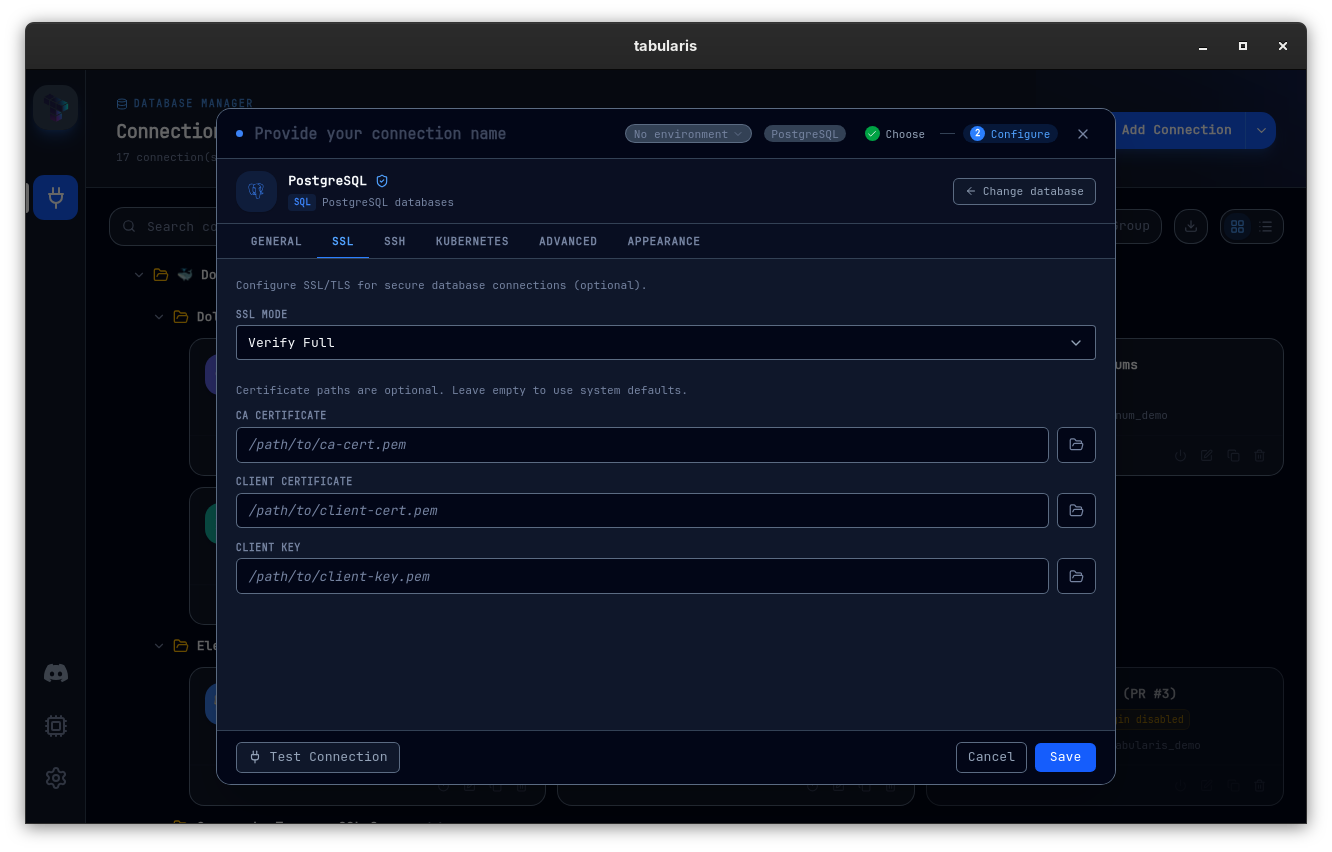
| CA Certificate | No | Path to a PEM bundle to trust for TLS (PostgreSQL and MySQL/MariaDB). See TLS & CA Certificates below. |
| Client Certificate / Client Key | No | PEM paths for mutual TLS (PostgreSQL and MySQL/MariaDB). Since v0.21.0 they are presented to servers that require client authentication. See Client Certificates below. |
| Detect JSON in text columns | No | Per-connection toggle: when enabled, plain TEXT / VARCHAR values that parse as JSON are routed through the JSON cell renderer in the data grid (chevron, viewer window, diff). The same flag also enables native array detection for text[] / int[] (PostgreSQL) and Firestore arrays. See Data Grid → JSON & long text cells. |
*Not required for SQLite, which takes a file path instead.
TLS & CA Certificates
Tabularis terminates Postgres TLS with tokio-postgres-rustls. In verify-full mode without a CA file, the server certificate is verified via rustls-platform-verifier, so the platform's trust store (macOS Keychain, Windows certificate store, Linux CA bundle) is honored automatically.
If your database uses a CA the system store doesn't trust — typical for AWS RDS, GCP Cloud SQL with private CAs, or self-hosted Postgres behind a private PKI — paste the path to a PEM bundle into the connection's CA Certificate field. When a CA file is set, it replaces the platform trust store for that connection: only the roots in the bundle are trusted.
AWS RDS in particular: download the global certificate bundle from https://truststore.pki.rds.amazonaws.com/global/global-bundle.pem and point the field at it. Tabularis intentionally does not vendor the bundle — AWS rotates these CAs every one to three years, and a vendored copy would silently break released apps the moment the next rotation lands.
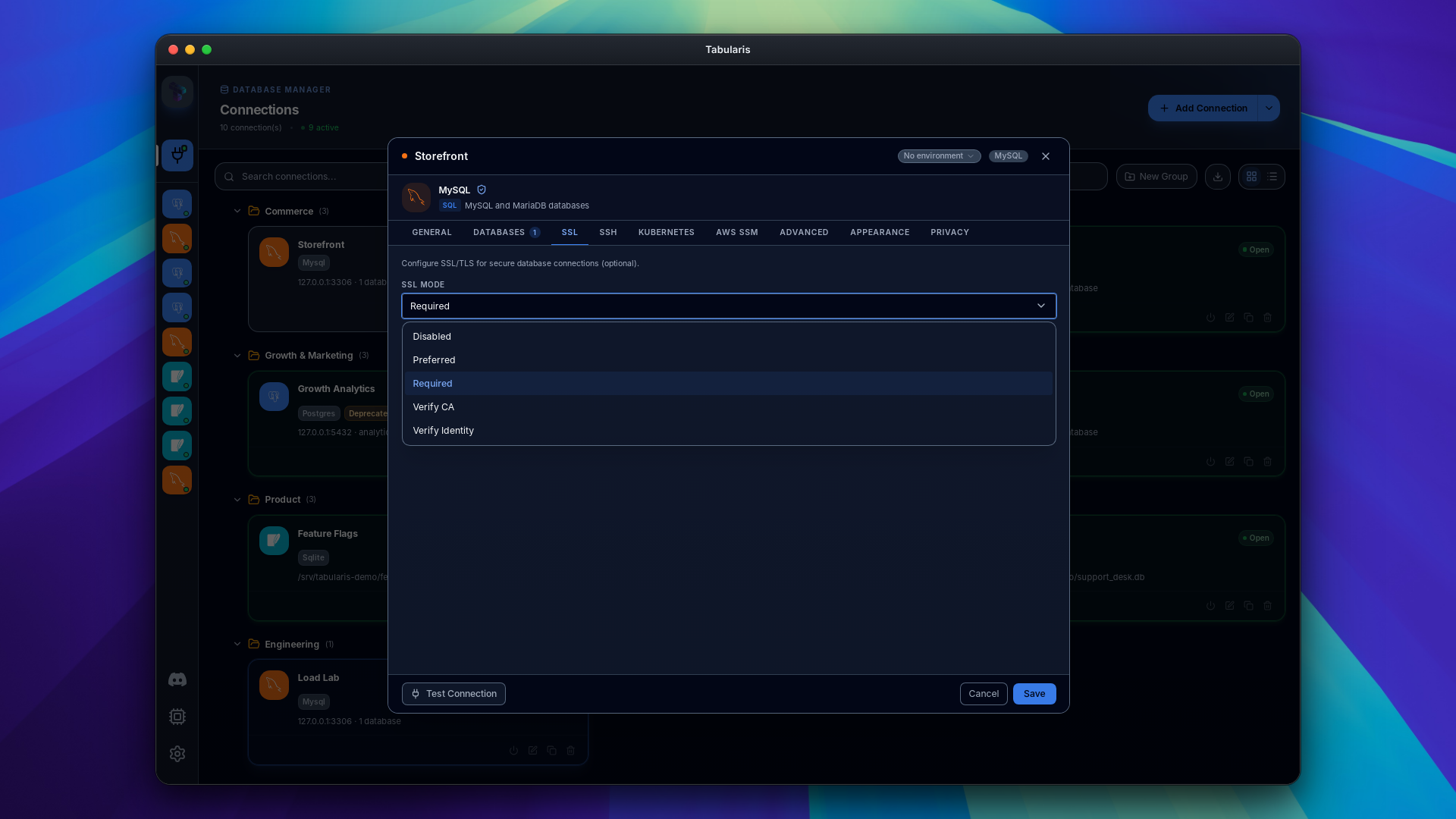
MySQL/MariaDB connections use rustls. The CA Certificate is passed to the TLS layer only in verify_ca and verify_identity modes (connections using AWS IAM authentication are upgraded to verify_ca automatically when a CA is set); Client Certificate and Client Key are sent whenever they are set. As of v0.13.0 the selected MySQL SSL Mode is honored on every code path — including the test-connection path, which previously attempted TLS even with ssl_mode=disabled — and connection pools are keyed by their TLS settings, so editing a connection's SSL mode can never silently reuse a pool created under the old mode.
For PostgreSQL, the SSL Mode selector uses libpq mode names:
| Mode | Behavior |
|---|---|
disable |
No encryption. |
allow |
Behaves like prefer (the underlying driver has no non-SSL-first mode). |
prefer |
Try SSL first; fall back to non-SSL. No certificate validation. |
require |
Force encryption, but do not require certificate validation. Use this with self-signed certificates (e.g., default AWS RDS without an explicit CA). |
verify-ca |
Force encryption and validate that the server certificate is signed by the CA in the CA Certificate field. A CA file is required in this mode; the platform trust store is not used. |
verify-full |
Same as verify-ca, plus verify that the server hostname matches the certificate CN or SAN. Strictest mode; recommended for production. |
For MySQL/MariaDB the selector offers the MySQL mode names instead: disabled, preferred, required (the default), verify_ca, and verify_identity.
Client Certificates (mTLS)
Servers that require client-side certificate authentication (Google Cloud SQL with mTLS enabled, or a private PKI) reject connections with connection requires a valid client certificate. Since v0.21.0, filling both Client Certificate and Client Key with PEM paths makes Tabularis present them during the TLS handshake in every SSL mode other than disable. Connection pools are keyed by these paths as well, so editing the certificate never reuses a pool built without it.
HTTP / SOCKS5 Proxy Override
Since v0.24.0, the connection's Advanced section has a proxy override: Inherit the global Network settings, use a Custom HTTP CONNECT or SOCKS5 endpoint, or Disable proxying for this connection. Custom and disabled modes override the global scope selection. Optional proxy passwords are stored in the OS keychain.
For a direct database connection the proxy carries database TCP traffic. With SSH it applies to the bastion hop instead; the local SSH/Kubernetes tunnel leg is not proxied again. Reconnect after changing global proxy settings, which stop existing SSH tunnels and forwards.
Startup Script
A connection can carry an optional startup script — SQL that Tabularis runs on every new physical connection in the pool. Because it executes per pooled connection (MySQL/SQLite via after_connect, PostgreSQL via the pool's post_create hook), session-level settings stick across the whole pool regardless of which connection serves a given query.
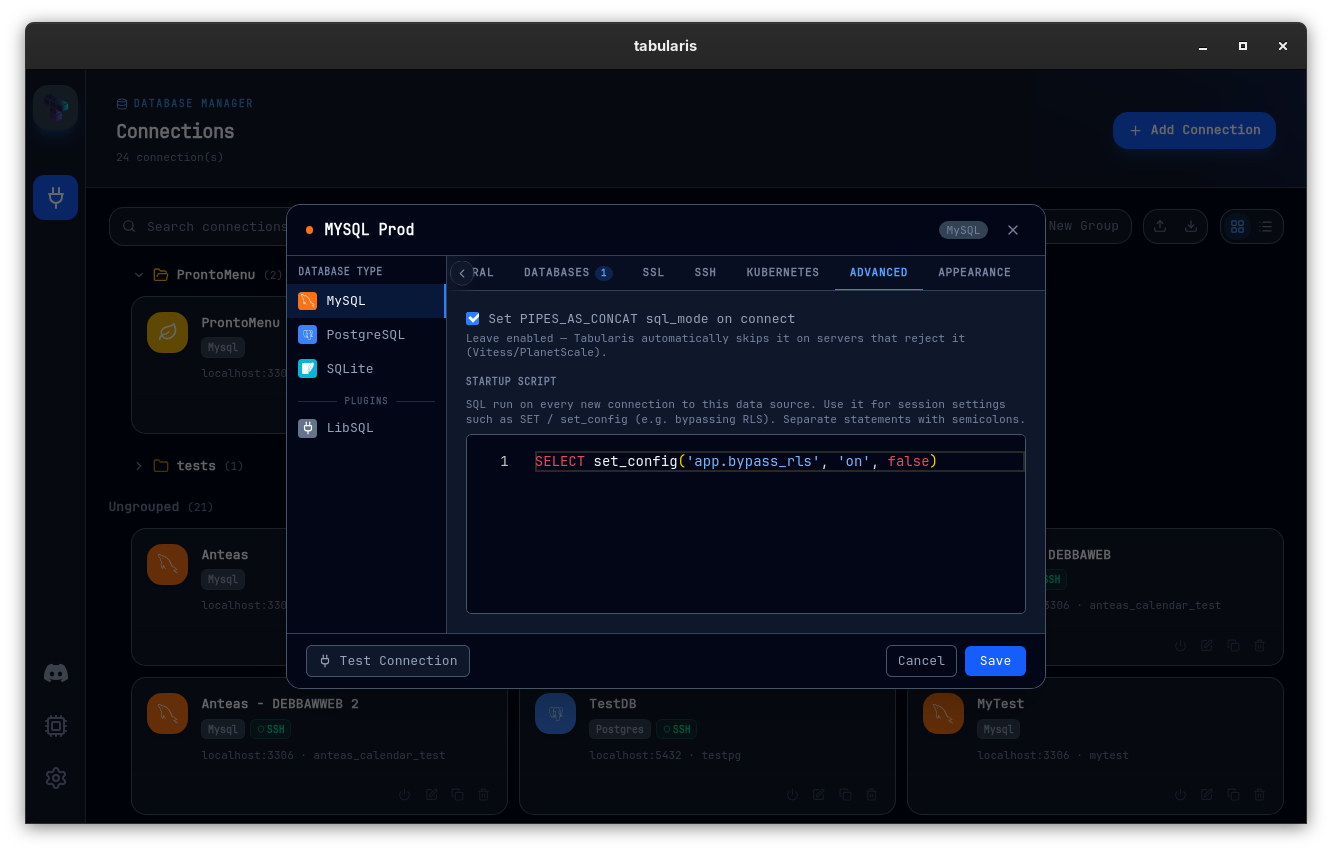
The motivating case is development against row-level security: a script like
SELECT set_config('app.bypass_rls', 'on', false);
applies to every subsequent query instead of randomly depending on which pooled connection you landed on. Any SET or session-setup statement works; multiple statements can be separated normally, and blank or whitespace-only scripts are skipped. The script is stored with the connection profile as non-secret configuration.
SQLite
For SQLite, provide the absolute path to the .db or .sqlite file using the file picker. There is no host, port, or authentication.
You can also create the file from inside Tabularis: New SQLite Database… in the Connections menu and empty state, or the + New button in the SQLite file picker inside the connection modal. Existing files are never overwritten, and create_if_missing stays disabled — a typo in a path cannot silently produce an empty database. A database created from the quick-create flow is auto-named and opened; created from the modal, it only fills in the path and leaves the usual Test/Save flow alone.
Testing before saving
Click Test Connection before saving. Tabularis makes a real connection attempt and returns the exact database error if it fails (e.g., FATAL: password authentication failed for user "admin"). The test goes through the SSH tunnel if one is configured.
The test reports its progress step by step — SSH tunnel, Kubernetes port-forward, database connect — so a test that hangs tells you where it hangs. A Stop button abandons an in-flight test; late results from an abandoned run are discarded.
When a test fails, the error is classified rather than dumped as one truncated line. Categories cover SSH authentication, an unreachable SSH host, generic SSH failures, database authentication, network problems, and a missing database, each with a translated summary and a recovery hint. Credentials embedded in raw error text are redacted. With a tunnel active, a "connection refused" is attributed to the tunnel rather than to the database host.
A diagnostics modal opens on failure — or when you press Stop — showing the classified summary, the recovery hint, a timestamped log of each step, the sanitized raw error, and a copy-to-clipboard report suitable for pasting into an issue. The Show log link in the modal footer reopens it.
Video unavailable
SSH Tunnel System
Tabularis has a full SSH tunneling implementation in Rust with two backends, selected automatically based on your auth method.
Two backends
russh (Native Rust SSH)
Used when a password is provided for the SSH connection. The tunnel is established entirely within the Rust process — no external ssh binary is involved. Host keys are checked against your ~/.ssh/known_hosts (trust-on-first-use for unknown hosts; key-changed errors are surfaced as a hard failure).
System SSH
Used when no password is provided (key-only authentication). Tabularis spawns your system's ssh binary and parses your ~/.ssh/config, which means ProxyJump chains, IdentityFile directives, and all other ~/.ssh/config features work automatically.
Dynamic port assignment
When a tunneled connection opens, Tabularis asks the OS for a free ephemeral port on 127.0.0.1, establishes the SSH tunnel to that port, then points the database driver at 127.0.0.1:<ephemeral_port>. You never need to pick a local port manually.
SSH profiles
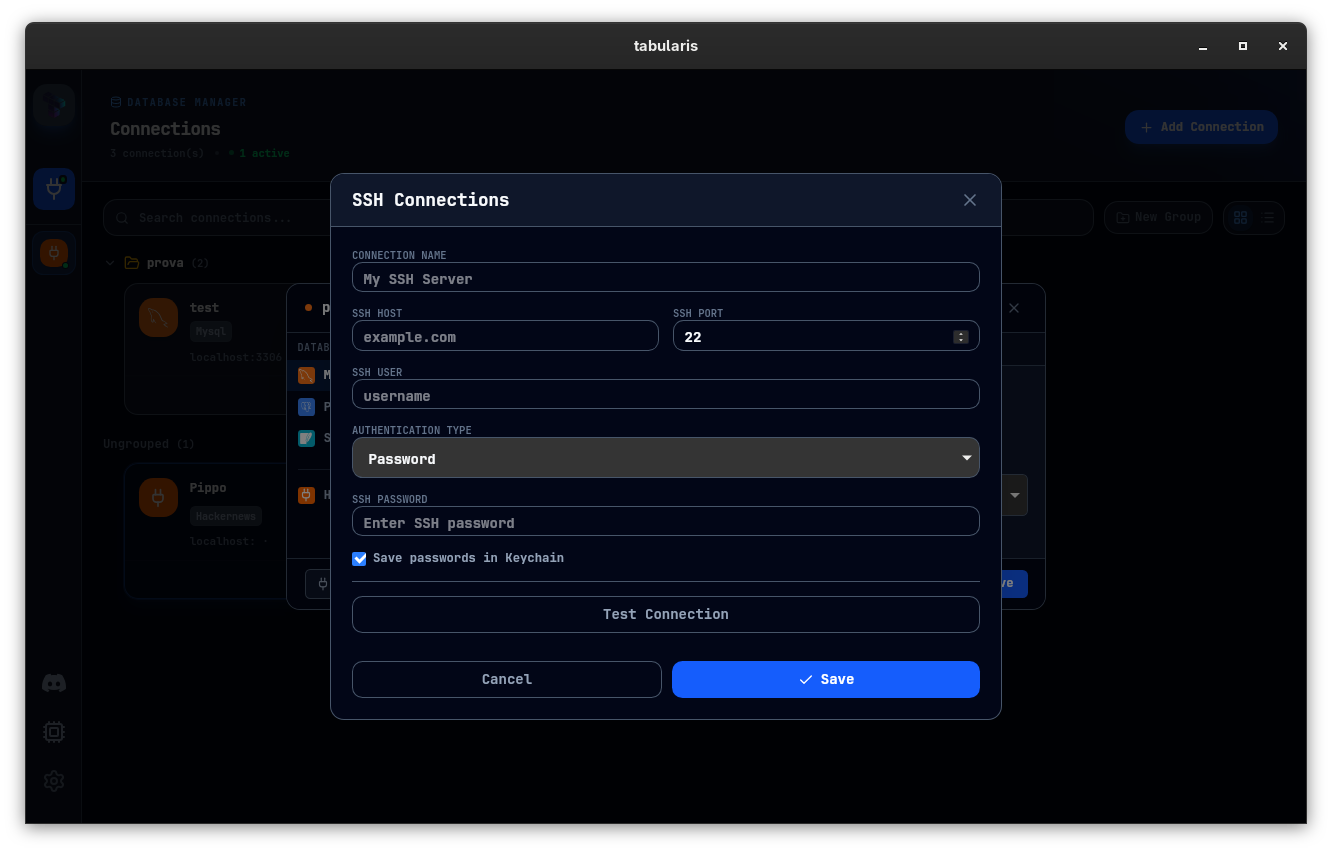
SSH connections are stored as separate reusable profiles (ssh_connections.json). A single SSH profile (e.g., your production bastion) can be reused across multiple database connections. Manage SSH profiles via Settings → SSH Connections or the SshConnectionsModal.
| SSH field | Description |
|---|---|
| Host | Bastion hostname or IP |
| Port | Default 22 |
| User | Your user on the bastion host |
| Auth type | password or ssh_key — determines which fields are shown in the UI |
| Password | SSH password (uses Russh backend when set) |
| Key file | Path to private key (for ssh_key auth; uses System SSH backend when no password) |
| Key passphrase | Stored in OS keychain if "Save passwords in Keychain" is checked |
ProxyJump / multi-hop example
Define the chain in ~/.ssh/config and use the System SSH backend:
Host bastion
    HostName bastion.example.com
    User ec2-user
    IdentityFile ~/.ssh/prod.pem

Host db-host
    HostName 10.0.1.50
    User ubuntu
    ProxyJump bastion
Set the SSH profile host to db-host, auth type to ssh_key, and leave the password field empty. With no password provided, Tabularis uses the System SSH backend, which delegates to ssh and resolves the chain automatically.
Kubernetes Tunnels
For databases running inside a Kubernetes cluster, the connection modal's Kubernetes tab runs a managed kubectl port-forward as the transport — pick a context, namespace, resource, and container port via cascading dropdowns discovered from your kubeconfig. Saved K8s profiles live in k8s_connections.json and are reusable across connections, mirroring the SSH profile pattern. Connections with a tunnel show a blue K8s badge in the sidebar and on the Connections page.
Full reference: Kubernetes Tunneling.
AWS SSM Port Forwarding
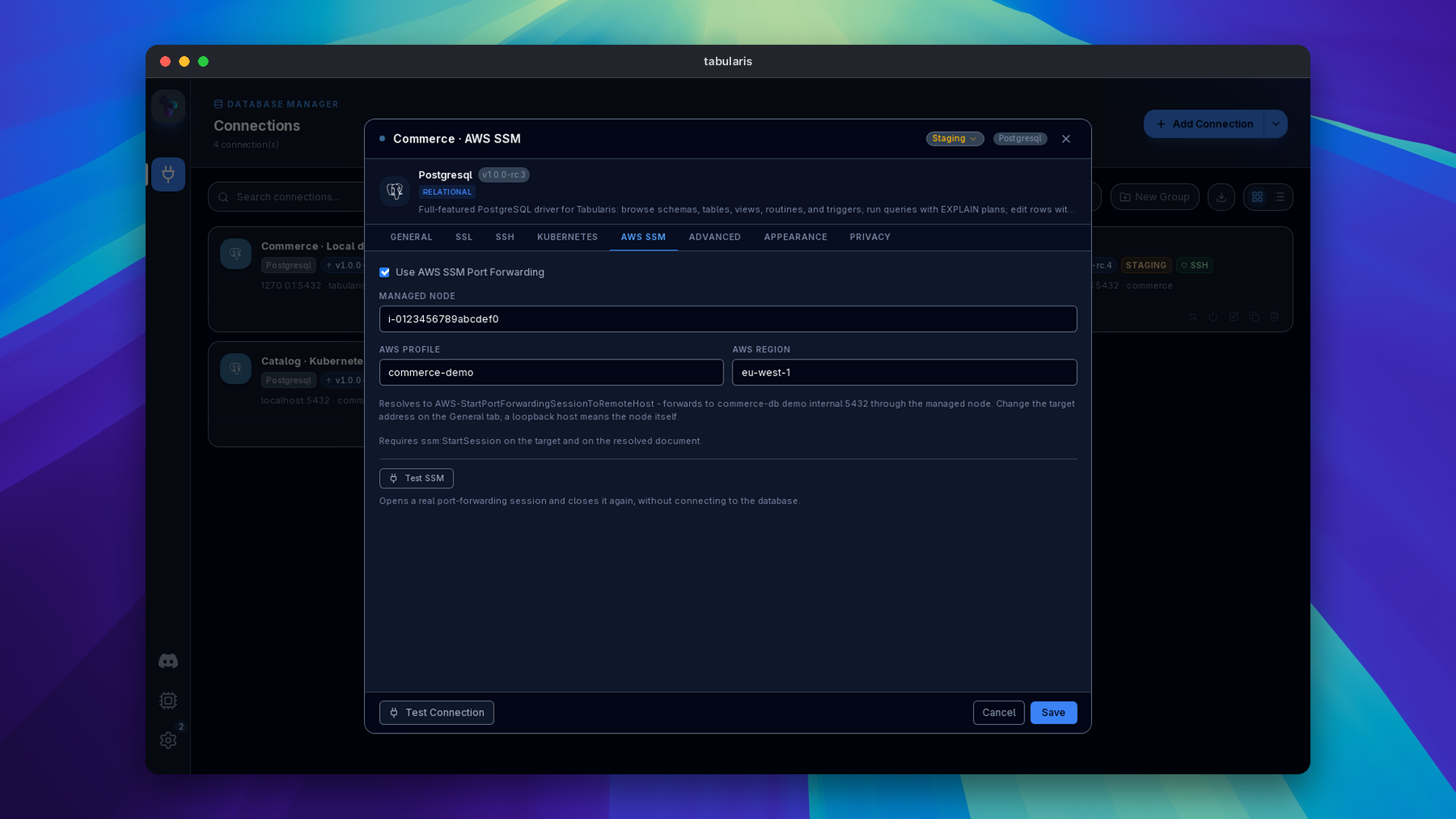
Since v0.25.0 the connection modal has an AWS SSM tab. Enable Use AWS SSM Port Forwarding, enter the Managed Node id and, optionally, an AWS Profile and AWS Region. On connect Tabularis runs aws ssm start-session as a port-forwarding session and points the driver at the local port it reports. The forward target is the connection's own host and port from the General tab: a loopback target uses AWS-StartPortForwardingSession, any other host uses AWS-StartPortForwardingSessionToRemoteHost, and the tab shows which one applies. Test SSM opens a real session and closes it again without connecting to the database. Credentials are handled entirely by the AWS CLI; nothing SSM-specific is stored in the keychain. Connections using SSM show an SSM chip on the Connections page and in the sidebar. SSH, Kubernetes and AWS SSM are mutually exclusive on a connection.
Full reference: AWS SSM Tunneling.
Connection Actions
Right-click any connection — in the sidebar or on the Connections page — for:
- Edit — modify any field, including switching the SSH profile
- Duplicate — clone the profile with a new name and ID
- Delete — removes the profile from
connections.jsonand the associated keychain entry - Disconnect — closes the active connection pool without deleting the profile. SSH tunnels are shared between connections that use the same bastion and target, and stay open until Tabularis quits or the proxy settings change
- Open in New Window — opens the connection in its own standalone window (see below)
- Switch to plugin / Switch back to built-in — on built-in PostgreSQL connections only, since v0.23.0 (see Deprecated Built-in PostgreSQL Driver and Plugin Migration)
Open in New Window
Open in New Window spins a connection out into its own OS window — useful for keeping one database on a second monitor while you work in the main window. Tabularis test-connects first and only creates the window on success, so a failing connection surfaces its error where you triggered it rather than in a freshly-opened empty window.
A connection opened this way is owned by its window and detaches from the originating sidebar rail (its underlying pool stays warm and is reused). Open state is shared across every window — a connection open anywhere shows as open on every window's Connections page. Disconnecting closes the dedicated window; the main window is never auto-closed. Closing a dedicated window tears its connection down so nothing leaks.
Per-Connection Appearance
Every saved connection can override its driver's default icon and accent color. Open the New Connection modal (or edit an existing one) and switch to the Appearance tab.
Video unavailable
- Accent color — pick from a 12-swatch curated palette or paste a custom hex. The accent applies to the connection card on the Connections page, the sidebar entry once the connection is open, the Visual Explain modal's connection chip, and the editor tab bar of the active connection — the active-tab indicator, body gradient, loading bar, rename input, and split-pane panel headers all follow the connection color (falling back to the default blue when no connection is active). Falls back to the driver manifest color when no override is set.
- Icon — four mutually-exclusive tabs:
- Default — keeps the driver's manifest icon.
- Pack — a curated 30-icon subset of lucide-react covering the common shapes (cubes, clouds, layers, shields, branches…).
- Emoji — a single emoji grapheme of your choice.
- Image — upload a PNG, JPG, WebP, or SVG (max 512 KB). MIME type is validated against the file's magic bytes; SVGs are rejected if they contain
<script>,javascript:URLs, oron*=event handlers. Custom images are stored under<app_data>/connection-icons/and cascade-deleted when the connection is removed.
The override is persisted alongside the rest of the connection profile in connections.json and round-trips through Export / Import like every other field. The classic use case is differentiating two same-driver connections that would otherwise look identical in the sidebar — for example, a MySQL local in green next to a MySQL prod in red, each with its own icon.
Tags and Environments
Since v0.19.0, two complementary ways to keep a long connection list honest.
Colored Tags
Free-form colored tags can be attached to any connection from the Appearance section of the connection modal: create tags inline on the shared accent palette, or switch to manage mode to rename, recolor or delete them. Tag names are unique (case-insensitive) and capped at 32 characters.
Tags render as colored chips on connection cards and list rows, and tag names participate in the connection search filter. They are stored in connections.json alongside groups and ride along in Export / Import and automatic backups: selective exports include only the tags actually in use, and imports merge by id first, then by name — re-importing a profile that uses a "prod" tag on another machine reuses the existing tag instead of duplicating it.
Environment Classification
Each connection can optionally declare itself development, staging, or production, picked in the connection modal's title bar and preserved across duplicate and import. Production identity is deliberately loud:
- a PROD badge on connection cards and list rows,
- a red ring on open sidebar entries,
- a permanent red banner while the active connection is production.
Production Write Guard
On a production connection, any statement that isn't provably read-only asks for confirmation first, with a SQL preview and a per-connection "don't ask again" that lasts for the session. Detection is conservative: only SELECT, SHOW, DESCRIBE, PRAGMA and EXPLAIN of a SELECT count as read-only — data-modifying CTEs, EXPLAIN ANALYZE of a write (which executes the write on PostgreSQL) and unknown statement types (CALL, SET, …) all prompt. The guard covers editor runs, staged grid-edit commits, immediate cell edits, row insertion, notebook cells and AI-generated queries. Since v0.21.0 it runs before the destructive-query guard and replaces it on production connections, so a DELETE without a WHERE shows one production warning instead of two dialogs. The optional five-second countdown (Settings → General → Delay safety confirmations, off by default) applies here too. The red production banner is shown on the connection editor only, not in Settings.
Connection Groups
Connections can be organized into collapsible folder groups, and since v0.15.0 groups can be nested to arbitrary depth — folders inside folders. Right-click on the connection list background and select New Group, or hover a group header and click the + button to create a subfolder inline.
Both inputs accept / as a path separator: typing clients/acme/staging creates the whole chain in one go, reusing any existing segment case-insensitively. Drag connections between groups by grabbing them in the sidebar; dragging a group onto another group's header past one indent step moves it inside that group, while dropping near the left edge keeps the plain reorder. Moving a folder into one of its own descendants is rejected with an error.
Deleting a group cascade-deletes its entire subtree — nested groups and every connection inside them. A folder's count badge sums direct and descendant connections, so a collapsed tree still shows what it holds.
Multi-Select and Bulk Actions
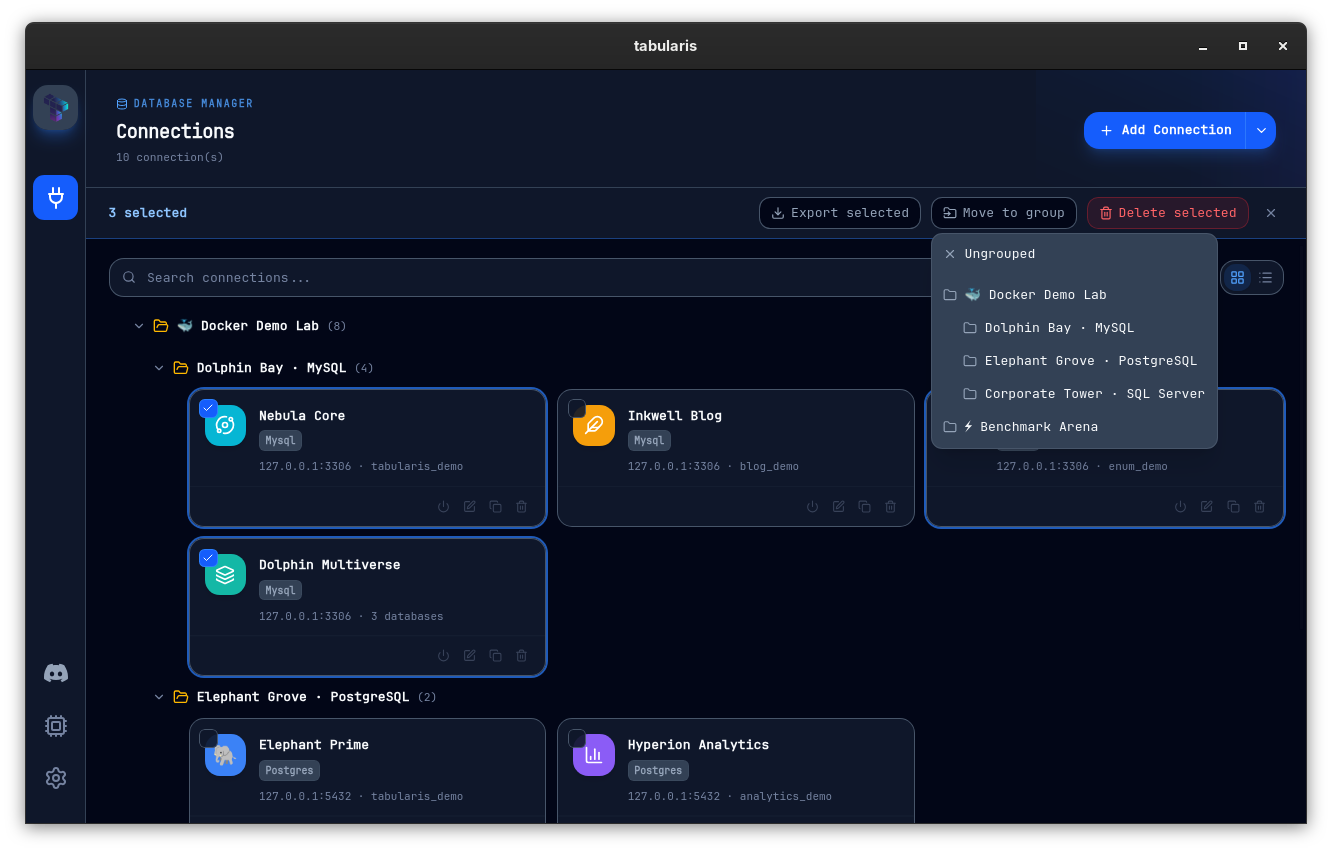
Hovering a connection card (grid or list view) reveals a selection checkbox. With one or more connections selected, a pinned action bar shows the count and offers Move to group (a submenu of the nested group tree, plus Ungrouped), Delete selected (behind a confirmation), and Export — which writes only the selected connections, pruning the group list to the ancestor chains they actually need. Credentials of unselected connections are never resolved from the keychain during a selective export.
Export / Import
The toolbar on the Connections page exposes Export and Import buttons (the Import button also appears on the empty-state view of a fresh install). Both operate on a single JSON payload that round-trips your full connection set — including the nested group hierarchy — between machines.
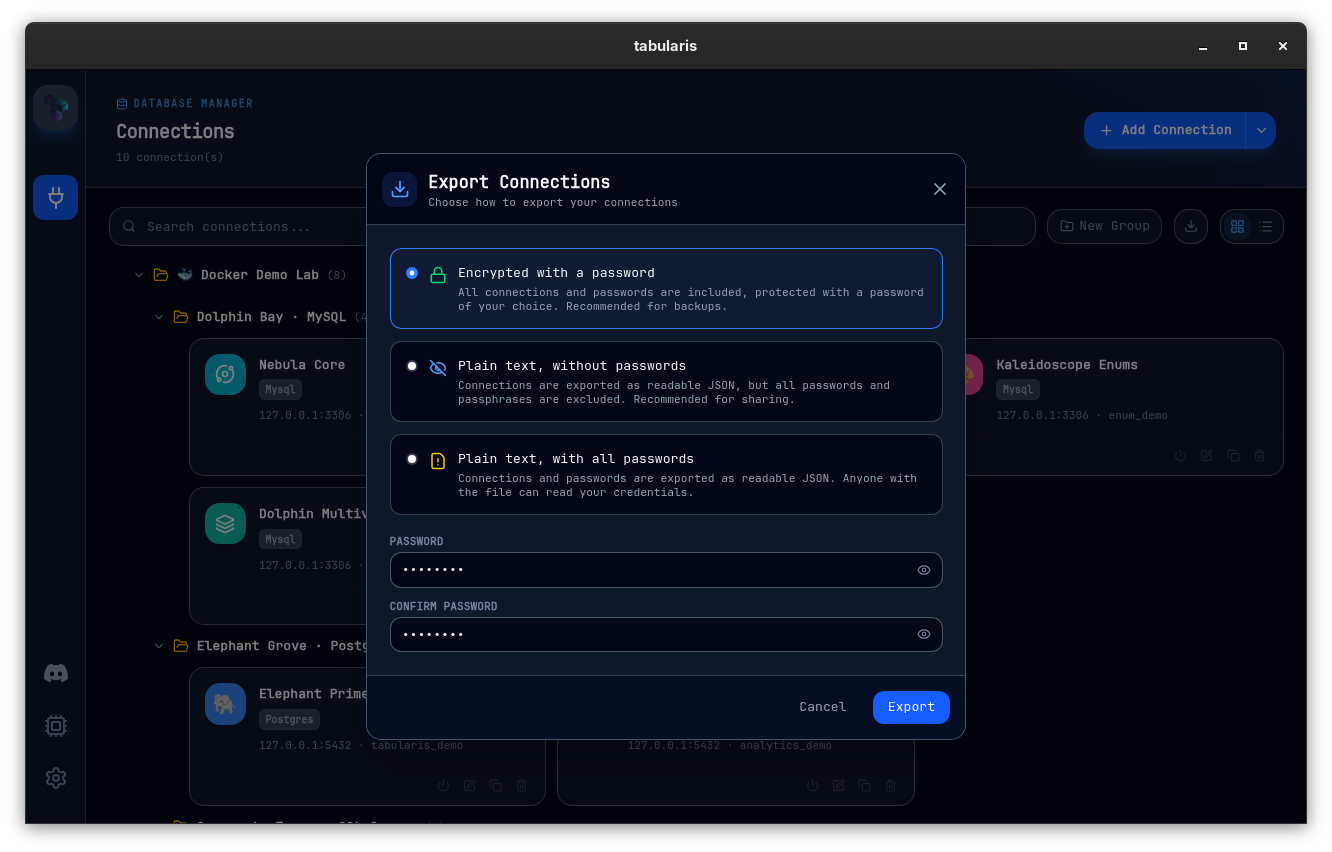
Export opens a modal offering three modes:
- Encrypted with a password (default) — the payload is encrypted with AES-256-GCM under an Argon2id-derived key. This is the mode to use whenever the file will cross a machine boundary.
- Plain text without passwords — secrets are stripped from the payload; useful for sharing a connection topology without credentials.
- Plain text with all passwords — every credential (database password, SSH password, SSH key passphrase) is resolved from the OS keychain and written in cleartext. Treat the file like a
.envand store it accordingly.
Import takes that payload — detecting the encrypted envelope and prompting for the password when needed — and opens the same review modal used for importing from other SQL clients: every connection in the file is listed, duplicates of existing connections can be imported as new (Import), replace the existing one (Replace), or be skipped (Skip), and each new connection can be assigned a target group. Embedded passwords go into the OS keychain (see Keychain Details) for connections with Save passwords in Keychain enabled, and into connections.json otherwise. Plain exports produced by older versions import unchanged.
Automatic Backups
Since v0.16.0, the manual export has an automated counterpart: a Backup tab in Settings that periodically writes an encrypted export of your connections. Automatic backups always use the encrypted envelope (AES-256-GCM under an Argon2id-derived key) — plaintext automatic backups are deliberately not offered.
Video unavailable
- Triggers — manual ("Back up now"), on an interval (6h / 12h / daily / weekly presets or a custom value, with the next scheduled run shown in the settings), on app launch, or on app close. The on-close backup is bounded by a timeout so it can never prevent the app from quitting.
- Destinations — a local folder, or a WebDAV collection (Nextcloud and compatible servers).
- Retention — old backups are rotated by count; rotation only ever touches
tabularis-backup-*.jsonfiles, so other files in the same directory are never removed. - Credentials — the backup encryption password and WebDAV credentials are stored in the OS keychain, never in
config.json. Changing the backup password only affects future backups; files already written keep the password they were encrypted with.
Settings changes apply without a restart, and each backup run is logged — including which trigger fired it — in the Logs tab. A backup file is a regular encrypted export: restore it through the normal Import flow.
Import From Other SQL Clients (Beta)
Since v0.15.0, the Import dropup next to Add Connection can also read saved connections directly from other clients installed on your machine: DBeaver, Beekeeper Studio, TablePlus, DataGrip, and Sequel Ace. Each source is parsed into a neutral format, and stored credentials are decrypted or read from the source client's keychain when you opt in.
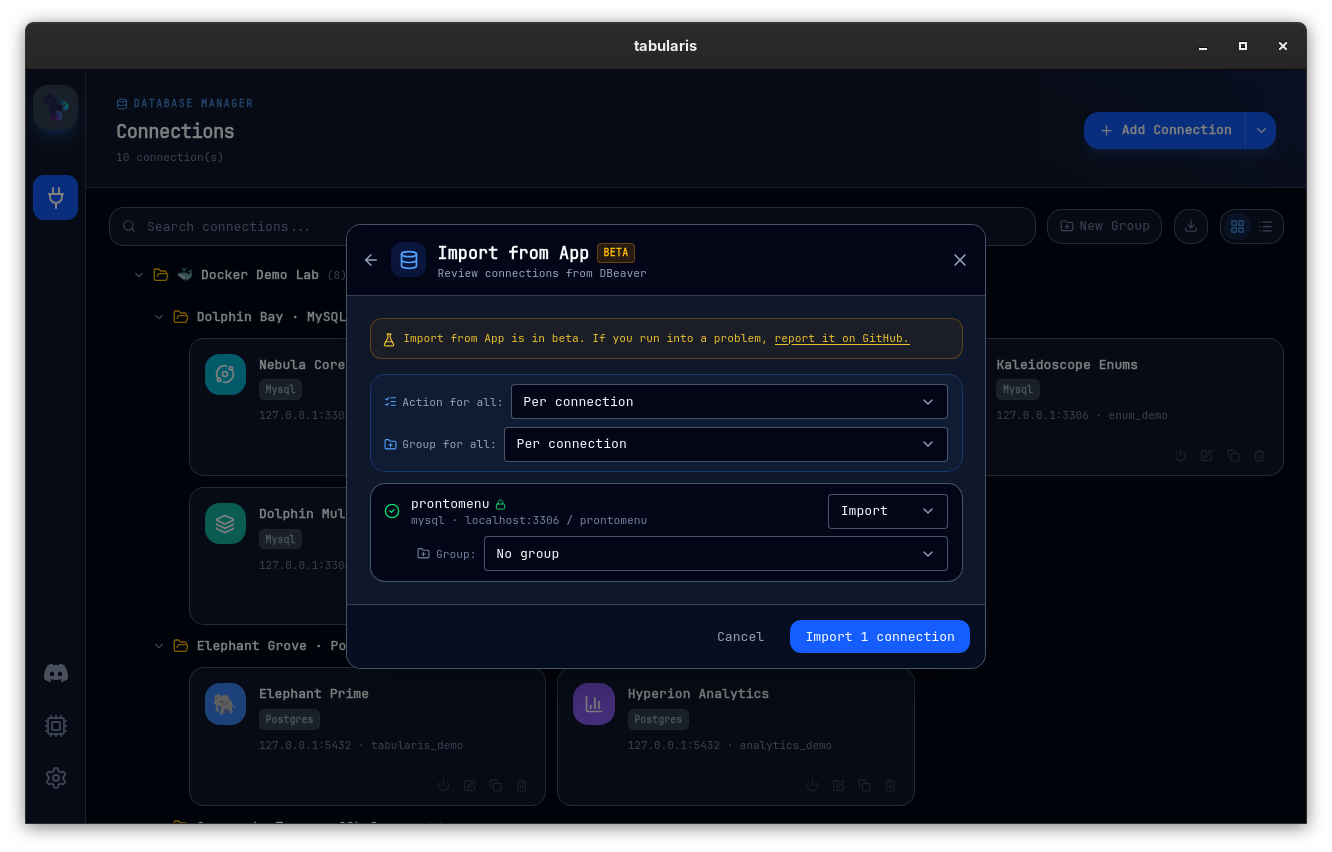
Nothing is merged blindly: a preview lists every connection found, flags duplicates against your existing set (keep, replace, or skip), and lets each new connection pick a target group — or create one on the fly — with defaults seeded from the source app's own folder structure.
If TablePlus stores its data outside the default Application Support location, auto-discovery reports the source as unavailable; since v0.21.0 you can point the importer at the TablePlus Data directory (or a plist inside it) instead.
The feature is marked beta: parser coverage across five apps and three platforms will keep improving, and the modal links directly to the issue tracker for files that don't parse cleanly.
Multi-Database Support (MySQL / MariaDB)
MySQL and MariaDB allow a single connection to read and write across multiple databases on the same server. Tabularis exposes this natively: when creating or editing a MySQL connection, open the Databases tab and pick a mode.
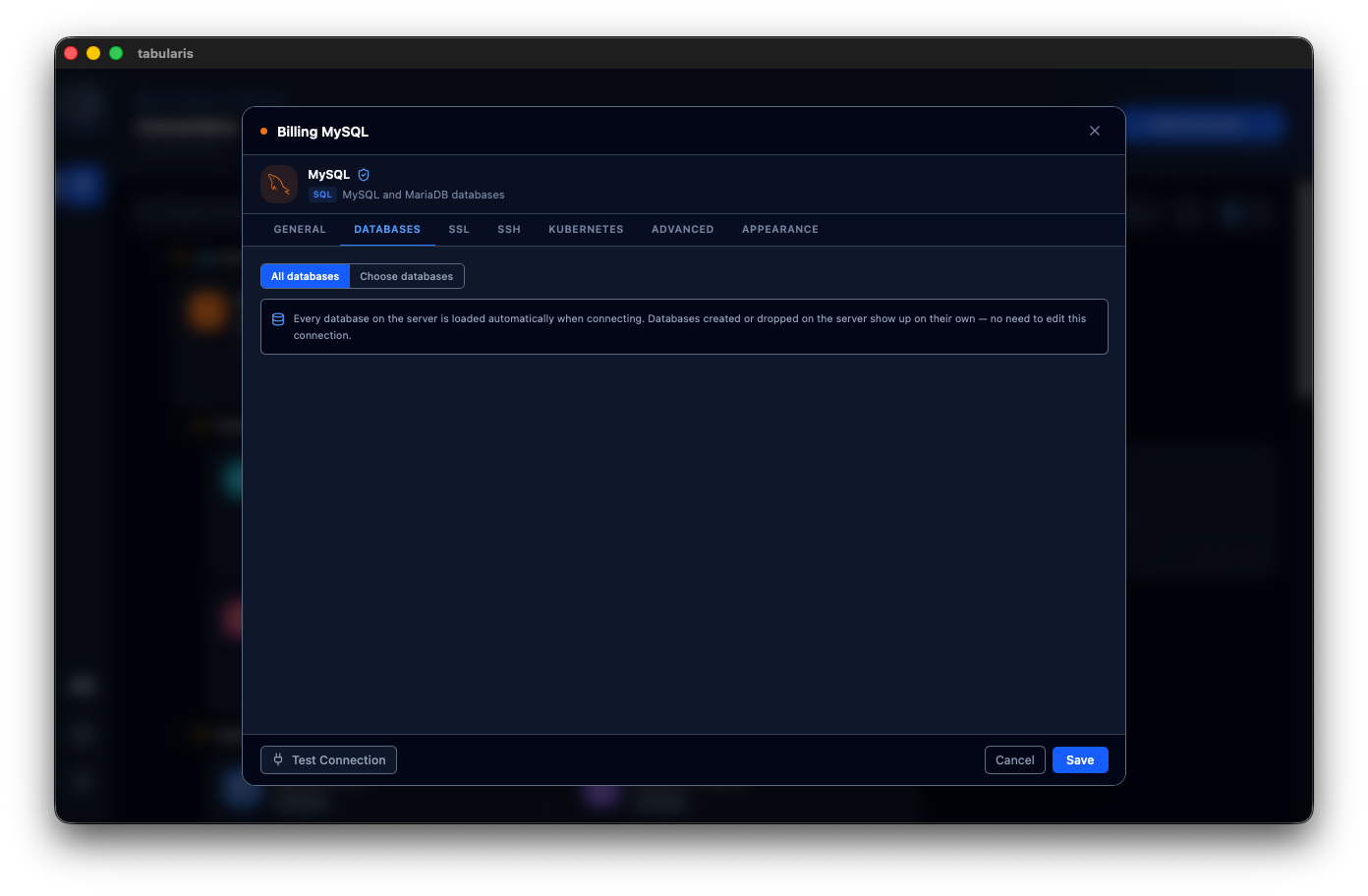
All databases is the default for new connections: save without selecting anything and Tabularis resolves the full server list at connect time. New databases show up on their own, dropped ones disappear, and you never have to edit the connection to see them. The sidebar's refresh button re-syncs the list on demand — nothing is persisted — and toasts what was added and removed. Pasting a connection URI with no database in it switches to this mode automatically. Connection cards label such a connection "All databases" instead of showing a database count.
Choose databases is the explicit mode: click Load Databases to fetch every database visible to your user, check the ones you want, and save. The "select at least one database" save block only applies here. Narrowing an all-databases connection to a subset from the sidebar's manage popover persists that choice and exits all-databases mode.
An all-databases connection has no default schema, so it always issues database-qualified queries — including when the server happens to hold a single database.
Each selected database appears as its own collapsible node in the Explorer sidebar. Expand a node to see its tables and views. Double-click a table to open it in the editor.
Cross-database references use fully qualified names (database_name.table_name) automatically, so MySQL resolves them correctly regardless of which database the connection was initially opened against.
The connection format accepts either a plain string ("mydb") or an array (["db1", "db2", "db3"]). Existing single-database connections continue to work without any changes.
This feature applies only to drivers that support cross-database access from a single connection. SQLite (file-based) and PostgreSQL (schema-based) are unaffected.
Cleartext Password Plugin (MySQL bastions)
Some MySQL proxies — notably Warpgate — require the mysql_clear_password auth plugin and do not implement the prepared-statement protocol, so ordinary prepared queries fail with server error 1047. Enable Enable cleartext password plugin in the MySQL connection's advanced options to authenticate through them; when it's on, the driver routes every statement through the text protocol instead of preparing it.
Because the plugin sends the password in cleartext, the toggle is only available when an enforced TLS mode is selected (required, verify_ca, or verify_identity) — preferred and disabled are rejected, since they can silently fall back to an unencrypted link.
AWS RDS IAM Authentication (MySQL)
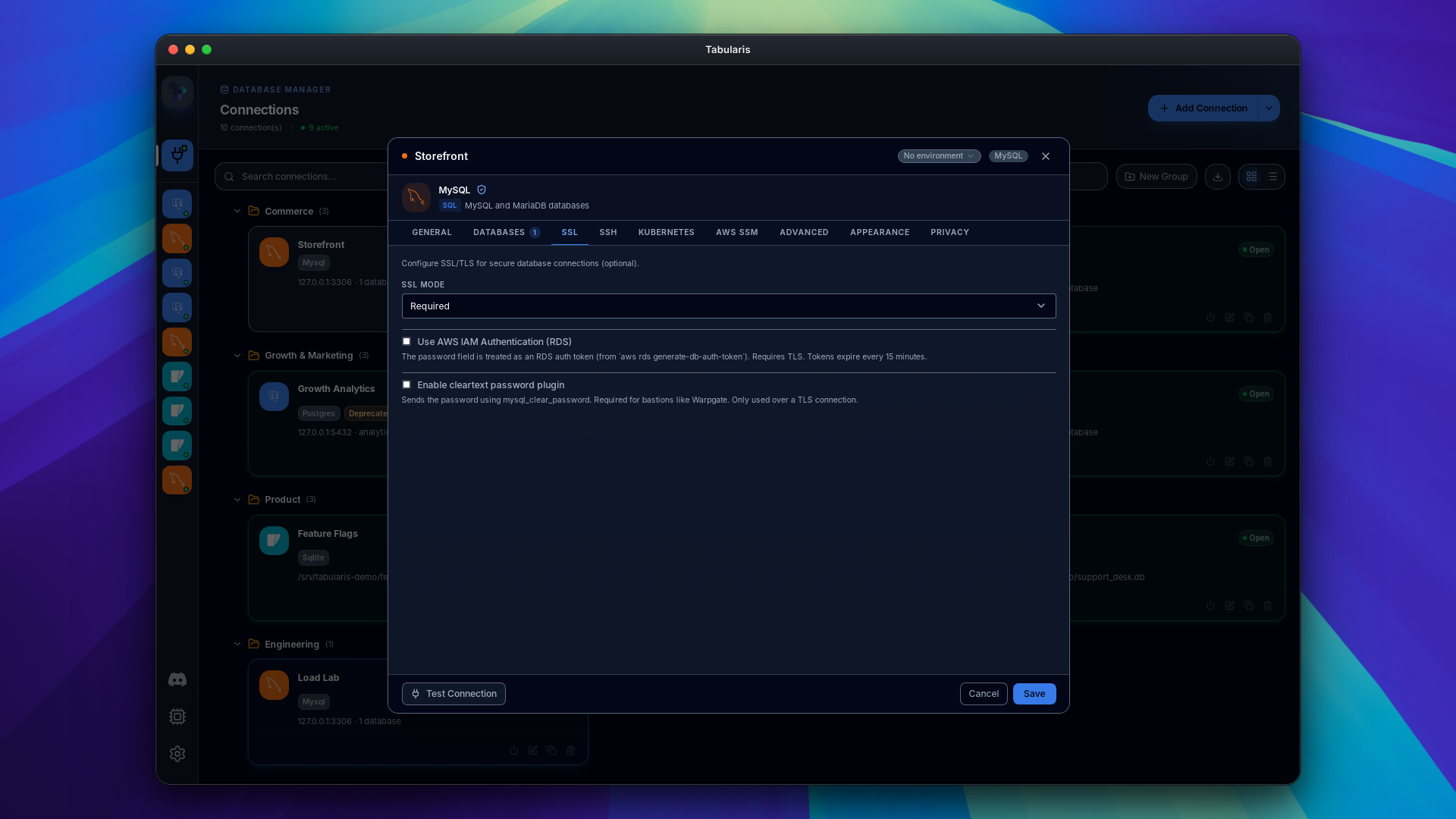
For MySQL/MariaDB on AWS RDS, enable Use AWS IAM Authentication (RDS) and paste the output of aws rds generate-db-auth-token into the password field. The token is sent with the cleartext password plugin, so a TLS mode is required: disabled is refused and preferred is upgraded to required. Tokens expire every 15 minutes and are never read from the keychain — paste a fresh one when you connect.
PIPES_AS_CONCAT
MySQL connections run with the PIPES_AS_CONCAT SQL mode by default (Set PIPES_AS_CONCAT sql_mode on connect), so || concatenates strings as in standard SQL. Servers that reject the setting, such as Vitess and PlanetScale, are detected and the mode is skipped automatically, so the option can stay enabled.
Multi-Schema Support (PostgreSQL)
When connected to PostgreSQL, Tabularis loads all schemas by default. To control which schemas appear in the sidebar for a given connection, use the schema selector in the sidebar header. Your selection is persisted per connection in config.json under selectedSchemas.
The schema preference (which schema is "active" for DDL operations like CREATE TABLE) is also persisted per connection under schemaPreferences.
Connection Health Check
Tabularis continuously monitors every active connection with a lightweight ping loop. If the backend detects that a connection is no longer reachable, it automatically disconnects it and notifies you with a toast alert.
How it works
- Every N seconds (default: 30), Tabularis sends a ping to each open connection.
- Built-in drivers (PostgreSQL, MySQL, SQLite) use a pool-level
ping— no extra query is executed. - Plugin drivers receive a
pingJSON-RPC call. If the plugin has not implementedping, Tabularis falls back totest_connectionautomatically. - After 2 consecutive failures, the connection pool is closed, the connection is removed from the active set, and a
connection-health-failedevent is emitted to the UI.
Configuring the interval
Open Settings → General → Connection Health Check and set the Ping Interval field (0–120 seconds). Setting it to 0 disables health checks entirely.
The setting maps to the pingInterval key in config.json (see Configuration).
What happens on failure
When a health check failure triggers a disconnection:
- The connection pool is closed and resources are freed. Shared SSH tunnels are left running.
- A toast notification appears with the error message and a button to navigate back to the Connections page.
- You can reconnect at any time by clicking the connection again.
Read-Only Access
The connection editor has no read-only toggle. Two mechanisms cover the common cases:
- Mark the connection as production to get the Production Write Guard, which asks for confirmation before any statement that isn't provably read-only.
- For AI clients, MCP Read-Only Mode blocks writes from MCP on selected connections or on all of them.
Neither is a substitute for proper database-level permissions: for a hard guarantee, connect with a database user that only has read privileges.
Keychain Details
Every keychain entry uses the service name tabularis; the account identifies the secret:
| Secret type | Keychain account |
|---|---|
| DB password | <uuid>:db |
| Connection string (plugin drivers) | <uuid>:connection_uri |
| SSH password | <uuid>:ssh |
| SSH key passphrase | <uuid>:ssh_passphrase |
| AI API key | ai_key:<provider> |
On macOS you can inspect an entry manually:
security find-generic-password -s "tabularis" -a "<uuid>:db" -w
On Linux with secret-tool:
secret-tool lookup service tabularis username "<uuid>:db"
See Security & Credentials for the full list.