
Configuration
Tabularis is designed to work perfectly out-of-the-box, but offers extensive configuration options via the UI Settings panel and an underlying config.json file.
Accessing Settings
Open the Settings panel from:
- Sidebar: Click the gear icon at the bottom of the left sidebar
General Settings
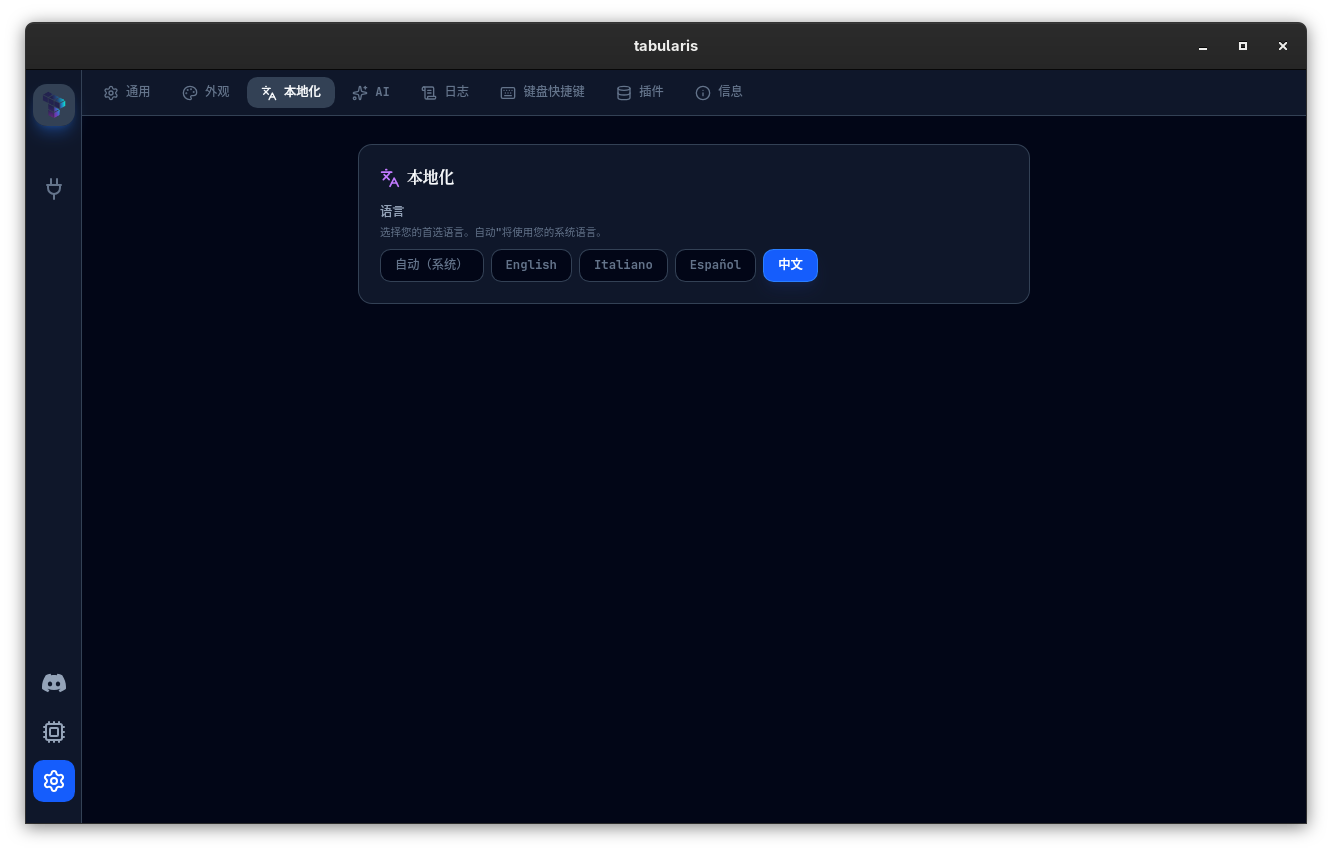
- Language Support: Native translations for English, Italian, Spanish, Chinese (Simplified), French, German, Japanese, Russian, Tagalog (added in v0.15.0), Korean (added in v0.16.0), and Brazilian Portuguese (added in v0.17.0). The app defaults to your OS locale — Filipino (
fil) systems map to Tagalog automatically, and region-coded locales likept-BRresolve correctly — and changing the language applies immediately. With eleven languages the picker is now a searchable select showing each language's native name. - Display Timezone: A searchable picker of IANA timezones (with current UTC-offset labels) under Settings → Localization, defaulting to Auto (your OS zone). The selected zone drives every UI timestamp — AI activity log, query history, favorites — plus CSV / JSON / notebook exports and their default filenames. Query-history date grouping (today / yesterday / older) is classified in the same zone, so headers and per-row times always agree.
- Window Decorations (since v0.22.0): Automatic (default), Always show or Always hide for the native titlebar. In Automatic mode Tabularis hides native decorations on Linux when it detects a tiling window manager (Hyprland, Sway, i3, Niri, River, bspwm, awesome, dwm, leftwm, qtile, xmonad) through the session's environment variables, and keeps them on everywhere else. The choice applies to open windows immediately and to secondary windows when they are created. Stored as
windowDecorationsinconfig.json. - Delay safety confirmations (since v0.21.0): off by default. When enabled, the confirm button of the destructive-query and production-write dialogs stays disabled for five seconds so the warning is actually read. Stored as
safetyConfirmationDelayEnabledinconfig.json. - Startup: Show Welcome Screen, Reopen Last Connections (on by default, reconnects to the connections that were open when the app was last closed) and Start Maximized (off by default). Stored as
showWelcome,autoConnectLastConnectionandstartMaximized. - Update Checks: Lives in Settings → Info, not General. Check for updates on startup enables or disables the automatic check at launch, and Release channel picks Stable (tested releases) or Nightly (builds from the latest
main). Checks query the GitHub Releases API — no version data is sent, only a GET request is made.
Network & Proxies
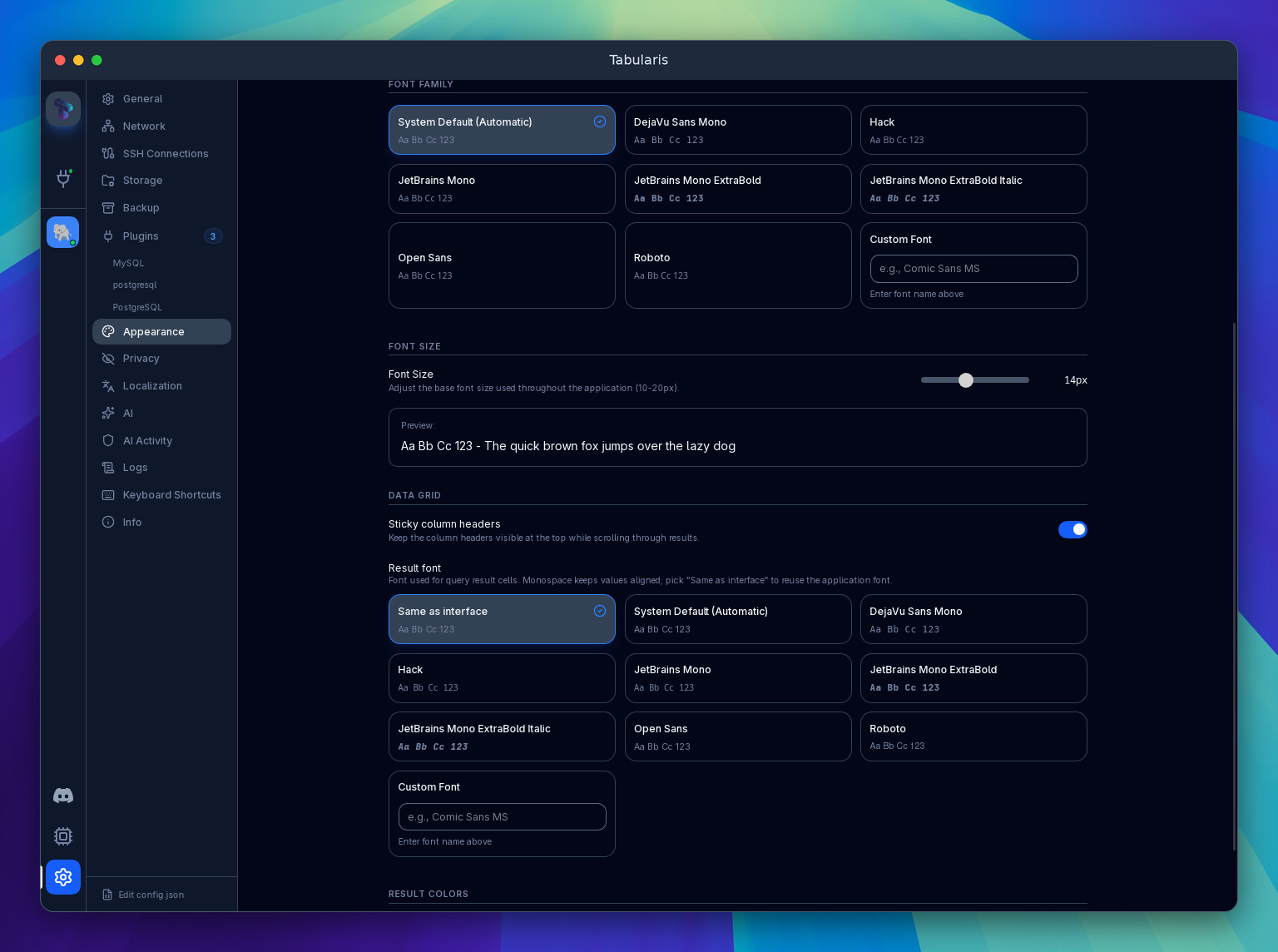
Since v0.24.0, Settings → Network configures a shared HTTP CONNECT or SOCKS5 proxy. Supply its host, port and optional username/password, then opt in the traffic scopes you need:
- App network requests: update checks, plugin downloads, registry requests and WebDAV backups.
- Database connections: direct database TCP traffic.
- AI / LLM endpoints: provider requests.
- SSH tunnels: the outbound bastion connection.
The global proxy is disabled by default and scopes are opt-in. Database connections (Advanced) and individual AI providers (Settings → AI) can inherit the global setting, use a custom proxy or explicitly disable proxying. Target overrides take precedence. Passwords are stored in the OS keychain, not in configuration files.
SSH and Kubernetes tunnel endpoints are not proxied a second time on their local database leg. SSH profiles do not have their own proxy picker: use the global SSH scope or the database connection's override. Saving global proxy settings stops existing SSH tunnels and cached forwards; reconnect afterward. This does not configure arbitrary networking implemented inside third-party plugins, and proxy routing does not replace endpoint TLS.
Result Font
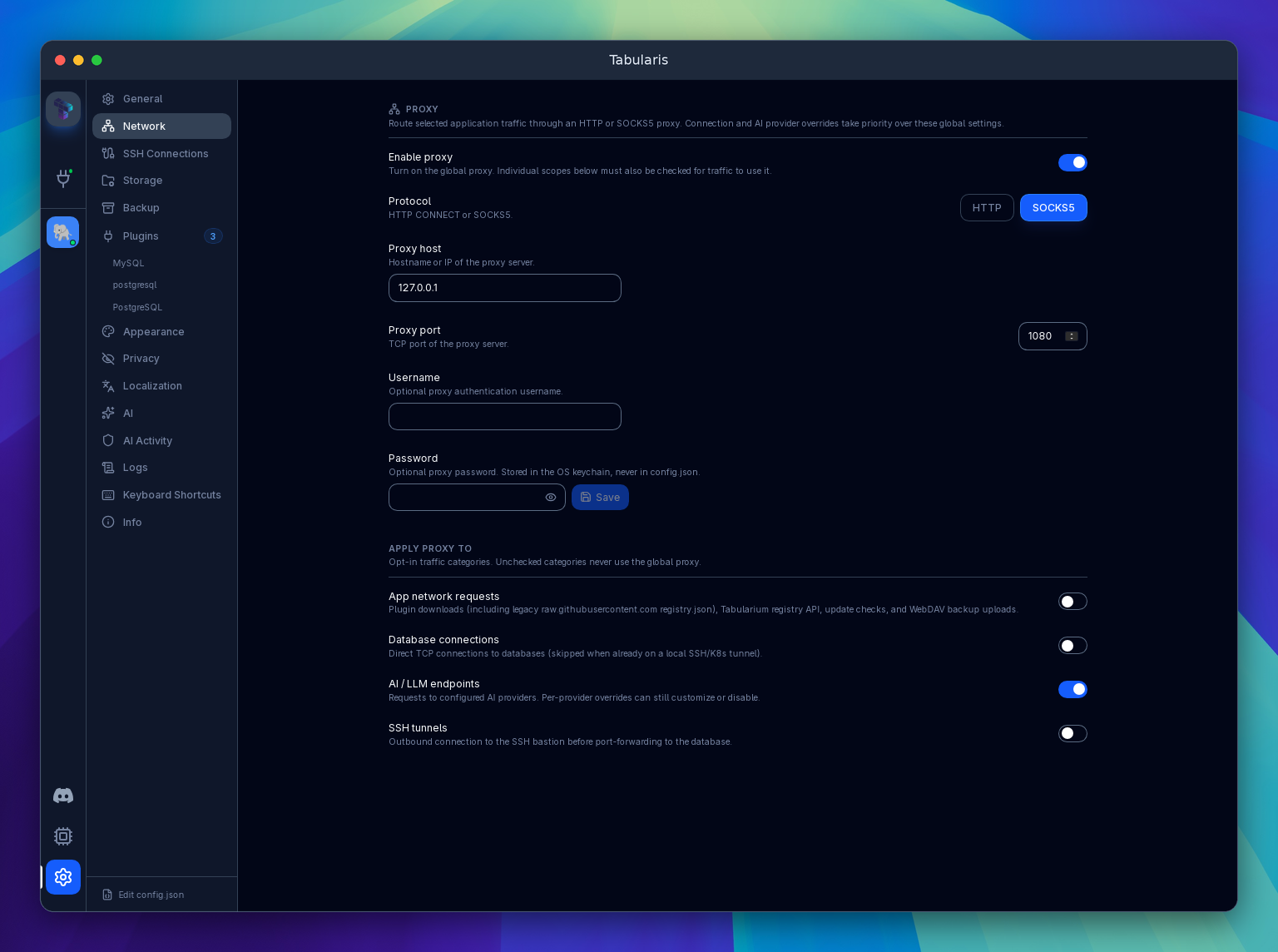
Since v0.24.0, Settings → Appearance → Data Grid → Result font controls result cells, inline edit inputs and multiline textareas independently of SQL editor typography. Choose Same as interface, a bundled font or a custom family. The default remains JetBrains Mono. See Themes.
Storage Paths & config.json
Tabularis stores non-sensitive configuration and UI preferences in a central config.json. Connection metadata lives in a separate connections.json in the same directory. Passwords and SSH passphrases are never stored in config.json.
File Locations
| Platform | Path |
|---|---|
| Windows | %APPDATA%\tabularis\config.json |
| macOS | ~/Library/Application Support/tabularis/config.json |
| Linux | ~/.config/tabularis/config.json |
Custom Storage Location
Since v0.23.0 the whole data folder can be moved from Settings → Storage. Connections, config.json, saved queries, themes, notebooks, query history and custom connection icons all live under the chosen root; installed plugins are the one exception and always stay in the platform data directory, because they are per-platform binaries. Pointing the folder at a synced location (iCloud Drive, Dropbox, …) is the intended way to share connections across machines.
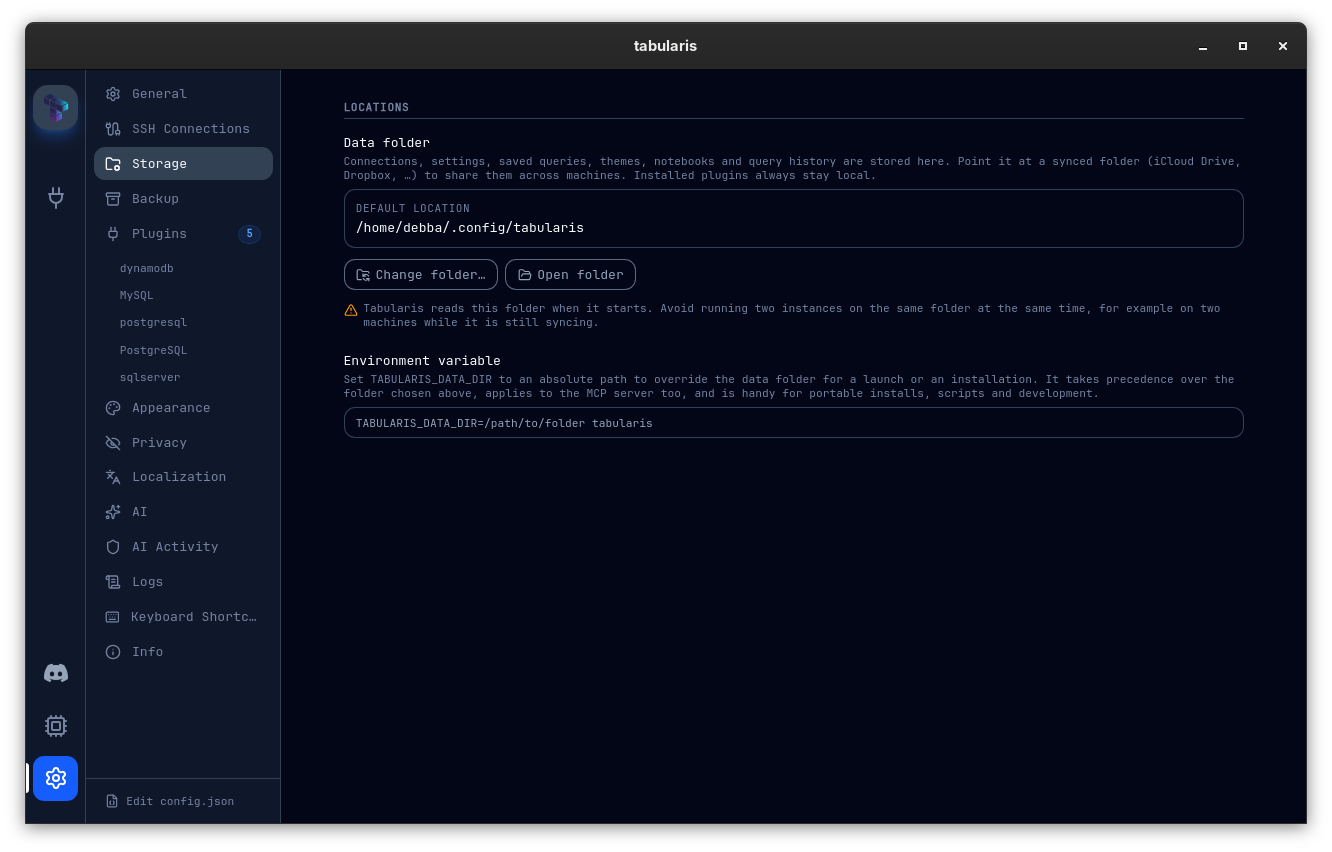
- Change folder… opens a folder picker. If the target already contains Tabularis data (for example synced from another machine) the default is to use it as is; otherwise you can copy your current data into it (existing files are never overwritten) or start with an empty folder. The current folder, anything nested inside it or containing it, relative paths and plain files are rejected.
- The choice is stored in
storage-location.jsoninside the default config directory listed above, so the app finds it before loading anything else. It is resolved once per process, so a change requires a restart; the tab shows a Restart now banner until then. The GUI and thetabularis --mcpsubprocess read the same pointer file. - The
TABULARIS_DATA_DIRenvironment variable overrides the pointer file for a launch or an installation (TABULARIS_DATA_DIR=/path/to/folder tabularis). When it is set the tab shows the folder as read-only. It applies to the MCP server too and is the right tool for portable installs, scripts and development. - Tabularis reads the folder at startup. Avoid running two instances on the same folder at the same time, for example on two machines while it is still syncing.
Manually Editing config.json
The safest way to edit the file is from inside the app: Edit config.json, at the bottom of the Settings navigation, opens the raw file in a JSON editor. Saving validates the content against the configuration schema (an invalid value, such as a string where a number is expected, is rejected with an error) and then asks you to restart, because changes only apply after a restart.
You can also edit the file with any text editor while the application is closed. Tabularis saves the full settings every time you change a setting in the UI, so edits made while the app is running are overwritten by the next change.
A minimal valid config.json looks like:
{
  "language": "auto",
  "fontSize": 14,
  "aiEnabled": false
}
Any key omitted from the file falls back to its default value. You do not need a complete file.
config.json Full Reference
| Key | Type | Default | Description |
|---|---|---|---|
theme |
string |
null |
Active UI theme ID (used in Static theme mode). See Themes. |
followSystemTheme |
boolean |
null |
Since v0.22.0. When true, the app follows the OS light/dark appearance and picks lightThemeId / darkThemeId accordingly. Absent or false means Static mode. |
lightThemeId |
string |
null |
Since v0.22.0. Theme applied when the OS is in light mode and followSystemTheme is on. |
darkThemeId |
string |
null |
Since v0.22.0. Theme applied when the OS is in dark mode and followSystemTheme is on. |
windowDecorations |
string |
"automatic" |
Since v0.22.0. automatic, alwaysShow or alwaysHide. Automatic hides native window decorations on Linux tiling window managers. Configurable from Settings → General → Window Decorations. |
language |
string |
"auto" |
Preferred locale: en, it, es, zh, fr, de, ja, ru, tl, ko, pt-BR, or auto (follows OS; fil falls back to tl). |
displayTimezone |
string |
"auto" |
IANA timezone (e.g. "Asia/Tokyo") used for UI timestamps and exports, or auto (OS zone). Configurable from Settings → Localization → Timezone. |
resultPageSize |
number |
500 |
Default rows fetched per pagination request in the Data Grid. Since v0.21.0 the pagination bar's rows-per-page selector can override this for a single tab. |
safetyConfirmationDelayEnabled |
boolean |
false |
Adds a five-second countdown to destructive-query and production-write confirmations (Settings → General → Delay safety confirmations). |
fontFamily |
string |
"System" |
Interface font (Settings → Appearance). The SQL editor uses editorFontFamily. |
fontSize |
number |
14 |
Base interface font size in pixels. The SQL editor uses editorFontSize. |
showWelcome |
boolean |
true |
Show the welcome screen at startup (Settings → General → Startup). |
autoConnectLastConnection |
boolean |
true |
Reconnect to the connections that were open when the app was last closed (Reopen Last Connections). The app tracks them itself in lastActiveConnectionId and lastOpenConnectionIds. |
startMaximized |
boolean |
false |
Open the main window maximized. |
resultColorByType |
boolean |
false |
Color result cell values by data type. See Data Grid. |
resultTypeColors |
object |
{} |
Per-type hex color overrides for number, string, date and boolean. Missing keys fall back to the theme colors. |
stickyColumnHeaders |
boolean |
true |
Keep data grid column headers pinned while scrolling (Settings → Appearance → Data Grid). Persisted across restarts since v0.27.0. |
resultZebraStripes |
boolean |
false |
Since v0.27.0. Alternate the background of data grid rows (Settings → Appearance → Data Grid → Alternating row background). See Data Grid. |
aiEnabled |
boolean |
false |
Master toggle for all AI features. |
aiProvider |
string |
null |
Active AI provider: openai, anthropic, minimax, ollama, openrouter, custom-openai. |
aiModel |
string |
null |
The model identifier string sent to the provider. |
aiCustomModels |
object |
null |
Custom model lists per provider (map of provider ID → string[]). |
aiOllamaPort |
number |
11434 |
Local port for the Ollama daemon. |
aiCustomOpenaiUrl |
string |
null |
Base URL for OpenAI-compatible endpoints (e.g., LM Studio, vLLM). |
aiCustomOpenaiModel |
string |
null |
Model name to use with the custom OpenAI-compatible endpoint. |
checkForUpdates |
boolean |
true |
Enable or disable update checks entirely. |
autoCheckUpdatesOnStartup |
boolean |
true |
Check the GitHub Releases API on boot (Settings → Info → Check for updates on startup). |
releaseChannel |
string |
"stable" |
Update channel: stable or nightly (Settings → Info → Release channel). |
lastDismissedVersion |
string |
null |
Version string of the last dismissed update notification. |
mcpOutputFormat |
string |
"json" |
Since v0.25.0. Default text encoding for MCP tool results, json or toon, used when a call does not pass output_format. Configurable from the MCP page (sidebar) → Safety tab → Tool output. See MCP Server. |
mcpReadonlyDefault |
boolean |
false |
Block MCP writes on every connection by default. See MCP Read-only Mode. |
mcpReadonlyConnections |
string[] |
[] |
Connection IDs that are the exception to mcpReadonlyDefault. |
mcpApprovalMode |
string |
"writes_only" |
When MCP queries need your approval: off, writes_only or all. See MCP Approval Gates. |
mcpApprovalTimeoutSeconds |
number |
120 |
How long a pending approval waits before it times out. |
mcpPreflightExplain |
boolean |
true |
Run an EXPLAIN before showing an approval request. |
mcpApprovalAlwaysOnTop |
boolean |
true |
Bring approval dialog to the front. |
mcpApprovalNotifySound |
boolean |
true |
Send notification and play sound for approval requests. |
aiAuditEnabled |
boolean |
true |
Record MCP tool calls in the AI Audit Log. |
aiAuditMaxEntries |
number |
5000 |
Entries per audit-log file before it is rotated (up to 5 rotated files are kept). |
aiSessionGapMinutes |
number |
10 |
Idle gap, in minutes, that starts a new audit log session. |
erDiagramDefaultLayout |
string |
"LR" |
TB (Top-Bottom) or LR (Left-Right) for Dagre layout. |
schemaPreferences |
object |
{} |
Per-connection active schema for DDL operations (map of connection ID → schema name). |
selectedSchemas |
object |
{} |
Per-connection visible schemas in the sidebar (map of connection ID → string[]). |
queryHistoryMaxEntries |
number |
500 |
Maximum number of query history entries retained per connection. |
maxBlobSize |
number |
104857600 |
Maximum size in bytes of a BLOB/bytea file that can be uploaded or loaded into memory (default 100 MB). Larger files are rejected. The grid preview of a BLOB cell is always capped at 10 KB. |
copyFormat |
string |
"csv" |
Default row copy format: csv, json, sql-insert or markdown. Configurable from Settings → General → Default Copy Format. See Data Grid → Copying Data. |
csvDelimiter |
string |
"," |
Default delimiter used when copying or exporting CSV. |
csvIncludeHeaders |
boolean |
true |
Include column names when copying rows as CSV or Markdown. |
pingInterval |
number |
30 |
Connection health check interval in seconds. 0 disables pings. See Connection Health Check. |
activeExternalDrivers |
string[] |
[] |
List of plugin driver IDs loaded at startup. |
tabulariumRegistryUrl |
string |
null |
Base URL of the Tabularium plugin registry. Defaults to the official instance at https://registry.tabularis.dev when unset — point it at your own self-hosted Tabularium to use a private registry. |
customRegistryUrl |
string |
null |
Legacy pre-Tabularium registry override. Read once during config migration, then cleared — use tabulariumRegistryUrl instead. |
pluginCallTimeoutSeconds |
number |
120 |
Since v0.26.0. Maximum time in seconds Tabularis waits for a plugin to answer one JSON-RPC call, queries included. 0 disables the limit. Overridable per plugin with plugins.<id>.callTimeoutSeconds. See Installing Plugins → Call timeout. |
plugins |
object |
{} |
Per-plugin config, including optional interpreter overrides, plugin settings values and, since v0.26.0, callTimeoutSeconds (blank inherits pluginCallTimeoutSeconds, 0 disables the limit for that plugin). |
editorTheme |
string |
null |
Monaco editor theme ID. |
editorFontFamily |
string |
"JetBrains Mono" |
SQL editor font family. The picker offers bundled families that need no system install — JetBrains Mono, plus the ExtraBold and ExtraBold Italic weights added in v0.18.0 — alongside system fonts. |
resultFontFamily |
string |
"JetBrains Mono" |
Since v0.24.0. Font for result cells and inline editors. "inherit" follows the interface font; other values select a bundled or custom family. |
proxy |
object |
disabled | Since v0.24.0. Global proxy with enabled, endpoint (protocol, host, port, optional username) and opt-in scopes (app_http, database, ai, ssh_tunnel). Passwords stay in the keychain. |
aiProviderProxies |
object |
{} |
Since v0.24.0. Per-provider proxy settings with mode: inherit, custom or disabled, and an endpoint for custom mode. |
editorFontSize |
number |
14 |
SQL editor font size in pixels. |
editorLineHeight |
number |
1.5 |
SQL editor line height multiplier. |
editorTabSize |
number |
2 |
SQL editor tab width. |
editorWordWrap |
boolean |
true |
Whether the SQL editor wraps long lines. |
editorShowLineNumbers |
boolean |
true |
Whether the SQL editor shows line numbers. |
editorAcceptSuggestionOnEnter |
boolean |
true |
Accept the highlighted autocomplete suggestion with Enter (Settings → Appearance → SQL Editor → Accept Suggestion with Enter). |
runStatementUnderCursor |
boolean |
true |
Run only the statement under the cursor when nothing is selected. See SQL Editor. |
formatterKeywordCase |
string |
"upper" |
SQL formatter keyword case: upper, lower or preserve. |
formatterFunctionCase |
string |
"preserve" |
SQL formatter function-name case: upper, lower or preserve. |
formatterIndentStyle |
string |
"standard" |
SQL formatter indent style: standard, tabularLeft or tabularRight. |
formatterTabWidth |
number |
2 |
SQL formatter indent width. |
formatterUseTabs |
boolean |
false |
Indent formatted SQL with tabs instead of spaces. |
formatterLinesBetweenQueries |
number |
1 |
Blank lines the formatter keeps between statements. |
formatterDenseOperators |
boolean |
false |
Omit spaces around operators in formatted SQL. |
backupMode |
string |
"manual" |
When connection backups run: manual, interval, onClose or onLaunch (Settings → Backup). |
backupDirectory |
string |
"" |
Directory backup files are written to. |
backupIntervalMinutes |
number |
1440 |
Minutes between backups in interval mode. |
backupRetention |
number |
10 |
Number of backup files kept before the oldest is rotated out. |
backupTarget |
string |
"local" |
Backup destination: local or webdav. |
backupWebdavUrl |
string |
null |
WebDAV collection URL backups are uploaded to. |
backupWebdavUsername |
string |
null |
WebDAV username. The password is stored in the OS keychain. |
The in-app log viewer has its own backend settings and commands, but those are not stored as loggingEnabled or maxLogEntries fields in config.json.
Application Logs
For debugging connection failures, plugin crashes, or unexpected behavior, Tabularis keeps an application log in memory. It is not written to a log file on disk unless you export it.
Viewing Logs in the App
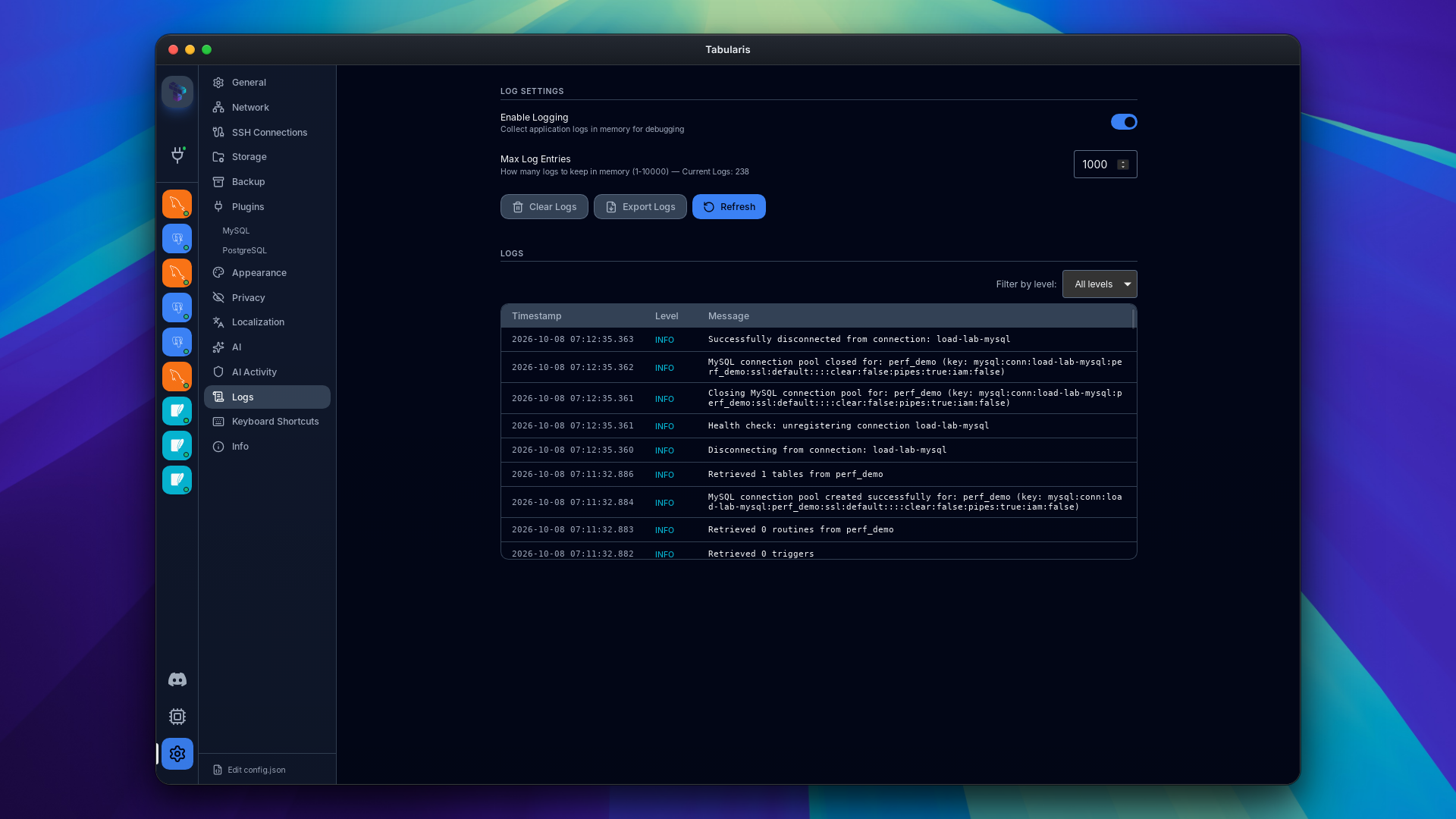
Open Settings → Logs. The tab lists the collected entries with their timestamp, level and message, and lets you:
- Filter by level (Debug, Info, Warn, Error).
- Refresh the list and Clear Logs.
- Export Logs to a
.logfile of your choice, ready to attach to a bug report. - Turn Enable Logging off, or change Max Log Entries (100–10000 in steps of 100, default 1000). Logs are kept in memory only, so they are lost when the app quits; once the limit is reached the oldest entries are dropped.
The log level is fixed at Info. Setting RUST_LOG has no effect.
Terminal Output
The same messages are also printed to standard error. To watch them live, launch Tabularis from a terminal:
# Linux (on macOS run the binary inside the app bundle,
# e.g. /Applications/tabularis.app/Contents/MacOS/tabularis)
tabularis
Plugin drivers' standard error is inherited by the main process, so messages a plugin prints to stderr appear in that terminal too, not in Settings → Logs.
Privacy & Telemetry
Tabularis is built with a strict zero-telemetry policy.
- No analytics SDKs: We do not embed Google Analytics, Mixpanel, Sentry (in production), or any third-party tracking library.
- No crash reporting: No automatic crash reports are sent anywhere.
- No usage data: Feature usage, query counts, session duration — none of this is tracked or transmitted.
- Network requests made by Tabularis:
- Your configured database host(s)
- The GitHub Releases API for update checks, if enabled:
api.github.com/repos/TabularisDB/tabularis/releases/lateston the Stable channel, or…/releases?per_page=30plus the chosen release'slatest.jsonon the Nightly channel - The Tabularium plugin registry (
registry.tabularis.devby default) and the plugin and theme downloads it points to, when you browse or install them - The changelog (
raw.githubusercontent.com/TabularisDB/tabularis/main/CHANGELOG.md) for the What's New and release notes views - Your WebDAV server, if you back up connections to WebDAV
- Your chosen AI provider endpoint (only if AI is enabled and you trigger it)
- Any URLs referenced in plugins you have installed
You can verify all outgoing network connections using lsof -i (macOS/Linux) or Resource Monitor (Windows) while the application runs.
Column Masking (Settings → Privacy)
Since v0.19.0, a Privacy tab in Settings controls sensitive-column masking in the results grid:
- an on/off toggle (masking is on by default),
- the column-name patterns, one per line, matched as case-insensitive substrings (password, email, token, ssn, … out of the box),
- per-connection overrides as
table.columnentries, one per line: an Always mask list (masked even when no pattern matches) and a Never mask list (never masked even when a pattern matches) — never-mask wins over always-mask, which wins over the name patterns.
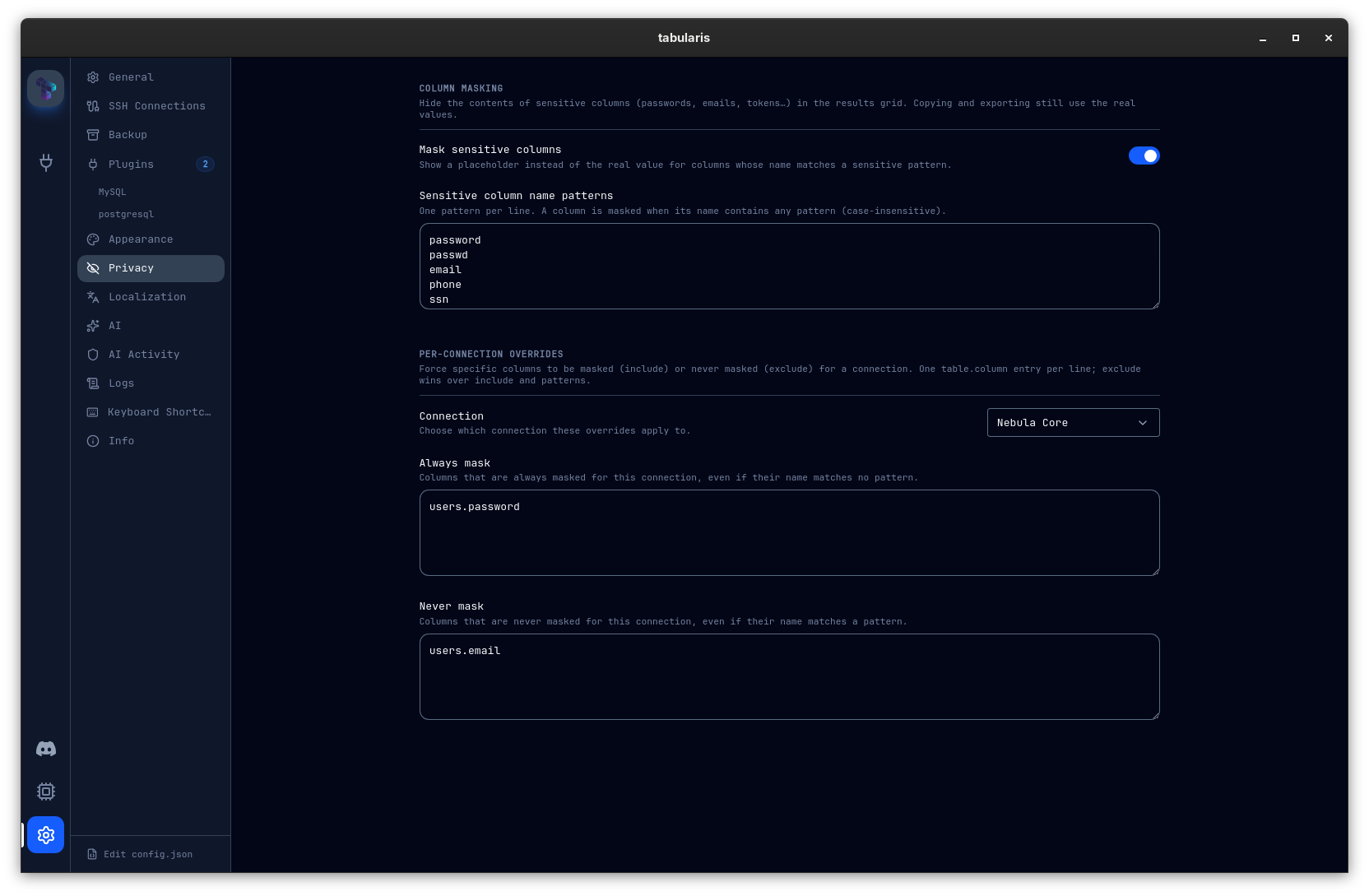
Masking is display-only: copy and export keep the real values. See Data Grid → Column Masking for the grid-side behavior.
Resetting to Defaults
To reset all settings to factory defaults:
- Close Tabularis completely.
- Delete or rename the
config.jsonfile. - Relaunch Tabularis. A fresh
config.jsonwith all defaults will be created.
Important: This does NOT delete saved connections. Connection metadata is stored in a separate connections.json file in the same directory. To also remove connections, delete connections.json. Passwords stored in the OS keychain must be removed manually (via Keychain Access on macOS, Credential Manager on Windows, or secret-tool on Linux).