


v0.9.18 is mainly about one thing: making History useful enough to become part of the normal SQL editing loop.
Before this release, Tabularis already gave you strong editing, favorites, notebooks, and now Visual EXPLAIN. What was missing was a lightweight way to go back through the actual queries you ran during exploration. This update adds that missing layer: a per-connection query history in the Explorer sidebar, with search, grouping, quick actions, and retention controls.
Query History, Per Connection
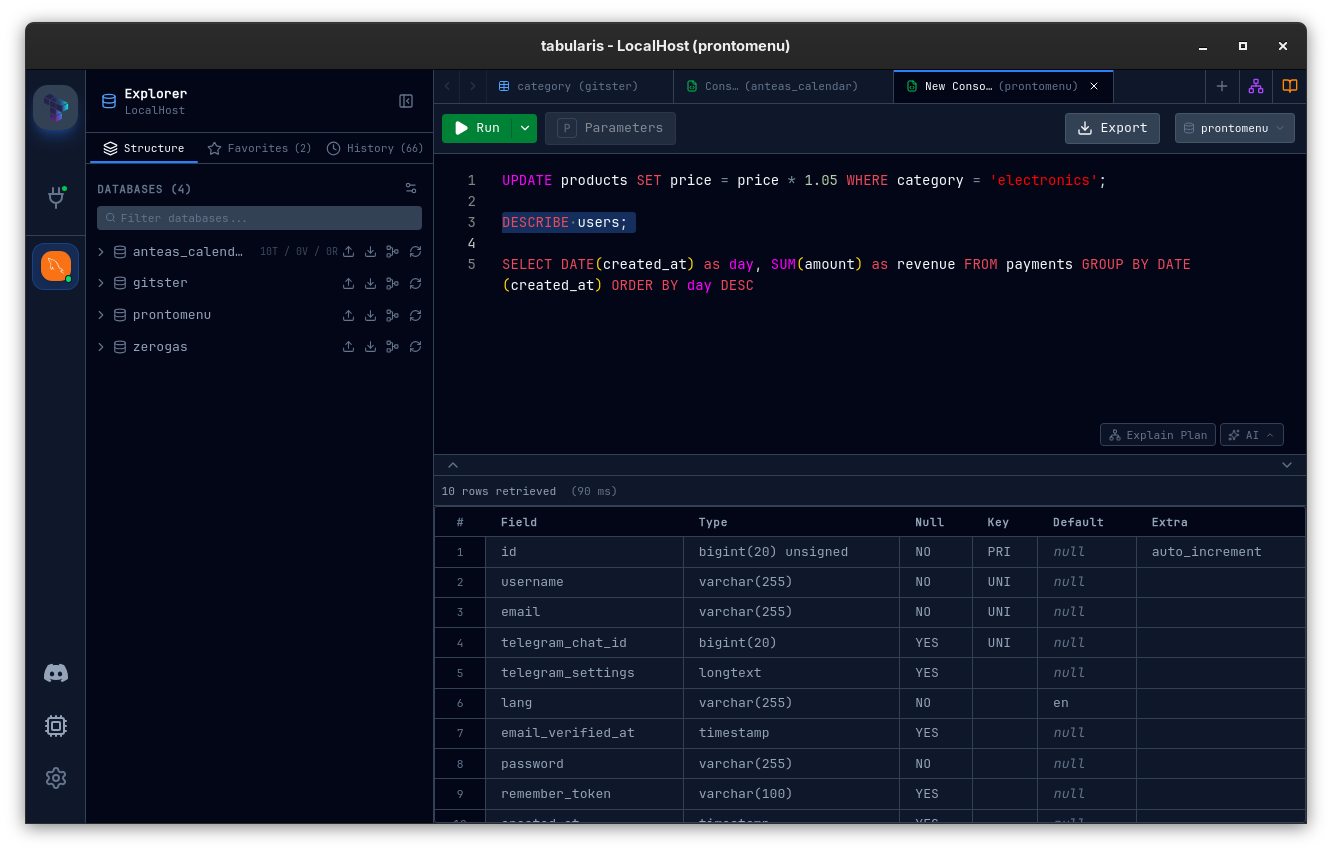
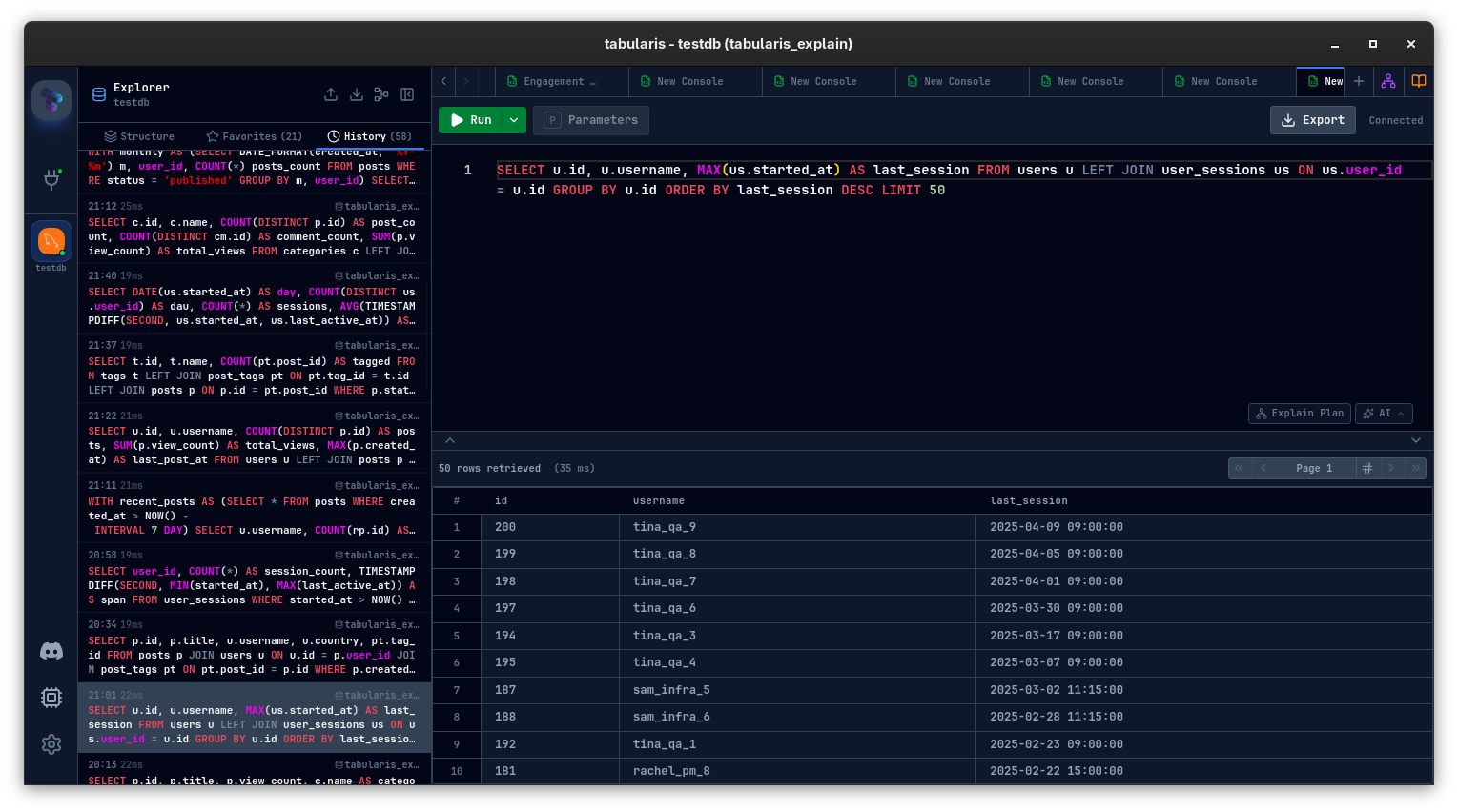
Every executed query is now stored in the Explorer's History tab for the active connection.
That sounds straightforward, but the important part is the scope: history is per connection, not global. Your PostgreSQL session, your MySQL analytics connection, and your local SQLite scratchpad each keep their own timeline.
This matters because query history is only useful when it stays close to context. If you are debugging a production issue in one connection and testing a schema idea in another, you do not want those timelines mixed together.
A Better Sidebar for Ongoing Work
To make room for these new workflows, the Explorer sidebar also becomes more clearly structured.
Instead of treating everything as one long schema tree, Tabularis now gives the active connection a small workspace of its own: Structure, Favorites, and History live side by side in the same panel.
That change matters because the feature set is no longer just about browsing tables. The sidebar now has to support three different kinds of work:
- Structure when you need schema objects and navigation
- Favorites when you want to keep reusable SQL close at hand
- History when you want to go back through what you just ran
It is a small UI change on paper, but it is an important one architecturally. It turns the sidebar from a database tree into a more complete working surface for exploration, repetition, and recall.
Built for Real Iteration
The new History tab is not just a raw log.
Each entry stores:
- The executed SQL
- The execution timestamp
- The duration
- Whether it succeeded or failed
- Rows affected when available
From there, Tabularis gives you the actions you actually need while iterating:
- Search by SQL text
- Date grouping such as Today and Yesterday
- Double-click to reopen a previous query in the editor
- Run again or run in a new tab
- Copy SQL
- Save to Favorites
- Delete a single entry or clear all history for the current connection
This turns history into a fast loop: run a query, tweak it, compare with an older version, reopen it, and keep going without hunting through tabs or clipboard fragments.
Small Details That Make It Better
Two practical choices make the feature feel more polished than a basic history panel.
First, repeated executions of the exact same SQL do not immediately spam duplicate entries one after another. Tabularis de-duplicates consecutive identical queries and updates the latest entry instead.
Second, history surfaces failures as first-class information instead of pretending only successful queries matter. That is important in real database work, because the query you need to revisit is often the one that failed five minutes ago.
There is also a retention control in Settings → General → Query History, with queryHistoryMaxEntries defaulting to 500 per connection.
Multi-Caret Editing
The SQL editor in Tabularis supports multi-caret editing, which lets you place several cursors in the editor and type, delete, or select at all of them simultaneously.
This is useful more often than it sounds. Renaming a column alias in four places at once, wrapping several lines in a function call, adding commas to a list of values, commenting out a block of conditions one by one: these are the kind of micro-edits that slow you down when you have to repeat them manually.
Here are the shortcuts that make it work:
| Action | macOS | Windows / Linux |
|---|---|---|
| Add cursor at click | ⌘+Click |
Ctrl+Click |
| Add next occurrence | ⌘+D |
Ctrl+D |
| Select all occurrences | ⌘+Shift+L |
Ctrl+Shift+L |
| Cursors at line ends | ⌥+Shift+I |
Alt+Shift+I |
Paste Into Multiple Carets
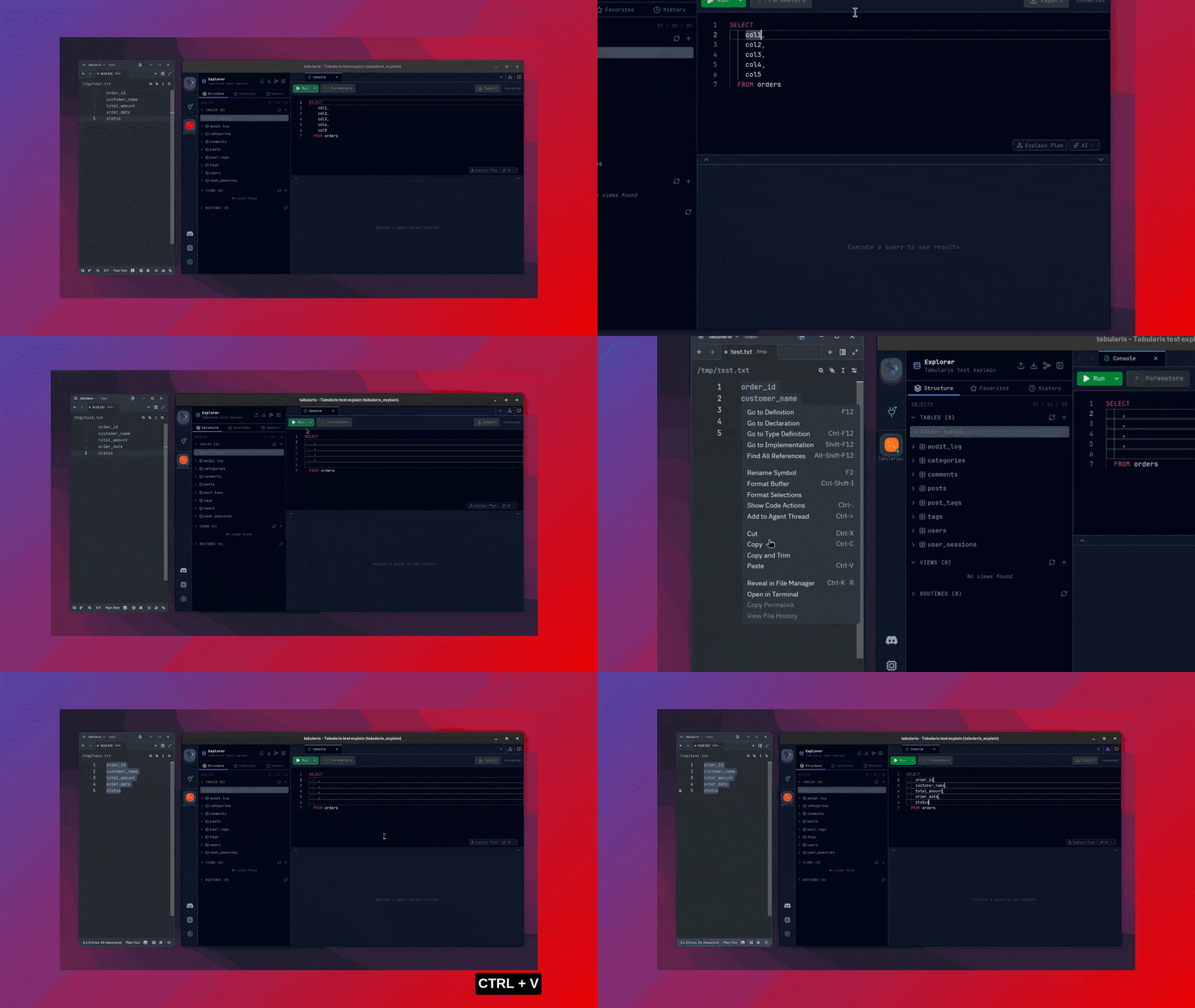
v0.9.18 adds one more piece to this workflow: pasting into multiple carets.
When you have multiple cursors active and paste text from the clipboard, Tabularis distributes the pasted lines across the cursors, one line per caret. If the number of lines in the clipboard matches the number of cursors, each cursor receives its own line. Otherwise, every cursor receives the full pasted text.
This makes column-wise edits, repeated line transformations, and bulk query rewrites much less awkward. It is the kind of change you notice immediately because it removes a break in muscle memory.
Other Notable Improvements in v0.9.18
The release is centered on History, but there are several other useful additions and fixes around it.
This is @midasism's contribution in PR #132: PostgreSQL schema mode now gets a proper table search filter, bringing it closer to the multi-database browsing experience already available elsewhere in the app.
This is @traustitj's contribution in PR #133: MySQL connections now expose SSL configuration options directly in the connection flow, which is an important upgrade for real deployments where plaintext local-style settings are not enough.
This is @thomaswasle's contribution in PR #134: MySQL connection URLs now use the system timezone correctly instead of forcing UTC behavior.
This is @thomaswasle's contribution in PR #135: the Dracula theme gets a readability pass, improving contrast in places that previously felt harder to scan.
This is @krissss's contribution in PR #138: custom OpenAI provider URLs no longer duplicate path segments or assume a hardcoded /v1, which makes alternative provider setups much more reliable.
Alongside the community contributions, the core app also picks up several maintainer-authored improvements in this release: a plugin settings page, better plugin config caching, an explain-selection modal, an open source libraries modal, a welcome screen toggle, and a few sidebar and editor polish fixes.
History That Stays in the Editor
The value of this feature is not just that Tabularis now stores past SQL. The useful part is that the history stays inside the same workspace where you browse schema objects, save favorites, write notebooks, and inspect query plans.
That makes v0.9.18 a smaller release than v0.9.17, but also a very practical one. It removes friction from the everyday loop of writing SQL, rerunning it, comparing versions, and returning to something that worked.
v0.9.18 is available now. Update via the in-app updater, or download from the releases page.