
MCP Multi-Client Support and Connection Improvements: v0.9.9

v0.9.9 focuses on making the MCP integration dramatically easier to set up across every major AI coding environment, while also polishing the Connections UI and adding validation to prevent common mistakes when creating new connections.
MCP Server Integration: One-Click Setup for Every AI Client
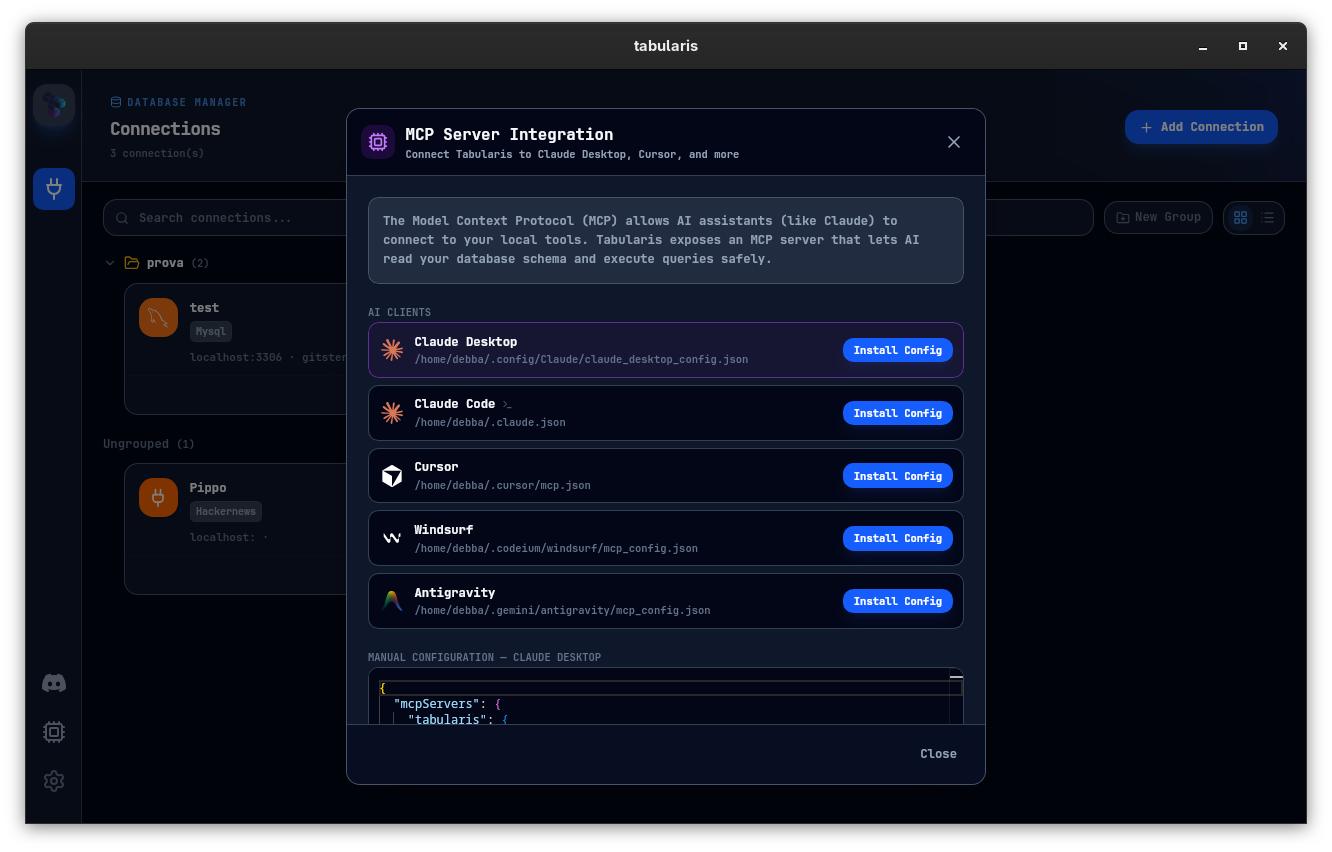
The Model Context Protocol (MCP) allows AI assistants to connect directly to your local tools. Tabularis exposes an MCP server that lets any compatible AI client read your database schema and execute queries safely — entirely on your machine, with no data leaving your environment.
What Tabularis exposes over MCP
When an AI client connects to Tabularis via MCP, it gains access to two categories of capabilities:
- Resources (read-only): the list of your saved connections (
tabularis://connections) and the full schema of any connection (tabularis://{connection_id}/schema) — so the AI always knows what tables, columns, and types are available before writing a single query. - Tools (actions): the
run_querytool lets the AI execute any SQL statement on a specified connection and get back structured results (columns, rows, execution time). The AI can build complex joins, aggregate data, and explore your data freely — or you can restrict it to a read-only database user for extra safety.
All communication happens over stdin/stdout — no network port is opened, no data leaves your machine.
Multi-client support with automatic path detection
Previously, the one-click install only targeted Claude Desktop. Starting with v0.9.9, the MCP Server Integration panel in Tabularis detects and supports five AI clients out of the box:
| Client | Config file auto-detected |
|---|---|
| Claude Desktop | ~/.config/Claude/claude_desktop_config.json (Linux), ~/Library/Application Support/Claude/… (macOS), %APPDATA%\Claude\… (Windows) |
| Claude Code | ~/.claude.json |
| Cursor | ~/.cursor/mcp.json |
| Windsurf | ~/.codeium/windsurf/mcp_config.json |
| Antigravity | ~/.gemini/antigravity/mcp_config.json |
Tabularis reads your OS and resolves each path automatically — you never need to hunt for config files.
How to set it up
- Open Tabularis and navigate to Settings → MCP (or click the plug icon in the sidebar).
- The integration panel lists all detected AI clients along with the resolved path for each config file.
- Click Install Config next to any client. Tabularis writes (or patches) the required
mcpServersentry directly into that config file — no manual JSON editing required. - Restart the target client. It will immediately see Tabularis as an available MCP server.
If you prefer to configure things manually, the panel also shows the exact JSON block to paste under the Manual Configuration section, with the correct binary path pre-filled.
What you can do once connected
Once your AI client is connected to Tabularis via MCP, you can have natural-language conversations like:
"List all tables in my Production PG connection."
"Show me the last 10 orders placed today, joining
orderswithcustomers."
"Which indexes are missing on the
eventstable in my analytics database?"
The AI calls run_query under the hood, receives structured JSON results, and formats them into a readable answer — all without you leaving the chat interface.
Finding Tabularis useful? Star it on GitHub — it takes a second and helps more developers discover the project. Star on GitHub
Connection UI Improvements
Input validation on new connections
Creating a new connection now validates the connection name and database selection before the form can be submitted. Empty names and missing database fields surface inline errors immediately, preventing silent failures when the connection is later used.
Cleaner connection card menu
The three-dot context menu on connection cards is now hidden unless the connection belongs to a group or groups exist in the workspace. This removes visual noise for users who haven't set up groups, keeping the card UI tidy.
Connection card styling polish
Several layout and spacing details on connection cards were refined for better readability and consistency across different connection types and screen sizes.
Summary
| Area | What's new |
|---|---|
| MCP | One-click install for Claude Desktop, Claude Code, Cursor, Windsurf, Antigravity |
| MCP | Automatic config path detection per OS and client |
| MCP | Manual configuration snippet with pre-filled binary path |
| Connections | Inline validation for connection name and database selection |
| Connections | Context menu hidden when no groups exist |
| Connections | Card styling improvements |

v0.9.9 is available now. Update via the in-app updater, or download from the releases page.