

Data Grid
The Data Grid is the primary view for browsing and editing table contents. It opens automatically when you double-click a table in the sidebar. Every table, view, or query result is displayed using a high-performance virtualized renderer — only the visible rows are rendered, so even large result sets feel instant.
Video unavailable
Opening a Table
Double-click any table or view in the sidebar. The data grid opens in a new tab, color-coded by connection. The tab title shows the table name and the connection name in the tab bar.
Browsing Data
Pagination
Data is fetched in pages. The default page size is 500 rows, configurable via resultPageSize in Configuration. Navigation controls at the bottom of the grid let you move forward and backward through pages.
Since v0.21.0 the pagination bar also has a rows-per-page selector that overrides the global default for the current tab only: presets from 50 to 5000 (the global value is marked as default), a custom value, and All, which turns pagination off for that tab and fetches every row. The override is saved with the tab and survives a restart; other tabs and new tabs keep the global default. Changing the page size recomputes the page number so the first visible row stays in view.
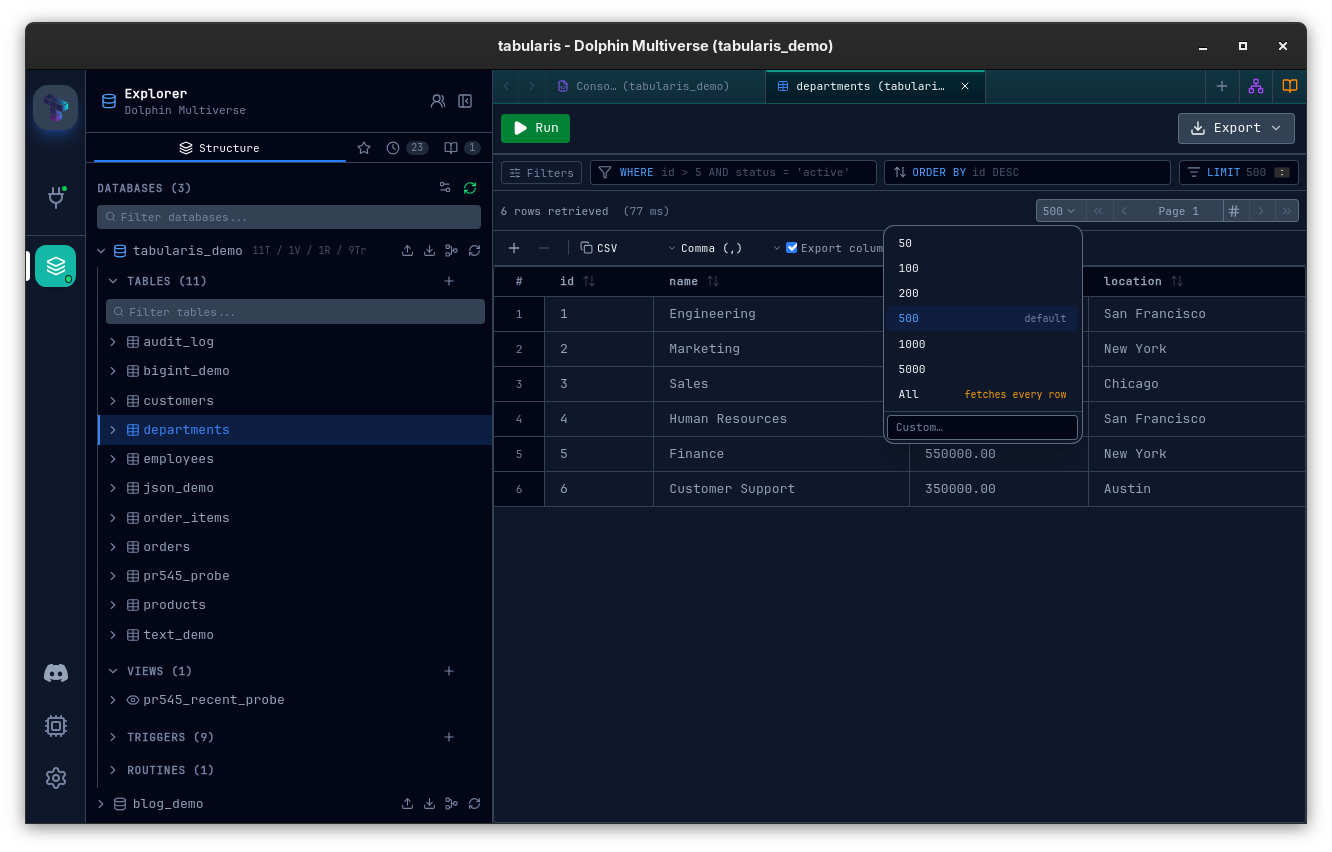
The total row count is not fetched automatically. Click the # button (Load row count) next to the pagination controls to run a COUNT(*) over the current filtered query; the total then replaces the button.
Column Widths
The grid only renders the rows on screen. Since v0.27.0 column widths are measured once from the header and the first visible rows and then held, so scrolling into longer or shorter values no longer widens or narrows the columns; longer values are truncated with an ellipsis and stay readable in the tooltip and the cell expander. Widths are measured again when the column set changes (another query or table) or when rows first arrive in an empty result. Paging and refreshing keep them.
Video unavailable
Column Comments
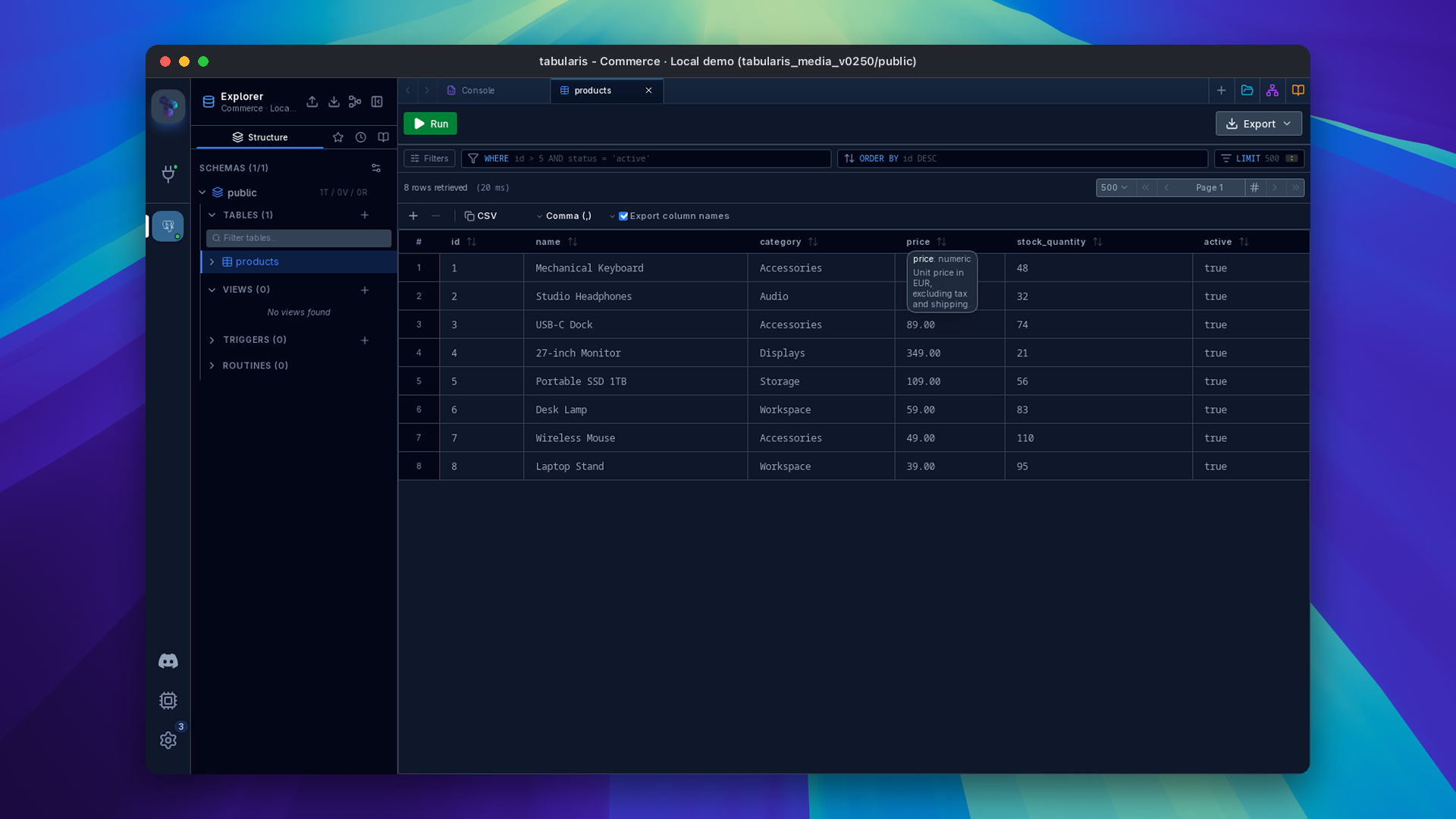
Since v0.25.0, hovering a column header shows the column's database comment next to its type when the driver provides one (PostgreSQL and MySQL/MariaDB built in; plugins that return comment metadata). See Schema Management → Table and Column Comments.
Sorting
Click the sort icon in a column header (revealed on hover) to sort by that column (ascending). Click again to sort descending. A third click removes the sort. Since v0.22.0 a plain click on the header itself selects the column instead of sorting; see Column-level copy. Sorting is applied server-side — a new query is issued with an ORDER BY clause so the sort is consistent across all pages.
LIMIT / OFFSET preservation — if your query includes a
LIMITorOFFSETclause, sorting from a column header will preserve it. Only theORDER BYportion is replaced.
Filtering
Video unavailable
The toolbar at the top of a table tab has three inputs (WHERE and ORDER BY offer column autocomplete):
- WHERE — a free-text condition (e.g.
status = 'active'), applied server-side so it works across all pages and the row count reflects it. - ORDER BY — a sort expression (e.g.
created_at DESC). - LIMIT — caps the number of rows fetched.
The Filters button opens a structured filter panel in place of the WHERE input: Add filter builds a condition from a column, an operator suited to the column type and a value; each filter can be applied on its own (Apply) or together with the others (Apply All), duplicated or removed. Unset clears the filters, and the SQL button (Switch to SQL WHERE input) goes back to the free-text field.
Since v0.28.0 the panel is part of the layout rather than an overlay: it sits above the grid and pushes it down, with a maximum height and its own scroll for long filter lists, so the rows a filter returns stay visible. A click outside no longer closes it; Esc, the close button and the Filters button do. The panel resets when you switch to another table tab. Incomplete rows, such as the empty row added when the panel opens, are skipped by both Apply All and the per-row Apply.
Match All / Match Any
Since v0.28.0 the panel header has a two-button toggle. Match all joins the filter rows with AND; Match any joins them with OR and wraps the result in parentheses so it combines safely with the rest of the WHERE.
Text Operators
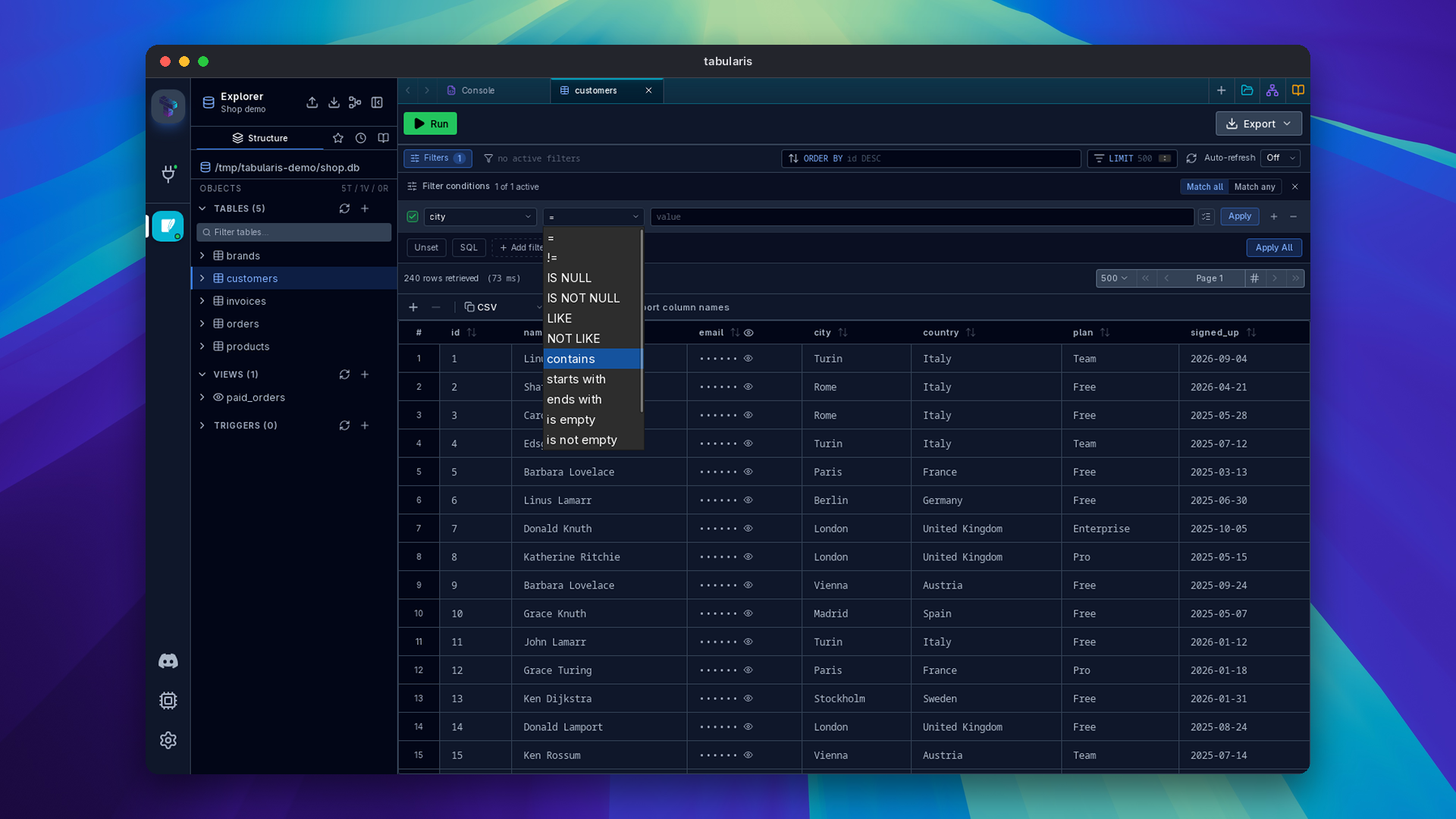
Since v0.28.0 string columns offer contains, starts with, ends with, is empty and is not empty. The first three generate LIKE patterns with %, _ and the escape character escaped, so a value with an underscore matches literally; the escape character is ! on every driver (ESCAPE '\' is a syntax error on MySQL and MariaDB under the default sql_mode). is empty matches both NULL and ''.
Value Picker
Video unavailable
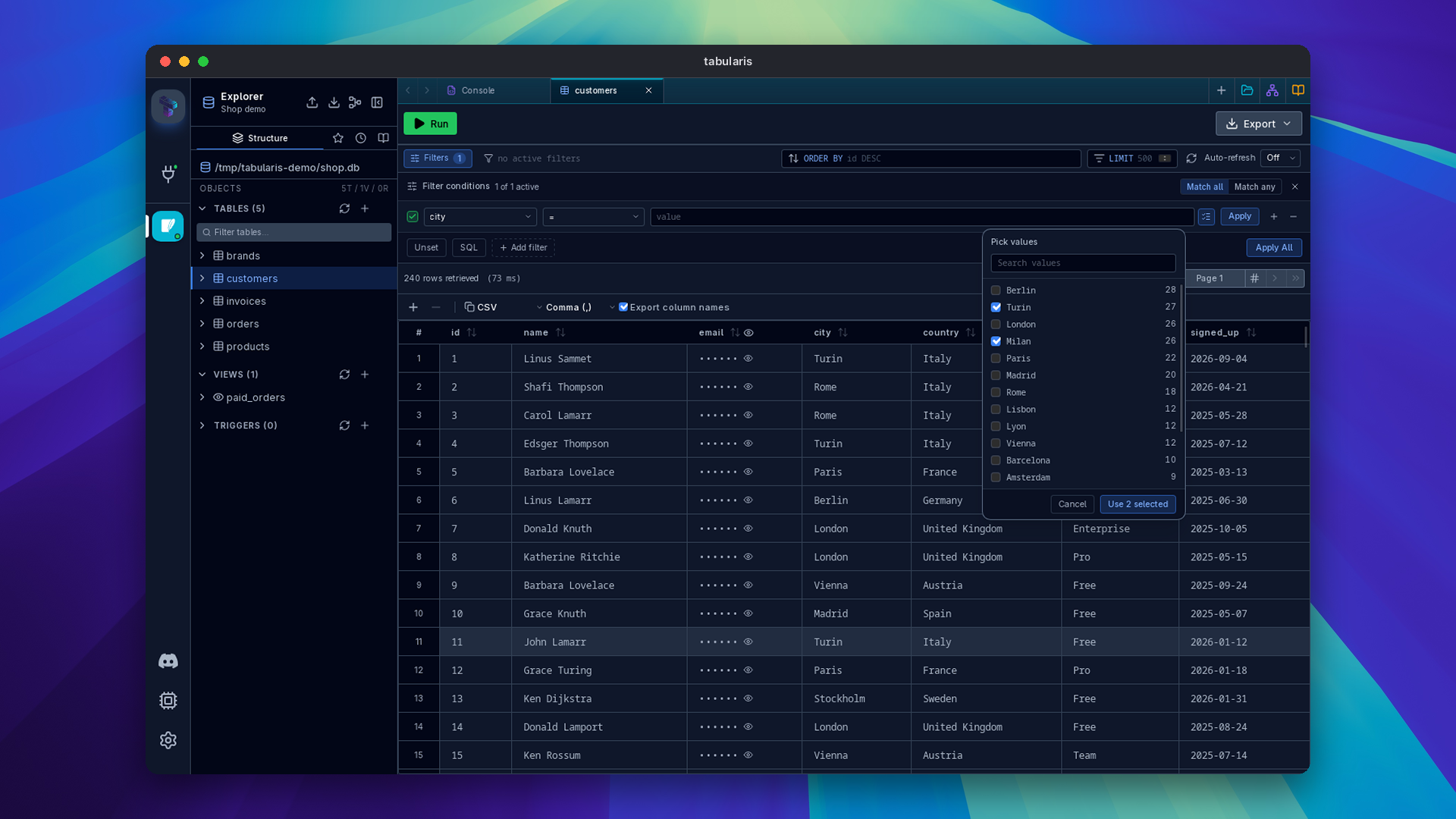
Since v0.28.0 a Pick from values button next to the value field lists the column's 100 most frequent non-NULL values with their counts, with a search box. In Match all mode the list is narrowed by the panel's other complete rows. Picking one value fills the field with =; picking several switches the operator to IN (!= becomes NOT IN, so negation is kept). Nothing is applied until you press Apply. The values query runs on the tab's connection, schema and session. The picker is not offered on BLOB, binary or JSON columns.
Filter by This Value
Video unavailable
Since v0.27.0, right-clicking a cell in a table tab offers filters built from that cell: Filter: col = this value and Filter: col <> this value, or Filter: col IS NULL and Filter: col IS NOT NULL on a NULL cell. The condition is combined with the current filter as (existing) AND new, written into the WHERE input where you can edit it, and the grid reloads from page 1.
The value is formatted by column type: numbers are unquoted in numeric columns, a numeric-looking string stays quoted in a text column, booleans become TRUE/FALSE, and quotes are escaped. Identifiers are quoted for the active driver. The items are not offered on BLOB or JSON cells, on unsaved new rows, or in ad-hoc query results. A masked cell only offers IS NULL / IS NOT NULL, so its real value never reaches the filter.
Auto-Refresh
Video unavailable
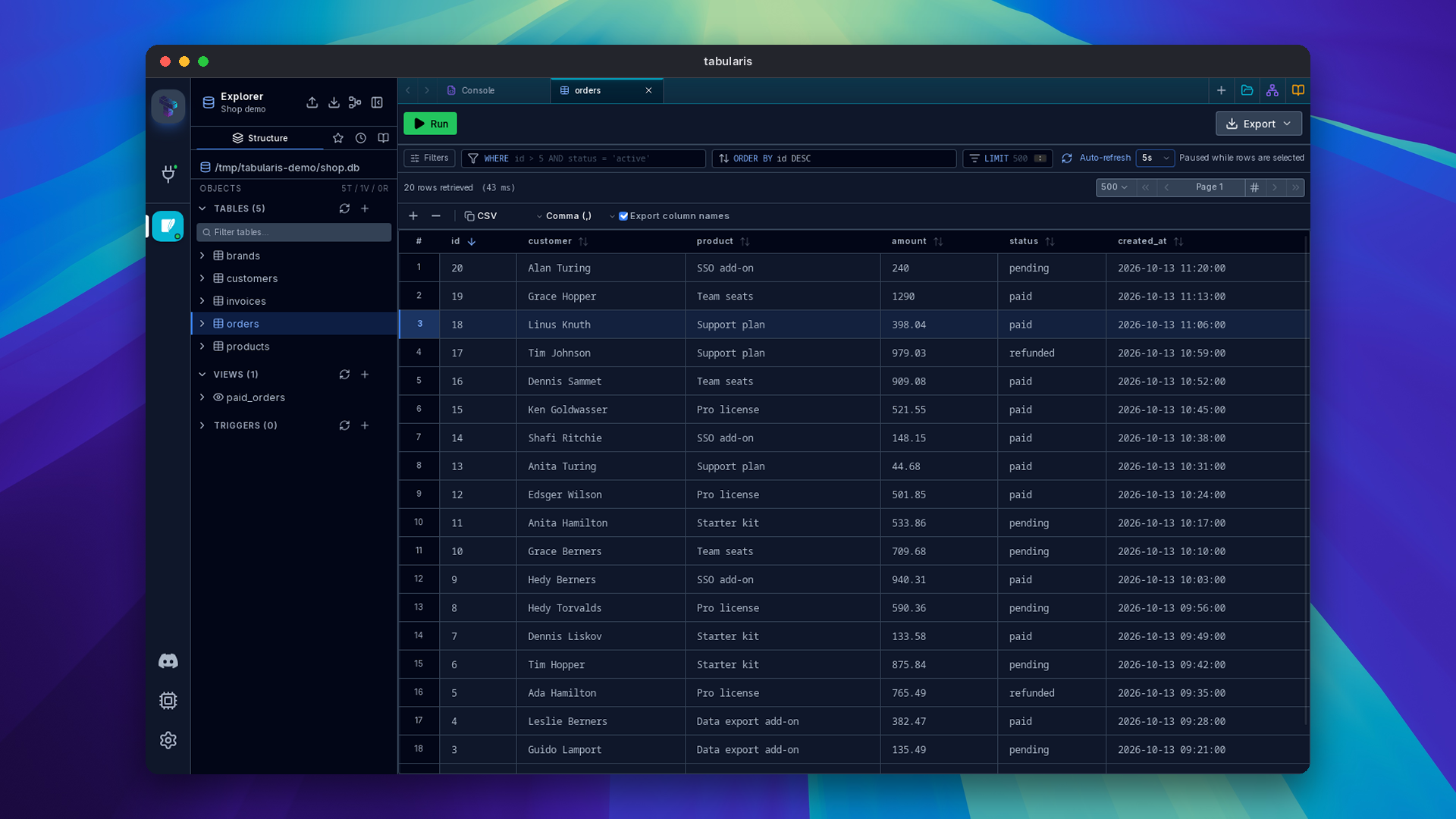
Since v0.28.0 table tabs have a refresh button with an Auto-refresh interval select beside it: Off, 5s, 10s, 30s or 60s. New tabs start at Off and each tab keeps its own interval; while a timer is running the icon, label and select switch to the accent color. A refresh keeps the scroll position and the query settings, and a failure is shown inline while the last loaded rows stay on screen.
The timer pauses while you edit a cell, have pending changes or have rows selected (selections are row indexes, so new data would shift them onto other records); the status line reads Paused while editing or Paused while rows are selected. Inactive tabs do not poll: when you come back, the tab waits the remaining time, or refreshes once if the interval has already elapsed. Manual runs, page changes and timer ticks go through one queue per tab, so they never overlap.
Jump to Column
Video unavailable
Since v0.28.0 Ctrl/Cmd + Shift + J in a grid opens Jump to column, a fuzzy column picker that shows each column's type. Enter scrolls the column into view and returns focus to the grid. The shortcut can be rebound in Settings → Keyboard Shortcuts.
Inline Editing
Tabularis supports inline cell editing for tables. Changes are tracked as pending edits and not immediately committed.
Editing a Cell
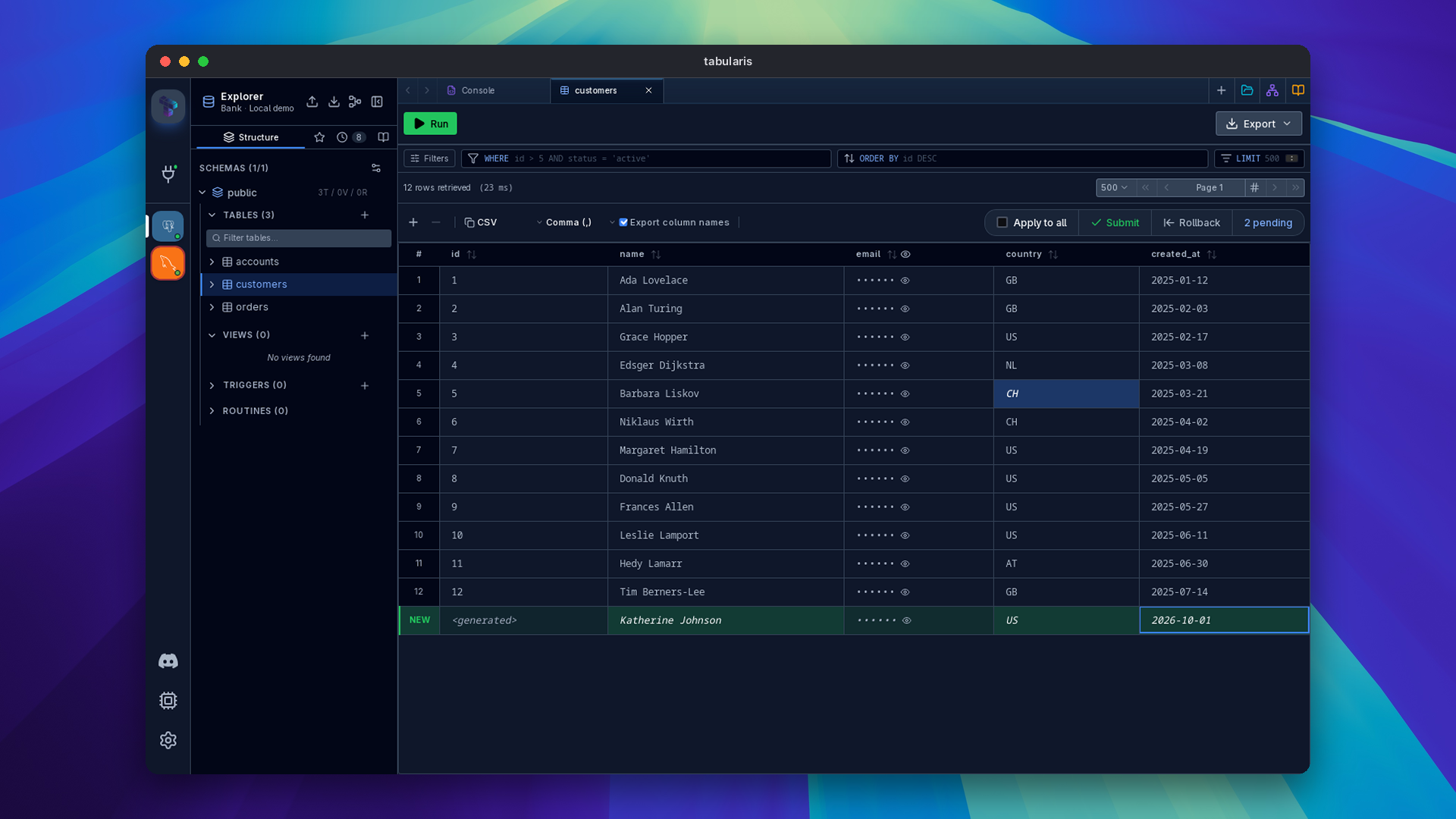
Double-click a cell to enter edit mode. Type the new value and press Enter to confirm or Escape to cancel. Edited cells are highlighted to distinguish them from unchanged values. Since v0.26.0 the edited value itself is drawn in the primary text color, so it stays readable on every theme; the row tint, the italic style and the NEW marker on inserted rows show the state.
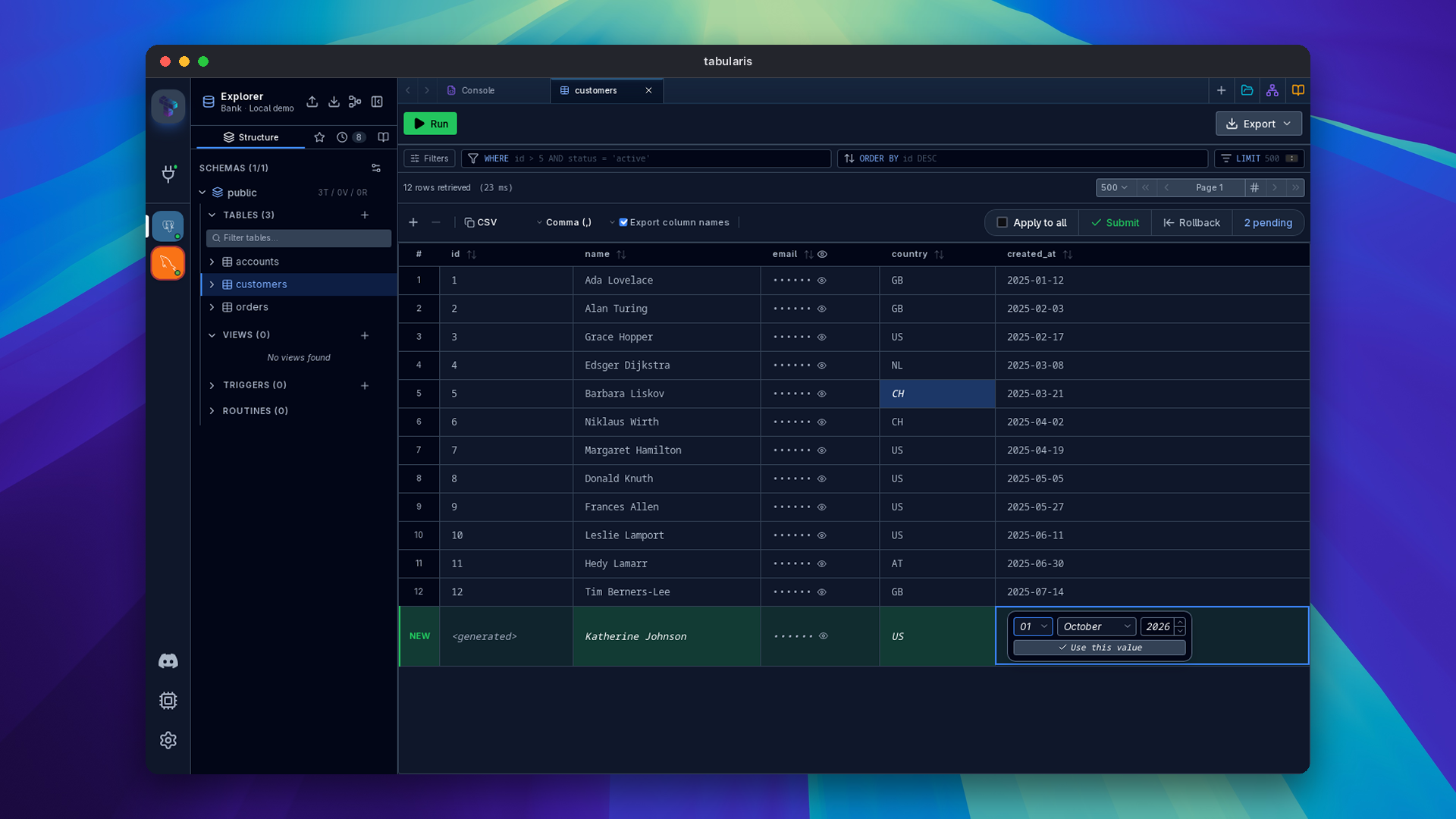
Date cells with no value open the date picker on today's date as a starting point. Since v0.26.0, click Use this value or press Enter to accept the date on screen without changing a field first.
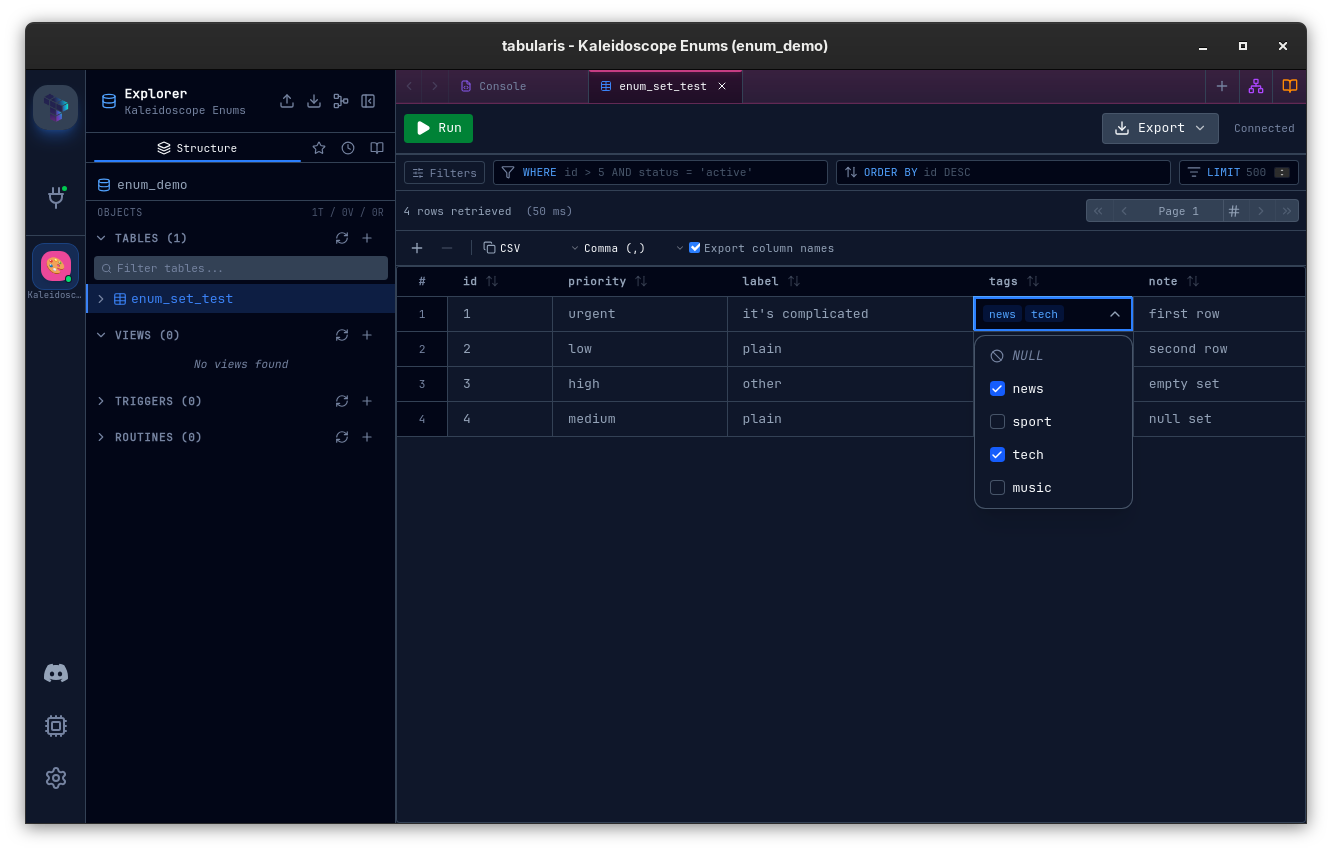
ENUM columns (MySQL and PostgreSQL) render a dropdown of the allowed values instead of a free-text input — both in the grid and in the row-editor sidebar. Nullable ENUM columns include a NULL option. The allowed values are introspected from the database (information_schema on MySQL, pg_enum on PostgreSQL), and MySQL SET columns get the same treatment with multi-value checkboxes.
Adding a Row
Click the + button (New Row) in the results toolbar. A new empty row appears at the end. Fill in the values for each cell and commit when ready. Duplicate Row in the row context menu stages a copy of an existing row as a new insertion.
Deleting Rows
Select one or more rows by clicking the row header checkbox, then click the − button (Delete Row) in the results toolbar, pick Delete Row from the row context menu, or press Delete / Backspace with the rows selected (works whenever no cell is being edited and the grid isn't read-only). The rows are only marked for deletion as pending changes; nothing is deleted until you submit.
Video unavailable
Committing Changes
Pending edits (cell modifications, new rows, deleted rows) are shown with a visual indicator. Click Submit to generate and execute the corresponding INSERT, UPDATE, or DELETE statements, or Rollback to discard the pending changes without touching the database. With rows selected and Apply to all unchecked (the default), both act only on the pending changes of the selected rows; check Apply to all, or clear the selection, to act on every pending change. Revert Selected in the row context menu discards the pending changes of the selected rows.
On a connection marked as production, submitting asks for confirmation first (see Production Write Guard).
Edits and deletes are matched on the table's full primary key. For a table with a composite primary key (e.g. PRIMARY KEY (profile_id, phone_type, key)), the generated WHERE clause includes every PK column — WHERE col1 = ? AND col2 = ? AND … — so a change targets exactly one row rather than every row that happens to share part of the key.
Tables Without a Primary Key
Since v0.19.0, tables with no primary key are editable too. Rows are identified by the values of all their comparable columns instead: binary, geometric, json and hstore columns are excluded (their grid representations wouldn't survive an equality comparison), and so are approximate numerics (FLOAT, DOUBLE, REAL). Excluded columns stay editable — they just don't take part in addressing the row.
Two conditions apply:
- The result set must expose every physical column of the table. A partial
SELECT a, b FROM ton a keyless table stays non-editable — it couldn't distinguish rows that differ only in the omitted columns — and double-clicking a cell explains why instead of doing nothing. - Rows that are entirely identical collapse to the same identity. Deleting one deletes all of its copies: MySQL/MariaDB remove one copy per statement (
LIMIT 1) and repeat until the count the grid showed is gone, PostgreSQL and SQLite sweep them in one statement — every driver ends up in the state the grid displayed.
Updates to the same keyless row run sequentially, threading already-applied values into each step's WHERE clause. If a row no longer matches its original values — the data changed underneath you — the operation raises a clear error instead of silently affecting zero rows.
Keyboard Navigation
Since v0.18.0 the focused cell moves from the keyboard, not only from a click:
Video unavailable
| Key | Action |
|---|---|
↑ ↓ ← → |
Move one cell, clamped at the edges. |
Home / End |
First / last column of the current row. |
PageUp / PageDown |
Move one viewport of rows. |
Enter / F2 |
Open the focused cell for editing — the same path as a double-click. |
Cmd/Ctrl + A |
Select all loaded rows. |
Shift + Arrow |
Extend a rectangular cell range by one step (since v0.22.0). The anchor stays fixed, the opposite corner moves. |
Cmd/Ctrl + Arrow |
Jump the focused cell to the grid edge (since v0.22.0). |
Cmd/Ctrl + Shift + Arrow |
Extend the cell range to the grid edge (since v0.22.0). |
Cmd/Ctrl + Home / End |
First / last cell of the grid (since v0.22.0). |
Shift + Space |
Select the row(s) of the focused cell or of the current range (since v0.22.0). |
Cmd/Ctrl + Space or Cmd/Ctrl + Shift + Space |
Select the column(s) of the focused cell or of the current range (since v0.22.0). |
The first key press in a grid with no focused cell yet enters at the top-left cell. Keys are bound to the grid's scroll container rather than to the document, so in a notebook — which mounts one grid per SQL cell — only the grid you are working in responds. Keys are left alone for anything that handles them itself: text inputs, the foreign-key and BLOB buttons inside cells, and the sort buttons in column headers. Closing an edit with Enter or Escape returns focus to the grid so navigation continues.
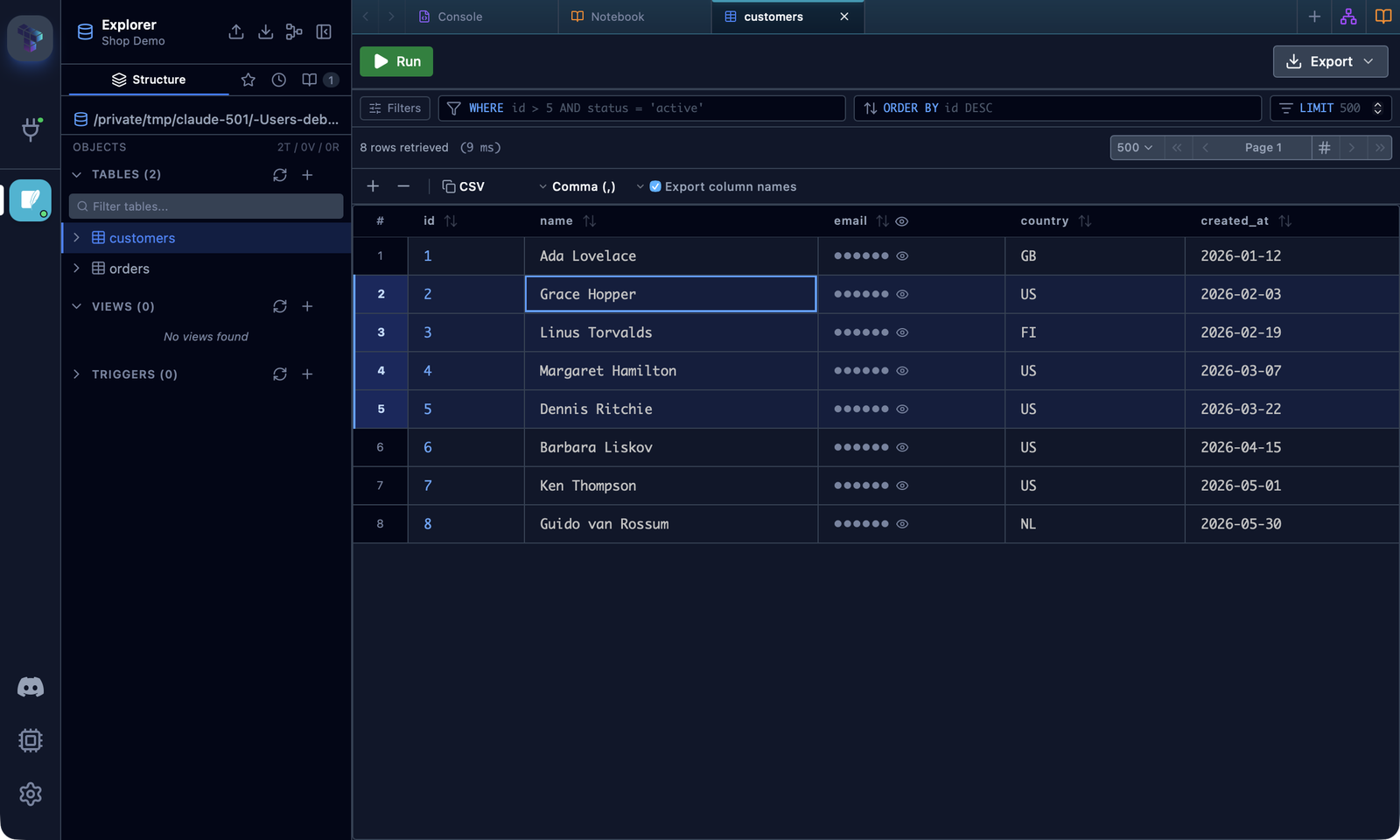
The selection shortcuts mirror Google Sheets and keep the focused cell after Shift + Space / Cmd/Ctrl + Space, so they chain: Shift + ↓ three times followed by Shift + Space selects four rows. Cmd/Ctrl + Shift + Space is an alternative for column selection on systems where plain Ctrl + Space is taken by the input method (ibus, fcitx) or by Spotlight. With a focused cell, Cmd/Ctrl + ← / → jumps to the edge rather than paginating; the page shortcuts still work with no cell focused and from the pagination buttons.
Cmd/Ctrl + A is ignored inside text inputs, while a cell editor is open, and in any grid you have not interacted with.
Copying Data
Tabularis supports row-level, column-level, cell-range and cell-level copy from the data grid. The modes are mutually exclusive rather than fighting each other: clicking a row checkbox clears the cell focus, clicking a cell clears the row selection, and starting a column or range selection clears the other two. So what Ctrl/Cmd + C copies is never ambiguous.
Cell-level selection
Click any cell to give it a focused outline; the row checkbox stays untouched. Press Ctrl/Cmd + C to copy just that cell value to the clipboard, formatted using the same null/length/type rules used for row copy. The cell context menu also exposes a Copy Cell action.
Row-level selection and copy formats
Select one or more rows by clicking the row header checkbox (or shift-click / ctrl-click for ranges and multi-select), or select every loaded row with Cmd/Ctrl + A, the Select All / Deselect All entry in the row context menu, or a click on the # header cell. Then use Ctrl/Cmd + C to copy — no modal, no interruption.
Selecting and copying are separate actions: selecting rows never writes to the clipboard on its own. The row context menu offers the two copy scopes side by side so the difference is explicit:
| Action | Scope |
|---|---|
| Copy Selected (N) | The rows currently selected, from the loaded page. |
| Copy All (M) | Every row of the result. The query is re-run unpaginated with the tab's total-row limit stripped, preserving the on-screen sort order. When the total is unknown, the label omits the count and the toast reports the actual number of rows fetched. |
Since v0.28.0 Copy All also works in the multi-result panel (tab and stacked views) and in the detached results window. In a console tab it re-runs only the last executed statement, in the tab's own session, so uncommitted rows of an open transaction are included.
Every copy path shows a toast with the row count. When a copy covers only the loaded page of a larger result, the toast says "Copied N of M rows" — a partial copy is never silent.
The default format is CSV; you can change it in Settings → General → Default Copy Format, or per session from the copy-format selector in the results toolbar, to one of:
| Format | Output |
|---|---|
| CSV | Delimiter-separated values — comma (default), semicolon, tab or pipe, following csvDelimiter — spreadsheet-friendly. The Export column names toolbar toggle controls whether the header row is included (csvIncludeHeaders, on by default). |
| JSON | A JSON array of objects with column names as keys. |
| SQL INSERT | A sequence of INSERT INTO \table` (col1, col2, …) VALUES (…);statements, one per row. NULLs render asNULL, booleans as TRUE/FALSE`, numbers unquoted, strings single-quoted with single quotes doubled-up. |
| Markdown | A Markdown table, with a header row when Export column names is on. |
The setting maps to the copyFormat key in config.json (see Configuration).
Column-level copy
Since v0.17.0 you can copy all values of a single column — from the cell context menu (applies to the clicked column, using the selected rows or all visible rows when nothing is selected) or from the column header context menu:
| Action | Output |
|---|---|
| Copy column values | Newline-separated, one value per line, null for NULL cells. |
| Copy column values as SQL IN | A ready-to-paste SQL list: numbers raw (1, 2, 3), strings quoted with '' escaping ('O''Brien'), NULL for nulls. |
Since v0.18.0 you can also select whole columns DBeaver-style: Cmd/Ctrl + click a column header toggles it and Shift + click range-selects headers. Since v0.22.0 a plain click on a header selects that column (replacing the current selection), and sorting moves to the sort icon next to the column name. From the keyboard, Cmd/Ctrl + Space (or Cmd/Ctrl + Shift + Space) selects the column(s) of the focused cell or range. Ctrl/Cmd + C then copies the selected columns for the rows in scope.
Cell range selection
Shift + click a second cell to select the rectangle between it and the currently focused cell, or since v0.22.0 grow it from the keyboard with Shift + Arrow (one step) and Cmd/Ctrl + Shift + Arrow (to the grid edge). The range is highlighted, and the context menu offers Copy Range (R×C) to copy exactly those cells. A plain click moves the anchor and clears the range.
Pasting Data
Since v0.20.0 the grid also supports spreadsheet-style paste with Cmd/Ctrl + V (or Paste in the cell context menu). Pasted values are staged as pending changes through the same flow as inline editing — they never go straight to the database, and you can review, apply, or roll them back before anything is written.
- Paste anchor — in priority order: the top-left of a cell range selection, the right-clicked cell, the top of a row selection, or the focused cell.
- Parsing — tab-separated cells win (the spreadsheet clipboard convention). Multi-line text without tabs is parsed as CSV with double-quote escaping, preferring your configured copy delimiter, so the grid's own copy formats round-trip. A single line without tabs is always one value —
hello, worldlands in one cell. - Header detection — a leading header row is dropped only when it matches the grid's column names positionally from the paste anchor, so the "export column names" option round-trips without swallowing external data that merely mentions a column name.
- Fill — a single copied value fills the whole selected range or row selection.
- Bounds — the pasted matrix clips at the grid edges (rows are not auto-created; add pending-insertion rows first). Alias and computed result columns are skipped under the same guard as inline editing, and existing rows must be identifiable — in a keyless grid only pending-insertion rows accept a paste.
- Pasting a cell's original value back clears its pending change, just like typing it would.
Known limitations: values containing the copy delimiter don't survive a copy→paste round-trip (the grid's CSV copy output doesn't quote them yet), Excel cells containing quoted newlines are split on the newline, and a copied NULL pastes as the literal string null rather than SQL NULL.
Row Editor Sidebar
Since v0.17.0 the row editor is a right sidebar — a layout sibling of the Explorer on the left, not an overlay covering your results. Toggle it with Cmd/Ctrl + Shift + B or open it with Open Sidebar Editor from a row's context menu. Settings → General → Cell double-click action chooses what double-clicking a data cell does: Inline edit (default), Open in sidebar, or Both.
Video unavailable
- Follows your selection by default: select a different row and the editor updates to it.
- Pin it to a specific row with the pin button when you want to keep editing that row while browsing others.
- Resizable with a drag handle; the width is persisted across sessions.
Result Font
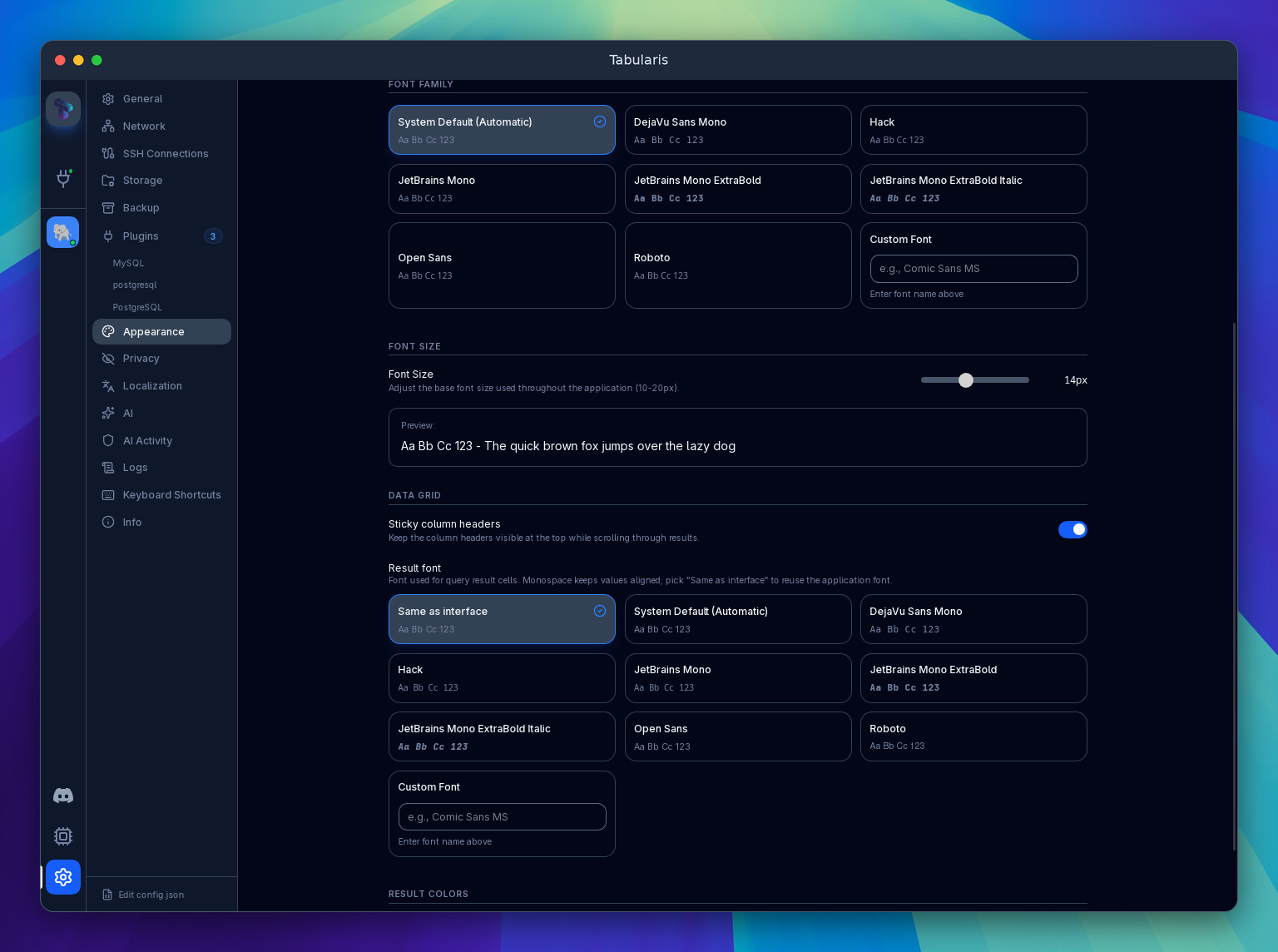
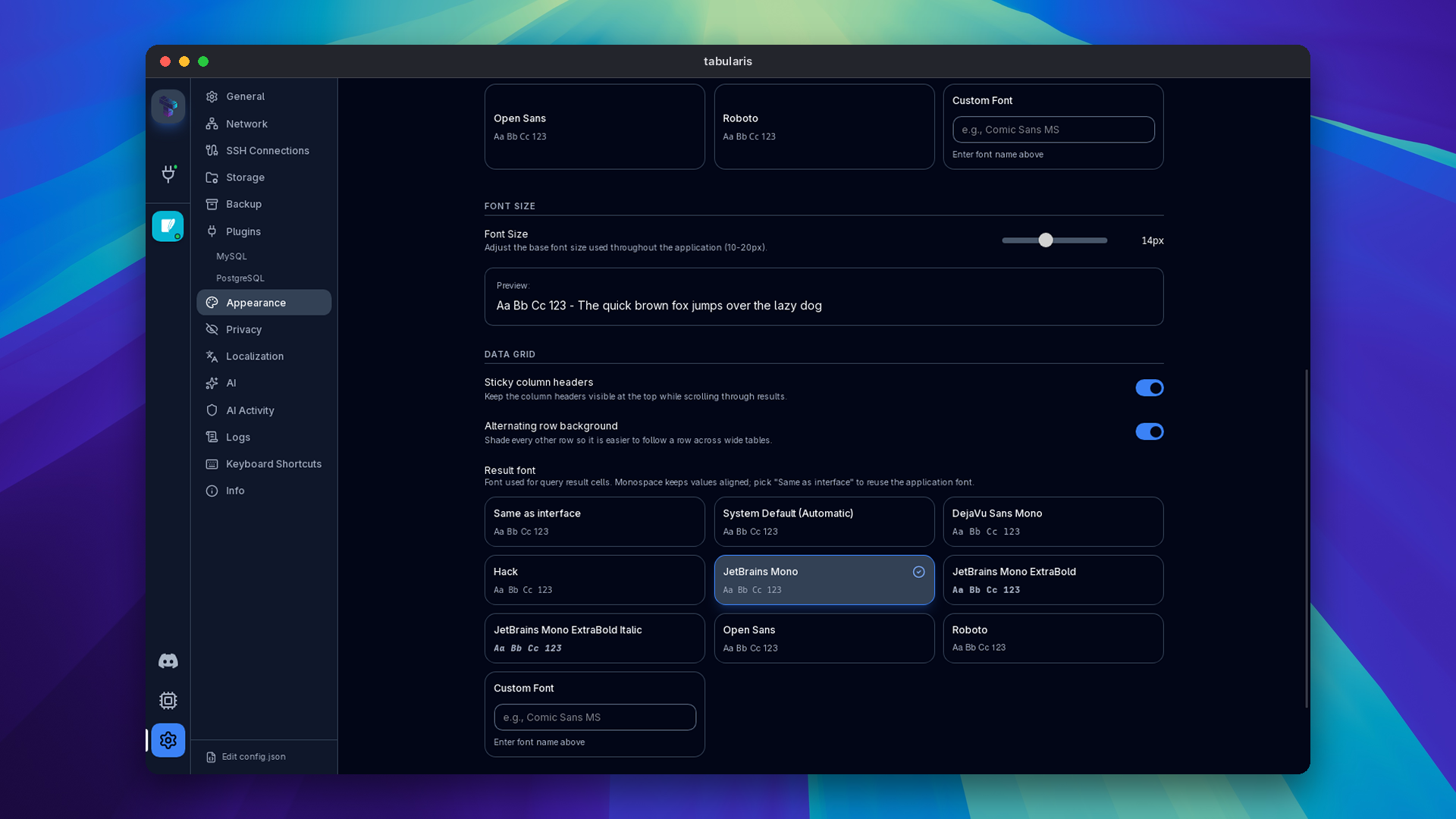
Since v0.24.0, Settings → Appearance → Data Grid → Result font controls the typography of result cells, inline edit inputs and multiline textareas. Select Same as interface, a bundled font or a custom family. The default stays JetBrains Mono; choosing the interface font keeps cells in sync with later interface-font changes. Multiline editor width measurement follows the selected font, including proportional families. SQL editor, log, JSON and hex fonts remain independent.
Alternating Rows and Sticky Headers
Settings → Appearance → Data Grid has two layout toggles for every grid, table tabs and query results alike:
- Sticky column headers (on by default) keeps the header row visible while you scroll through results.
- Alternating row background (since v0.27.0, off by default) tints every other row so a row is easier to follow across a wide table. The tint comes from the active theme; selected, new and pending-delete rows keep their own colors.
Both are saved in config.json (stickyColumnHeaders, resultZebraStripes) and survive a restart; before v0.27.0 sticky headers reset when the app restarted.
Result Colors
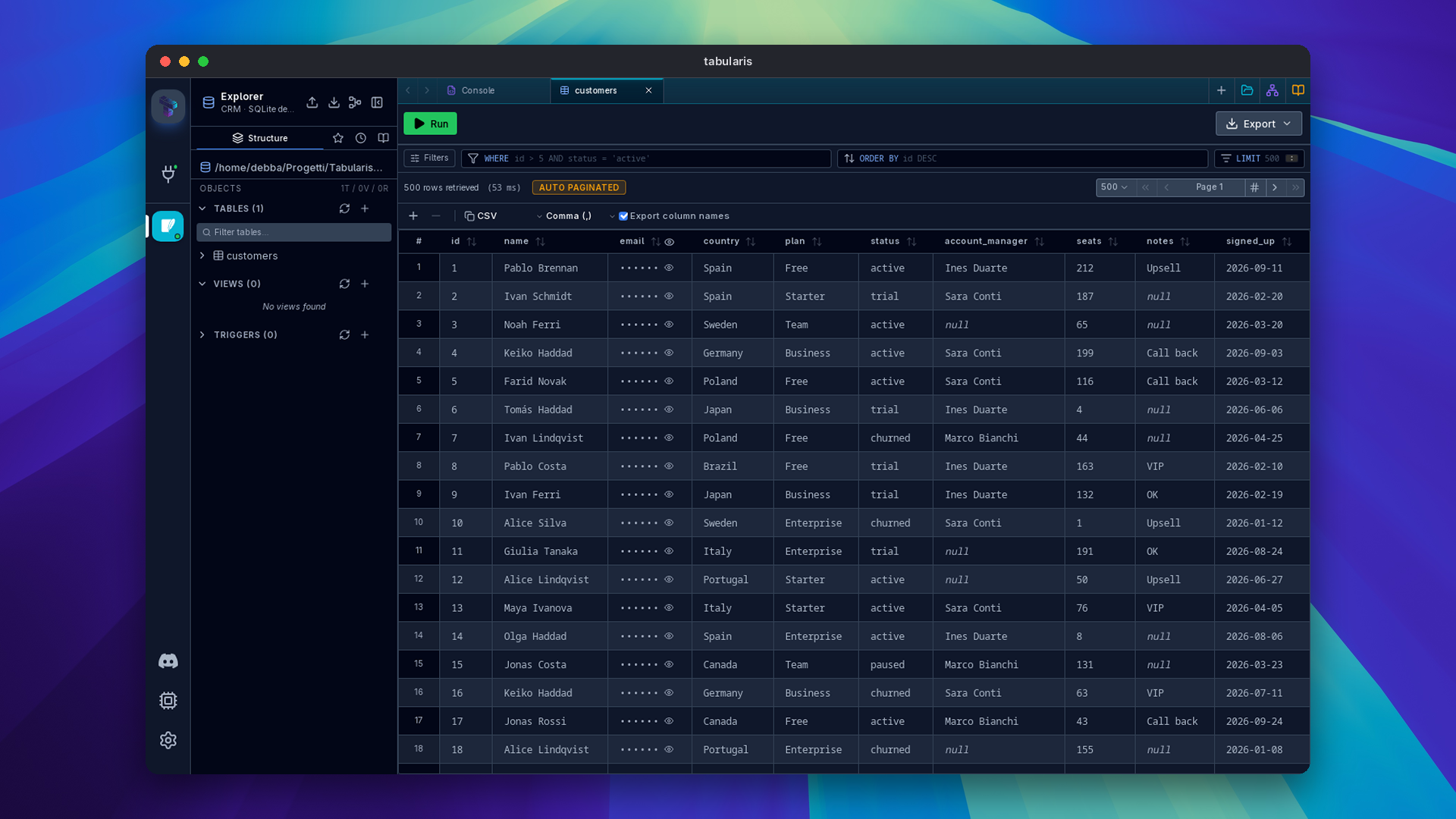
By default every cell value renders in the same text color. Enable Result Colors under Settings → Appearance → General to tint cell values by their data type — numbers, text, dates/times, and booleans each get their own color, so you can read a row's shape at a glance.
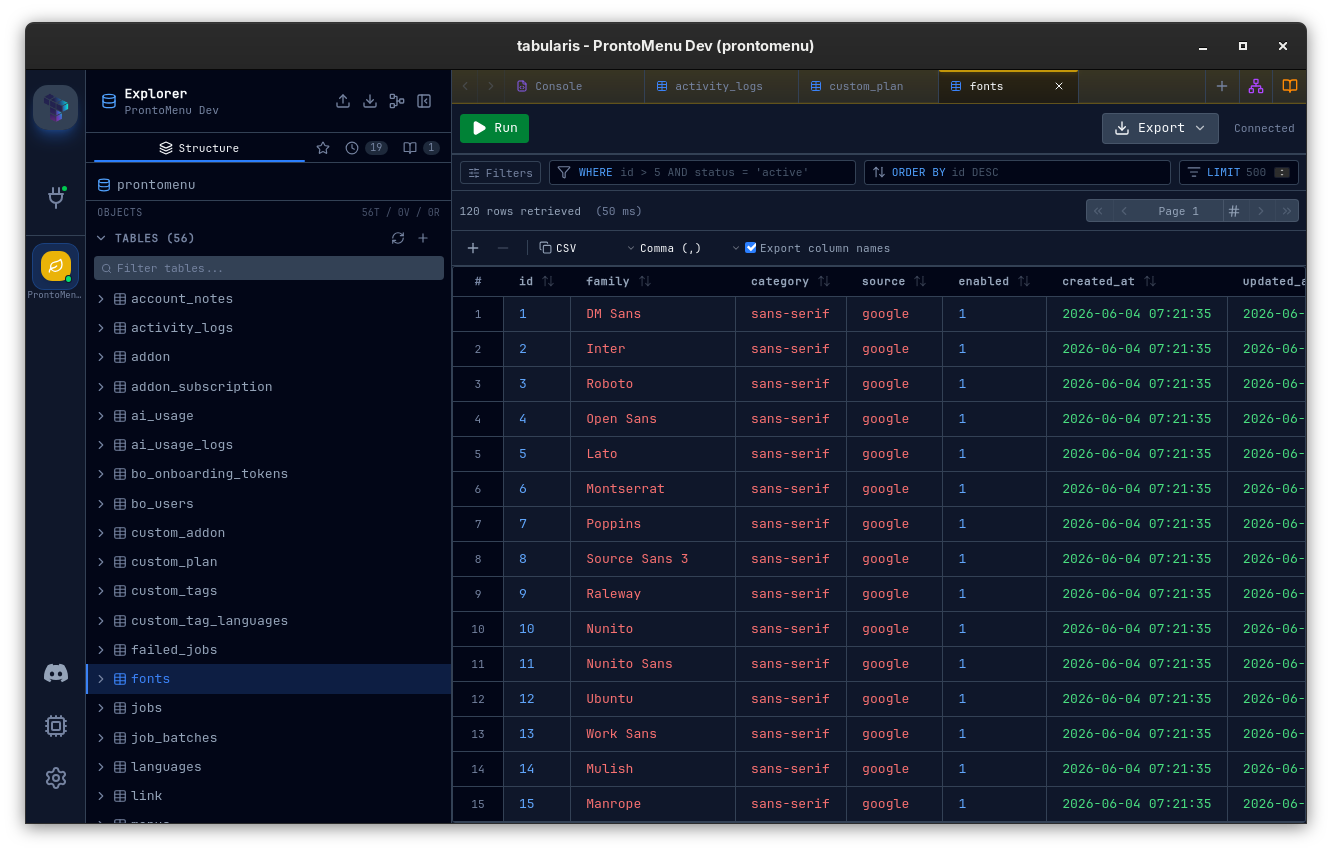
- The defaults follow the active theme's semantic palette (
--semantic-number,--semantic-string,--semantic-date,--semantic-boolean). - A per-type color picker with a live preview and a Reset to theme button lets you override any of them; overrides are saved in
config.jsonand applied on top of the theme. - Colorization is off by default — values render as before until you opt in.
- Colors apply only to plain data cells. Edited, inserted, and deleted rows, and
NULLvalues, keep their existing styling. Per-column colors are precomputed once, so there is no scroll-time cost.
Column Masking
Since v0.19.0, columns whose name matches a sensitive pattern — password, email, token, ssn, and friends — render as a •••••• placeholder instead of the real value.
- Per-cell reveal — masked cells show an eye button that reveals just that cell; a revealed cell gets an eye-off button to re-mask it. Column headers carry the same toggle for the whole column. Reveal state is grid-local and resets when the result data changes.
- Edit guard — masked cells can't be edited (double-click,
Enter,F2) until revealed, and the hover tooltip is suppressed so it can't leak the value. - Display-only — copy and export always carry the real values. Masking protects the screen, not the clipboard.
Masking is on by default and configured under Settings → Privacy: an on/off toggle, the column-name patterns (case-insensitive substring matches, one per line), and per-connection Always mask / Never mask overrides as table.column entries — never-mask wins over always-mask, which wins over the name patterns. A saved connection can also manage its own overrides from the Privacy tab of the connection modal (edit mode).
Exporting Results
Any query result — whether from a table browse or an SQL editor query — can be exported.
Export to CSV
Click the Export button in the toolbar and choose CSV. Tabularis streams the full result set (not just the current page) to a file. A progress indicator tracks the export; you can cancel it at any time.
Export to JSON
Choose JSON from the export menu. The full result set is written as a JSON array of objects, with column names as keys. Same streaming and cancellation support as CSV.
Export to Markdown
Choose Markdown to write the result as a Markdown table to a .md file, with the same streaming and cancellation support.
Exports are always performed on the complete result set — all rows that match the current filter, not just the visible page.
The exception is a multi-statement result (Run All / Execute Selection): since v0.21.0 the active result tab exports the rows already loaded rather than re-running the script on a fresh connection, so scripts that build temp tables can be saved. When only part of the result was loaded, the progress modal says how many of the total rows were exported; page through the result or raise the tab's rows-per-page (or pick All) before exporting if you need more.
JSON & Long Text Cells
json / jsonb columns and long text columns (TEXT, LONGTEXT, VARCHAR(MAX) and any string value longer than 80 characters or containing a newline) get a richer in-grid editor than the default single-line input.
Video unavailable
Chevron expand
A chevron icon appears next to the cell value. Click it to open an inline editor pane below the row:
- For JSON / JSONB cells: Monaco runs in JSON mode with syntax highlighting and bracket matching.
- For long text cells: Monaco runs in
plaintextmode.
The expansion editor supports a Diff toggle (off by default) that compares the original cell value against the current pending edit. A second Side-by-side toggle flips the diff from unified to a two-pane view. Both toggles are persisted only within the open expansion — closing it discards the toggle state.
Standalone viewer window (JSON / JSONB only)
JSON cells additionally show a braces icon. Clicking it opens the cell in a standalone Tauri window dedicated to the value, with the same JSON editor and Diff / Side-by-side toggles plus a Save button. Multiple cells can have their viewers open at the same time — each window keeps its own session and remembers its bounds. Saving flows back to the grid as a pending change; close the window without saving to discard the edit.
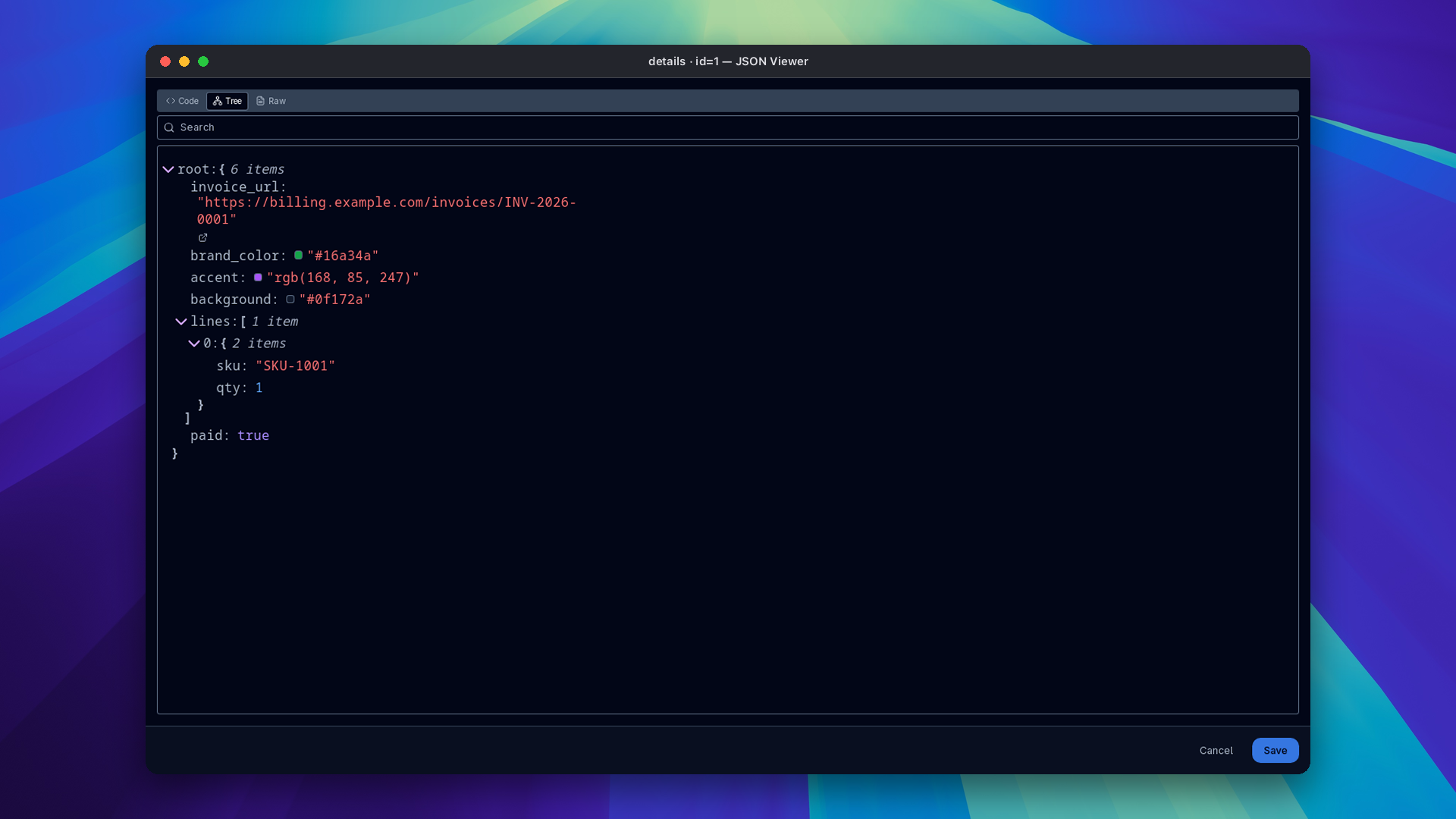
Double-clicking a JSON cell opens the viewer directly in edit mode (skipping the chevron). Since v0.25.0 the viewer also opens from read-only query and notebook result grids, by double-click or Enter, including on generated columns; the blob editor and the row editor sidebar stay behind the read-only guard. Since v0.26.0 the right-click menu on a read-only result also offers Open in JSON Editor, while mutation actions such as Set NULL, paste, duplicate and delete stay hidden.
Since v0.28.0 the JSON viewer decorates string values: http, https and mailto strings get a button that opens them in the system browser, and hex, rgb() / rgba() and hsl() / hsla() colors get a color swatch. Values stay editable.
There is no separate viewer window for plain text cells — text values aren't compared across windows as often as JSON, and the inline chevron is the entry point that mattered.
"Detect JSON in text columns" (per-connection)
Some applications store JSON inside plain TEXT columns. To route those values through the JSON cell renderer, open the connection edit modal and enable Detect JSON in text columns. The flag is per-connection — toggle it on for your audit-log database and off for the one where TEXT means "free-form prose".
The same toggle also enables native array detection for text[] / int[] (PostgreSQL) and Firestore arrays.
Video unavailable
Round-trip through pending changes
Edits made in the inline expansion editor or the viewer window are queued as pending row changes rather than committed immediately. You can review the unified diff, decide you don't like it, close the editor, and hit Submit on the row when you do. PostgreSQL binds json / jsonb values natively (no string round-trip), so structured objects and arrays go through as typed parameters.
The same diff toggles are available in the row-editor sidebar for long fields, and that pane is drag-resizable so a long markdown article can occupy the height it deserves.
BLOB / Binary Columns
Large binary columns (BLOB, bytea, etc.) are truncated in the grid to avoid loading multi-megabyte values into memory. The grid loads at most a 10 KiB preview of each binary value and shows the full size in bytes. The larger limit for loading and uploading a whole BLOB (for example from the row editor) is maxBlobSize in config.json (default: 100 MB).
Image preview on hover
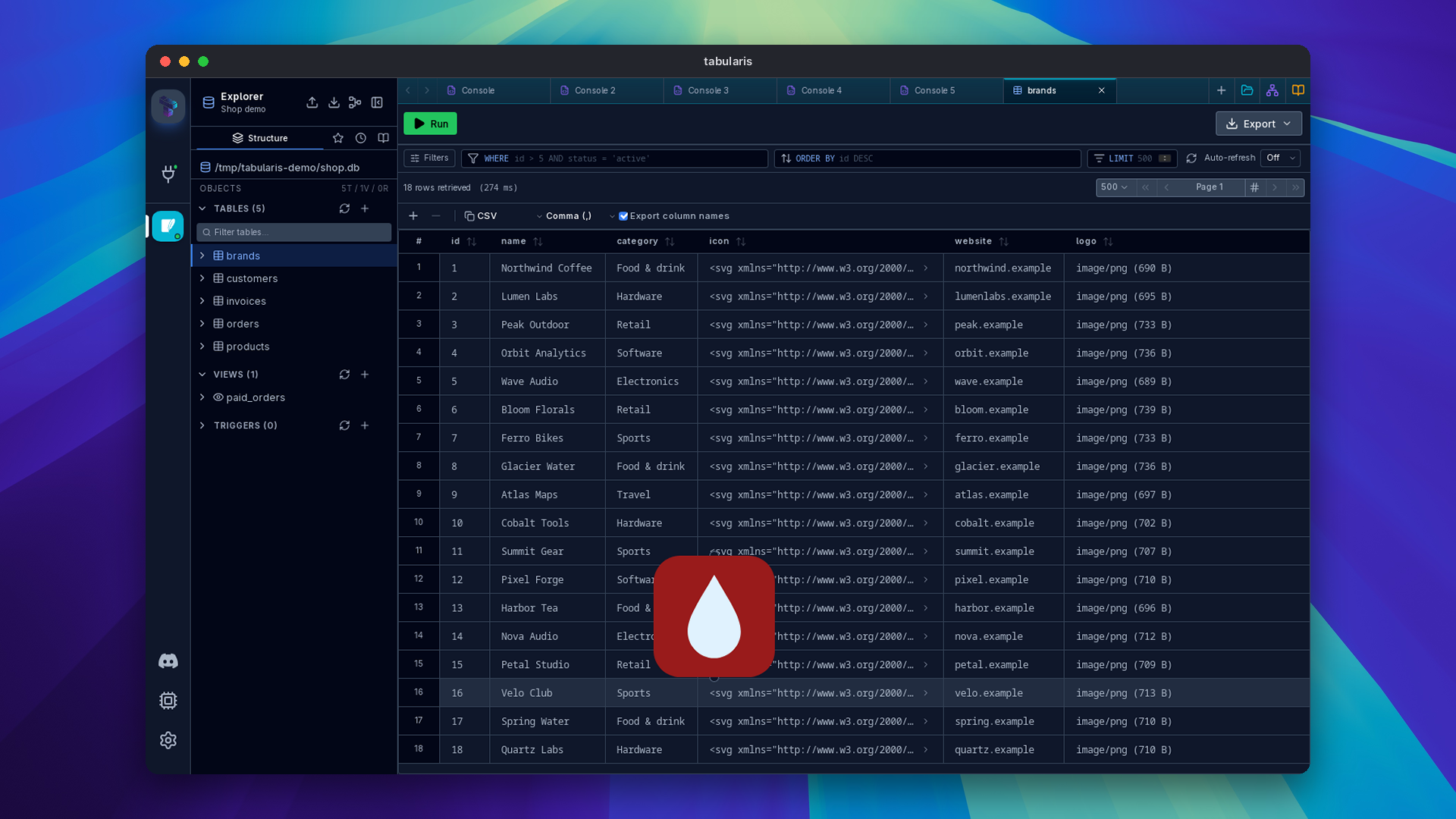
Since v0.28.0, hovering a BLOB cell that holds an image, or a text cell that holds SVG markup, shows the image in a popover. Only data already loaded in the grid is used, so no extra query runs. SVG is rendered through an <img> data URL and never inserted into the page, so scripts inside it cannot run.
Hex preview and editing
Since v0.20.0, small generic binary values — fixed-width identifiers like BINARY(16), short bytea payloads — render in the grid as a compact 0x… hexadecimal string instead of opaque transport metadata. Up to 64 bytes are shown; longer values get an ellipsis. Recognized file MIME types keep showing type and size metadata.
In the row-editor sidebar, any complete BLOB up to 10 KiB opens in a dedicated hex editor: bytes displayed as uppercase space-separated pairs, whitespace and an optional 0x prefix accepted on input, odd-length or non-hex input rejected, and invalid edits reverted on blur. Valid edits commit on blur or Cmd/Ctrl + Enter and preserve the value's original MIME type. BLOBs above 10 KiB, truncated values, and file references keep the existing download/file editor.
Foreign Key Navigation
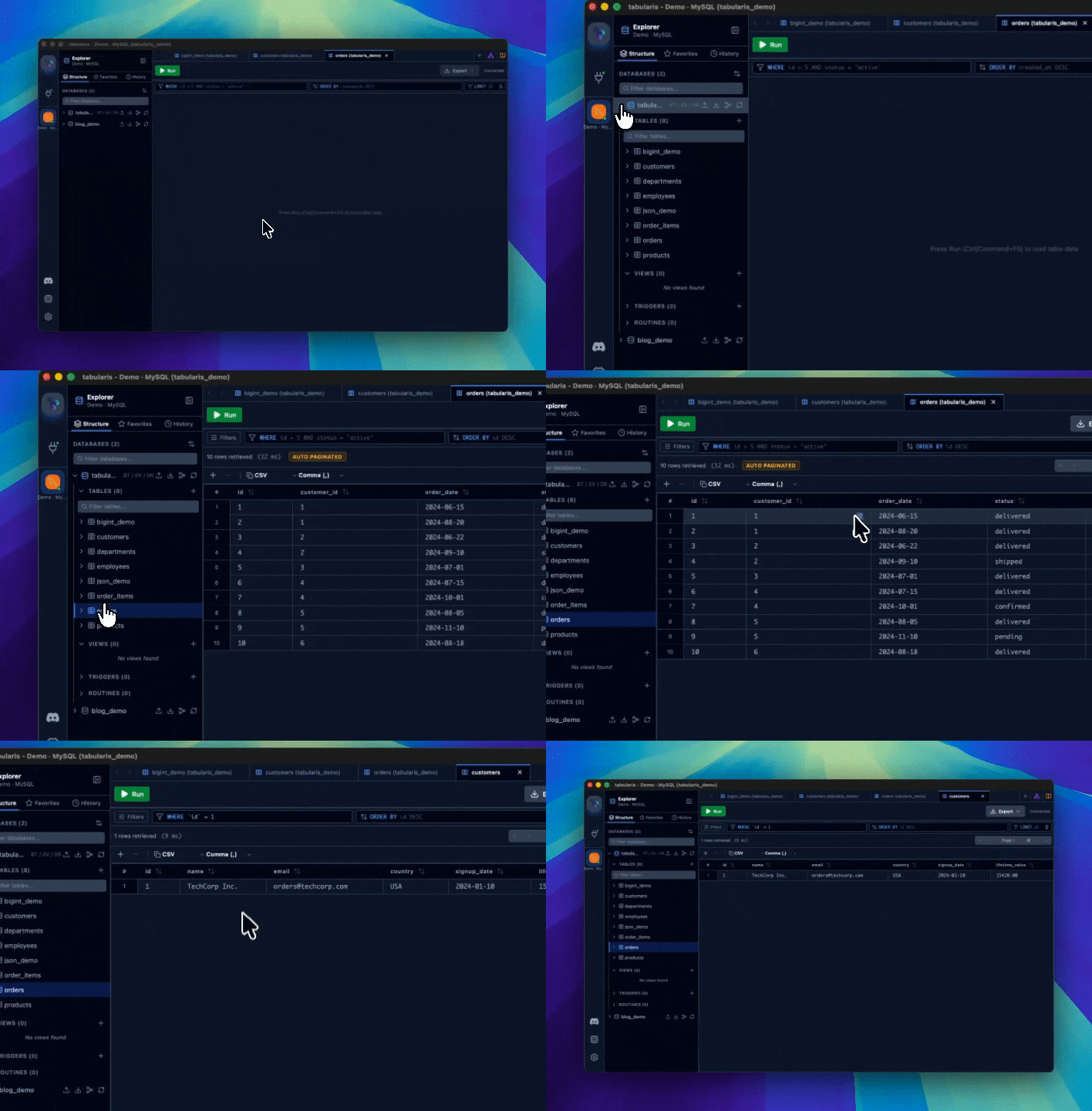
When the active result is a table with foreign keys, FK cells get a click-to-navigate affordance:
Video unavailable
- Hover an FK cell → a small ↗ icon appears on the right of the cell. Clicking it opens (or reuses) a tab against the referenced table with
WHERE "ref_col" = valuepre-applied and runs the query. - Right-click an FK cell → the context menu offers Preview related record (opens the panel below) and Open referenced row in
<table>.
The icon and menu entry only appear when the cell value is non-null, the row is not a pending insertion, and the row is not pending deletion. Identifier quoting follows the driver (backticks for MySQL/MariaDB, double-quotes elsewhere); numeric, bigint, boolean, and string values are formatted with the same rules used by the SQL INSERT copy format.
If the referenced table is already open as a tab, that tab is reused — the WHERE filter is overwritten and the query re-runs.
V1 limitations: only single-column foreign keys are surfaced; composite constraints and cross-schema navigation are not yet supported.
Related Records Panel
When you want to check what a foreign key points at without losing the row you're already on, click the FK value (or pick Preview related record from the cell context menu) and a Related Records Panel slides up from the bottom of the data grid. The parent table stays visible and interactive above it.
Video unavailable
- The panel renders a mini result grid of
SELECT * FROM <ref_table> WHERE <ref_col> = <value> LIMIT 100, using the same identifier-quoting rules as FK navigation. - Clicking a different FK in the parent grid swaps the panel content in place — no close-then-reopen.
- The panel is drag-resizable from the grip in its header, so a wide referenced row can claim the height it needs.
- An Open in tab button hands off to the navigation path above when you decide you do want to leave for the referenced table after all.
Column Header Context Menu
Right-click any column header to open the header context menu. Available actions:
| Action | Description |
|---|---|
| Select Column / Deselect Column | Adds the column to, or removes it from, the column selection. |
| Copy Selected Columns (N) | Copies the selected columns for the rows in scope. |
| Copy column name | Copies the column name as plain text to the clipboard. Useful when building queries or referencing column names in other tools. |
Copy as column |
Copies the column name quoted as an identifier. |
| Copy as table.column | Copies the column name qualified with the table name. |
| Copy column values | Copies the column's values, newline-separated (see Column-level copy). |
| Copy column values as SQL IN | Copies the column's values as a ready-to-paste SQL IN list. |
Null vs. Empty String
The grid displays NULL values with a distinct grey NULL badge to differentiate them from empty strings. When editing, leave a cell blank to write an empty string; use the dedicated Set NULL option in the cell context menu to write a true NULL.
The same menu offers other value shortcuts when they apply to the column: Set DEFAULT (columns with a default), Set EMPTY (text columns), Insert Current Timestamp (date/time columns) and Set GENERATED (auto-increment columns on a new row).
Keyboard Shortcuts
| Action | Shortcut |
|---|---|
| Edit selected cell | Enter / F2 |
| Confirm edit | Enter |
| Cancel edit | Escape |
| Copy selection (row or cell, depending on focus) | Ctrl/Cmd + C |
| Paste at the selection (staged as pending changes) | Ctrl/Cmd + V |
| Move between cells | Arrow keys |
| Jump to column (since v0.28.0) | Ctrl/Cmd + Shift + J |
| Next page | Ctrl/Cmd + Right |
| Previous page | Ctrl/Cmd + Left |
| Mark selected rows for deletion | Delete / Backspace |