

Updates
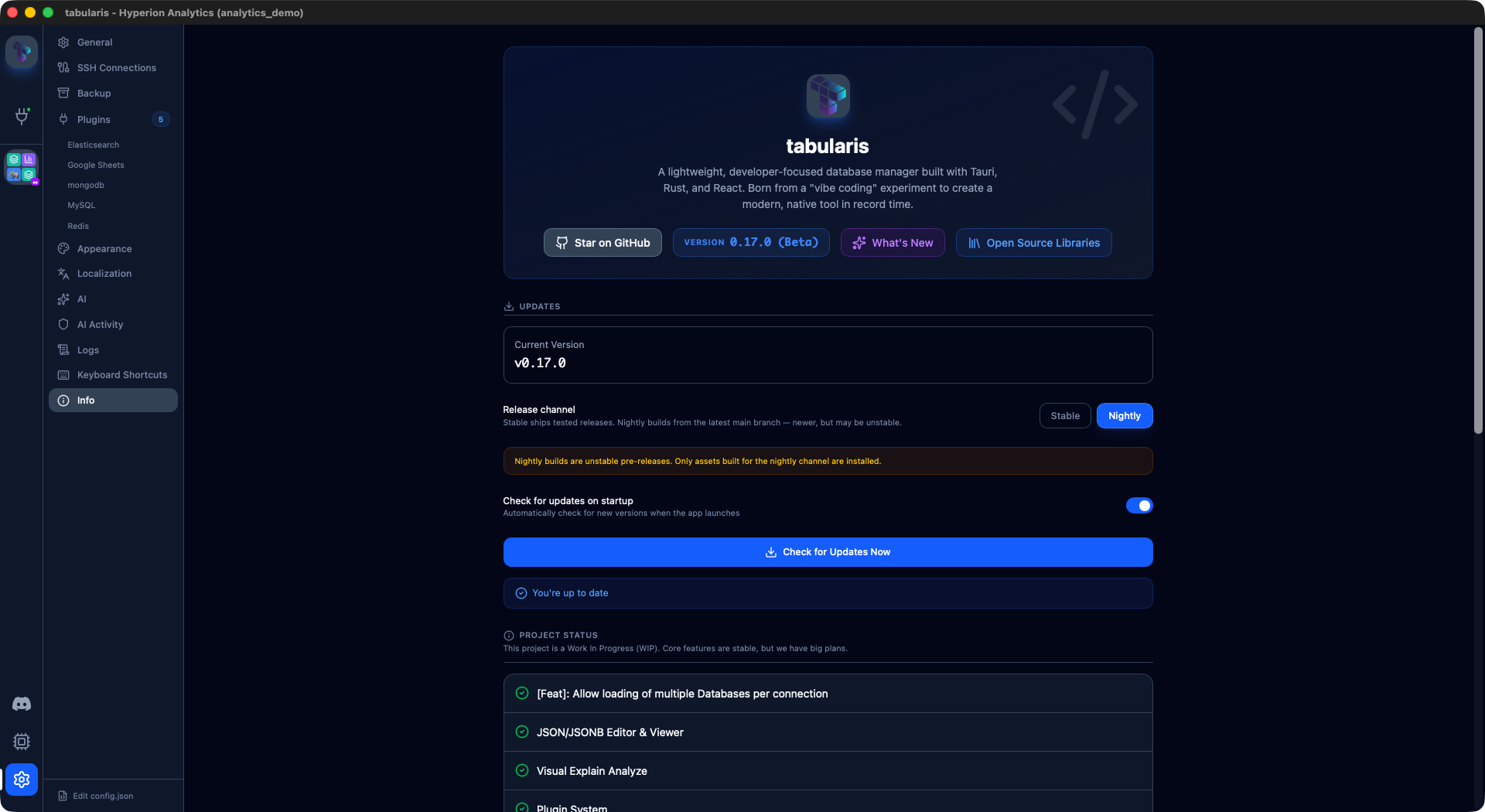
Tabularis can notify you when a new version is available and, depending on how you installed it, update itself automatically or guide you to do it manually.
Automatic Update Check
By default, Tabularis checks the GitHub Releases API two seconds after it starts. On the stable channel the result is cached for 12 hours (the cache is discarded after the app itself is updated), so restarting several times a day does not hit GitHub each time. If a newer version is found, a notification appears in the UI with the release notes and a prompt to install it.
To disable automatic checks, turn off Check for updates on startup in Settings → Info, or set autoCheckUpdatesOnStartup to false in your config.json. See Configuration for the full reference.
Tabularis only downloads an update after you confirm the prompt — it never installs anything silently. Once the update is installed, the app restarts automatically.
Since v0.24.0, the update notification renders release notes as Markdown, including headings, lists, code and links; links open externally.
Update Badges and Startup Toast
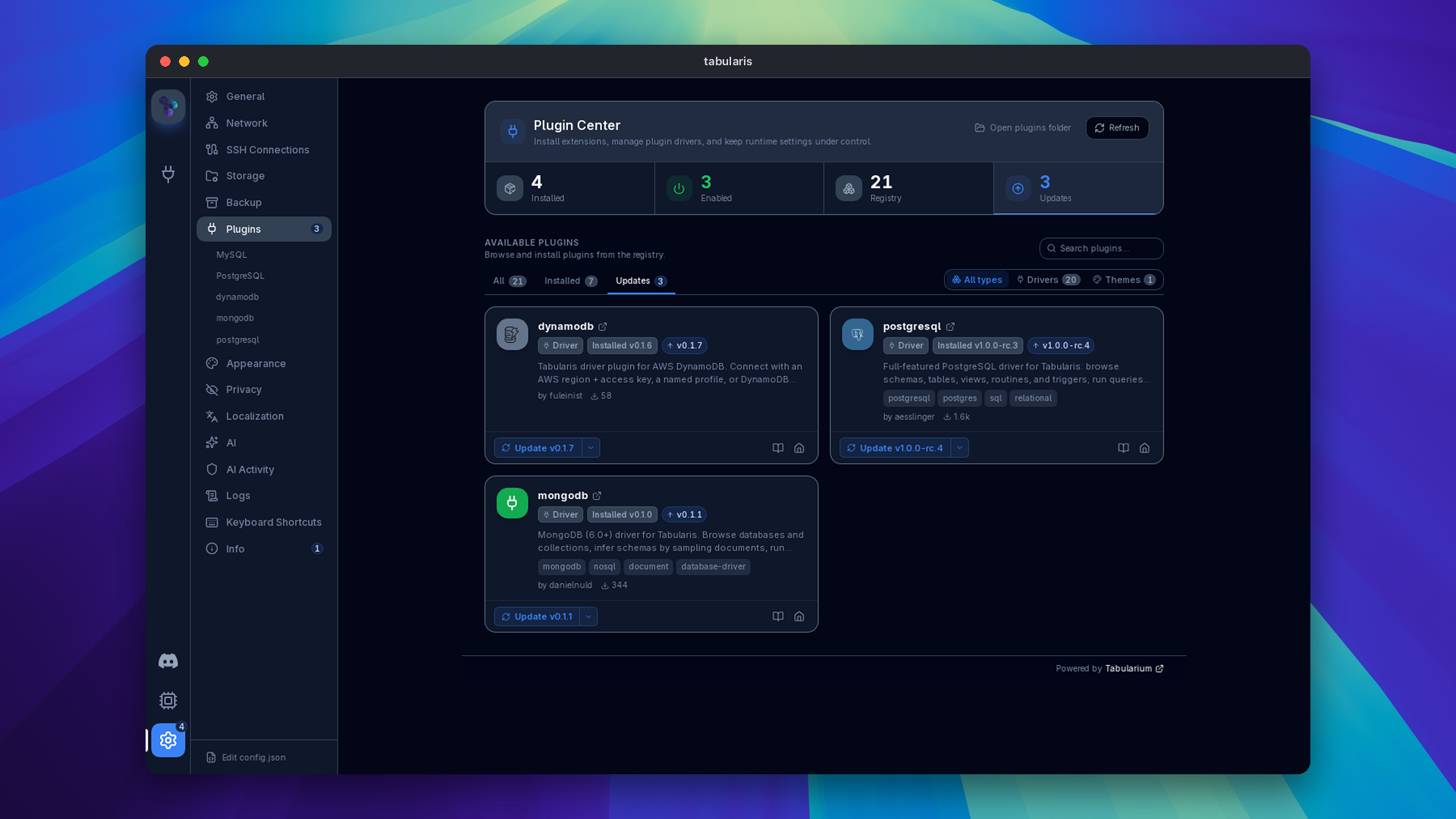
Since v0.25.0 available updates are visible without opening Settings. The sidebar rail shows one counter for pending core and plugin updates; inside Settings, Plugins and Info each show their own count, with a tooltip naming the plugins or the version involved. The plugin count includes only installed plugins with a release compatible with your app version and platform, and refreshes after a plugin is installed, updated or removed.
When plugin updates are found at startup, one dismissible toast appears. Clicking it or Open Plugins opens Settings → Plugins with the Updates filter applied. No toast is shown when the initial check finds nothing or fails, so an offline registry stays quiet.
Choosing Remind Me Later on a core update keeps suppressing the modal on background checks, but the sidebar badge and the details in Settings → Info remain, where an update status card offers a manual check, the release notes and the install action.
Video unavailable
What's New
The What's New modal includes a compact author introduction with GitHub Sponsors and repository-star actions. Never show this again dismisses only this support invitation, not future release notes. The preference persists, and the bundled avatar does not require a GitHub image request.
Release Channels
Since v0.17.0 the updater supports two channels, selectable in Settings → Info → Updates:
| Channel | What you get |
|---|---|
| Stable (default) | Tagged releases only. |
| Nightly | Signed builds cut from the newest commit that passed CI, typically daily. |
Nightly versions are stamped as the next patch with a prerelease suffix, so a nightly always supersedes the current stable and any real release supersedes the nightly — switching back to stable simply means waiting for (or installing) the next tagged release. Nightlies are signed like releases but are not manually verified; expect rough edges.
Manual Update Check
Open Settings → Info and look for the Updates section. Click Check for Updates Now to query the API on demand, bypassing the 12-hour cache. The panel shows your current version and, if an update is available, a button to download and install it.
Package Manager Installs
When Tabularis detects it was installed via a system package manager, the built-in updater is disabled and the Updates panel shows a notice instead. Updates must be performed through the package manager itself.
Since v0.20.0, distribution maintainers can declare this at build time: setting PACKAGE_MANAGER_SRC and PACKAGE_MANAGER_NAME when building marks the installation as package-managed — automatic update checks are skipped, the built-in installer is disabled, and the configured package manager name is shown in Settings → Info. This joins the existing Snap, Flatpak, and AUR (tabularis-bin) auto-detection.
Since v0.28.0, WinGet installs are package-managed too: releases publish a dedicated NSIS installer for WinGet with the package manager embedded, so a WinGet install shows "Updates managed by winget" and is upgraded with winget upgrade. An existing WinGet installation picks this up on its next WinGet upgrade. Portable WinGet layouts (a Debba.Tabularis* folder under the WinGet Packages directories) are also detected. The installers on the download page and GitHub Releases keep the in-app updater.
Homebrew installs are intentionally not detected: the cask is marked as auto-updating, so brew upgrade skips it unless forced, and the built-in updater stays active. You can update either from the app or with the commands below.
AUR (Arch Linux)
yay -Syu tabularis-bin
Tabularis shows "Updates managed by AUR" in the Info panel. The built-in update button is replaced by a reminder to use your AUR helper.
Snap (Ubuntu / Debian)
Snap packages update automatically in the background. To force an immediate refresh:
sudo snap refresh tabularis
Homebrew (macOS)
brew upgrade --cask tabularis
If you installed the nightly cask, upgrade that one instead:
brew upgrade --cask tabularis@nightly
winget (Windows)
winget upgrade --id Debba.Tabularis
Tabularis Web Servers
A Tabularis Web server is never updated from the browser: the built-in updater does not apply, and Settings → Info → Updates shows the server's version and build instead. Upgrade with the method that installed it (package manager, release artifact, container image or Helm chart).
- Note the version shown in Settings → Info → Updates, and the server's launch options, account and data locations.
- Back up the configuration and data folders. Credentials live in the OS credential store or the encrypted secret file, so back those up separately.
- Stop
tabularis webor its service, install the new release, and start it again with the same account, environment and options. - Check the reported version, sign in, open a connection, run a read-only query and confirm live progress works before reopening access.
The server ships its matching browser UI, so never copy a UI bundle from another release onto it. If a check fails, stop the server, restore the previous installation and its deployment files, and restart it with the original configuration. Keep the failed version's logs for diagnosis. Release notes take precedence when a version needs a migration or has rollback constraints.
Which Version Am I Running?
The current version is always visible in Settings → Info, in the top-right badge on the Info card, and as a badge at the top of the home page.