AWS SSM Tunneling
Since v0.25.0 a database connection can be forwarded through an AWS Systems Manager Session Manager port-forwarding session. It is the third tunnel method next to SSH and Kubernetes, and it suits databases that are reachable from an EC2 instance or another managed node but have no public endpoint and no SSH bastion: an RDS instance in a private subnet, or a database running on the node itself.
Requirements
- The AWS CLI (
aws), configured with credentials that can start sessions. Since v0.26.0 Tabularis also looks in the standard install locations (/opt/homebrew/bin,/usr/local/bin,/usr/local/sessionmanagerplugin/bin,/opt/local/bin; on WindowsC:\Program Files\Amazon\AWSCLIV2andC:\Program Files\Amazon\SessionManagerPlugin\bin) after yourPATH, because an app launched from Finder or a desktop launcher does not inherit your shell profile. A CLI on your ownPATHstill takes priority. - The Session Manager plugin (
session-manager-plugin) installed for the AWS CLI. - A target instance registered as a managed node in Systems Manager, with the SSM Agent running.
- IAM permission
ssm:StartSessionon the target and on the document that will be used (see below).
Tabularis does not embed an AWS SDK for this purpose. Credentials, SSO logins, assumed roles and credential processes are handled entirely by the AWS CLI, so whatever works in your terminal works here, and nothing SSM-specific is written to the keychain.
How It Works
When a database connection has AWS SSM enabled, Tabularis:
- Runs
aws ssm start-sessionas a managed child process against the configured managed node, with the optional profile and region. - Waits for the CLI to report the local port it opened. Readiness is taken from the process itself, never from probing the port, so a foreign process that happens to hold that port cannot be mistaken for the tunnel.
- Points the database driver at
127.0.0.1:<local_port>instead of the configured host.
The forward target is the connection's own Host and Port from the General tab. The SSM document is derived from that host:
| Target host | Document | Meaning |
|---|---|---|
localhost, 127.0.0.1, ::1 or blank |
AWS-StartPortForwardingSession |
A port on the managed node itself |
| Anything else | AWS-StartPortForwardingSessionToRemoteHost |
A remote host reached through the node, such as an RDS endpoint |
Both documents are supported because some IAM policies grant only the first one. The AWS SSM tab shows which document the current host resolves to.
Sessions are reused by connections that share the same node, profile, region and target, and checked for liveness before reuse, since AWS ends sessions on idle timeout or at the session's maximum duration. Teardown signals the whole process group: the CLI spawns session-manager-plugin as a child, and that child is what holds the forwarded port.
Configuring a Connection
- Open the connection editor (new or existing connection).
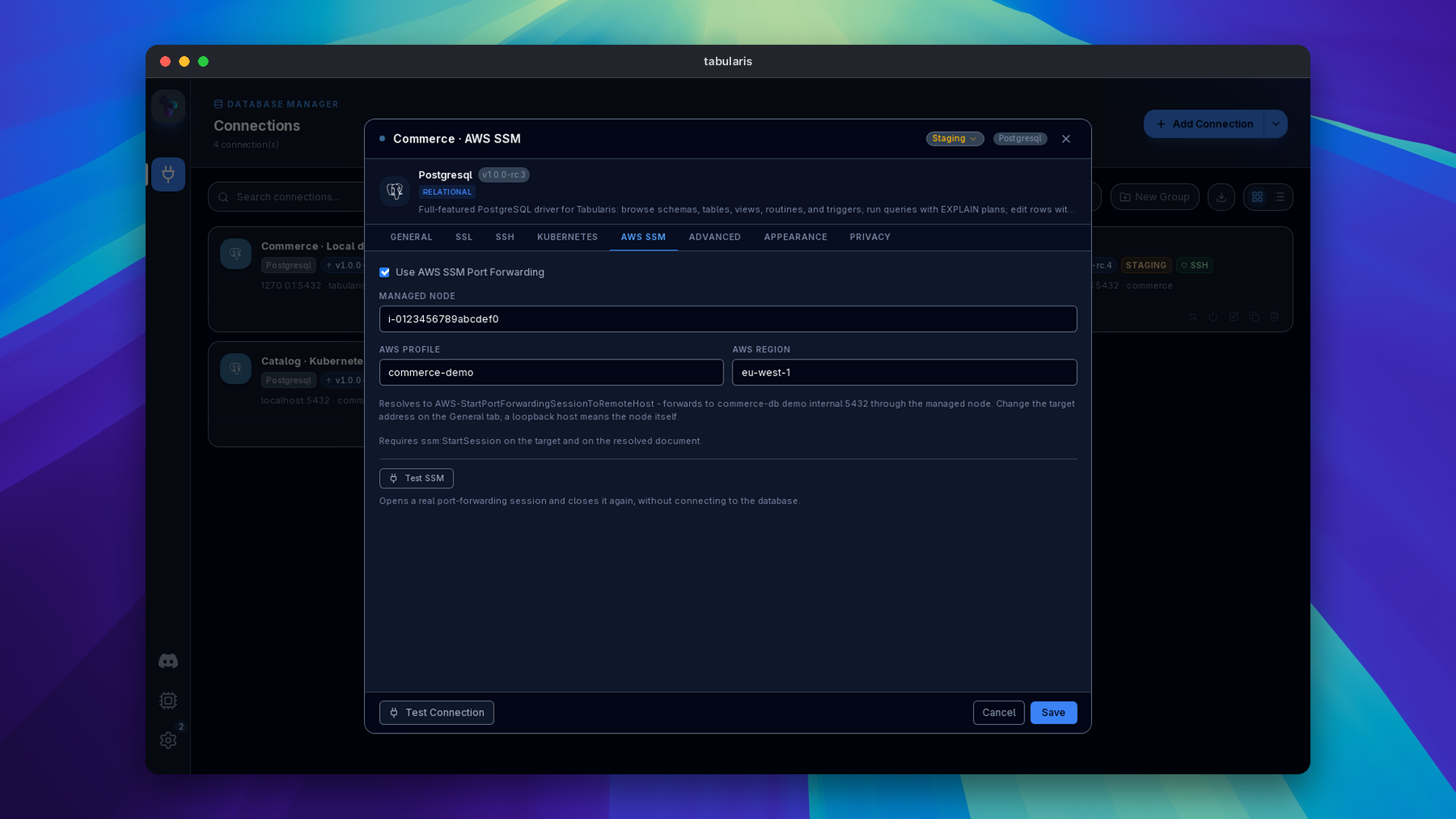
- Fill in the database Host and Port on the General tab as the managed node sees them. Leave the host blank or use
localhostfor a database on the node itself. - Switch to the AWS SSM tab and enable Use AWS SSM Port Forwarding.
- Enter the Managed Node id (for example
i-0123456789abcdef0). Set an AWS Profile and AWS Region if the defaults from your AWS CLI configuration are not the right ones. - Optionally press Test SSM. It opens a real port-forwarding session and closes it again without connecting to the database, which tells an AWS problem apart from a database problem.
- Test Connection and save.
SSH, Kubernetes and AWS SSM are mutually exclusive on a connection: enabling one disables the others.
Badges
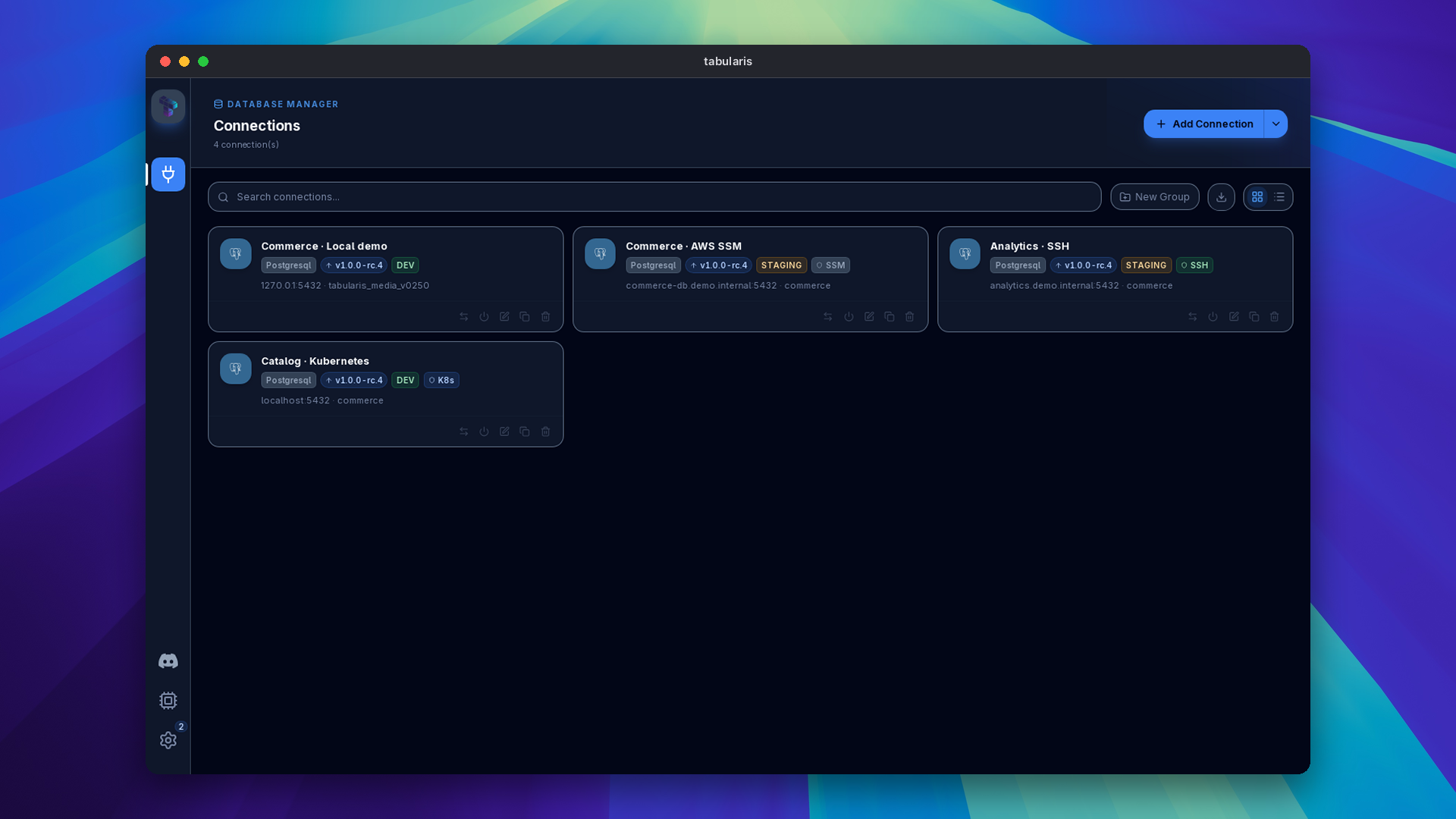
Connections with an SSM tunnel show an SSM chip on the Connections page (card and list view) and in the sidebar, alongside the existing SSH and K8s indicators.
MCP and Auxiliary Flows
The tunnel is resolved on every database command path, including the MCP server, so an AI agent querying a saved connection reaches the database through the same Session Manager session you use in the GUI.
Troubleshooting
AWS CLI failures are classified into actionable messages, with the raw AWS output kept in the details. The most common ones:
"SessionManagerPlugin is not found"
- Install the Session Manager plugin for the AWS CLI and make sure it is in your
PATH.
Expired SSO token or missing credentials
- Run
aws sso login --profile <profile>(or refresh your credentials) in a terminal, then reconnect. Tabularis uses the same configuration files as the CLI.
TargetNotConnected
- The instance is not registered as a managed node, the SSM Agent is not running, or you are looking in the wrong region. Check AWS Region on the SSM tab.
"Access denied" from AWS
- This is an IAM denial, not a database login failure. You need
ssm:StartSessionon the target and on the resolved document. Since v0.25.0 the connection diagnostics attribute it to the session rather than the database.
"Connection refused" after the session is ready
- With SSM enabled, a refused connection to the forwarded local port is reported against the session, not the database host. Verify the Host and Port on the General tab are what the managed node can reach.
Port conflict
- Another process took the local port between allocation and forwarding. Reconnect; a new port is allocated each time.
Out of scope for now: static access-key fields, a session-manager-plugin path override, an explicit local-port override, EC2 and RDS target discovery, and Secrets Manager passwords.