

Get Started
This guide walks you through the first things to do after installing Tabularis.
Video unavailable
1. Create a connection
Click the + button in the left sidebar to open the New Connection form.
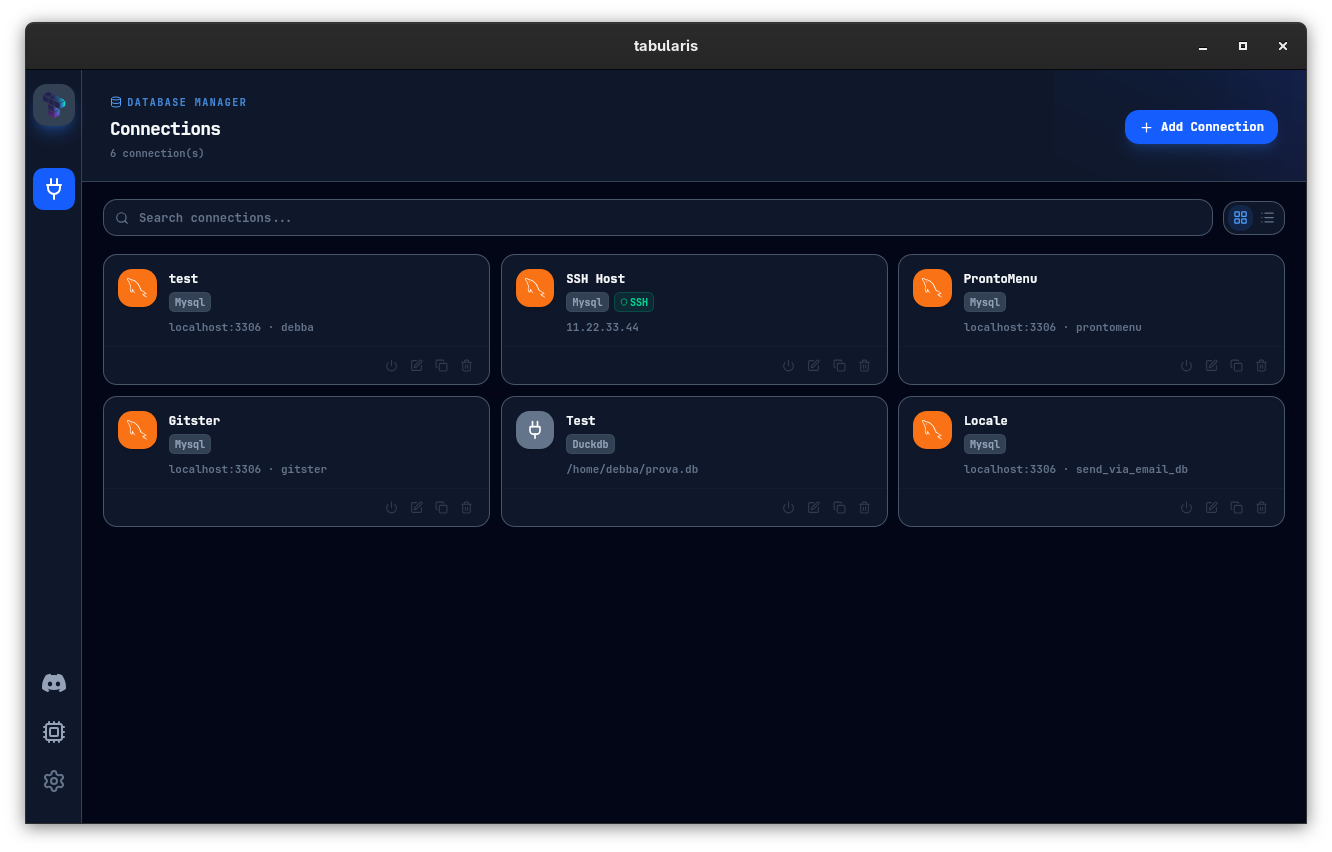
Fill in the required fields:
| Field | Notes |
|---|---|
| Name | A display label for the sidebar |
| Driver | Select postgres, mysql, or sqlite |
| Host | Hostname or IP address |
| Port | Pre-filled from the driver default (5432 for PostgreSQL, 3306 for MySQL) |
| Database | The database name |
| Username | Database user |
| Password | Stored in the OS keychain when Save passwords in Keychain is checked; otherwise saved in plain text in connections.json |
For SQLite, select the sqlite driver and use the file picker to choose your .db or .sqlite file. There is no host, port, or authentication.
Test before saving
Click Test Connection to verify the connection before saving. Tabularis makes a real connection attempt and returns the exact error message from the database engine if it fails. Click Save once the test succeeds.
SSH tunnel
If your database is in a private network, enable the SSH tab before saving. Create an SSH profile (host, port, user, and either a password or a key file) and associate it with the connection. See Connection Management for details.
2. Explore the schema
Once connected, the Explorer opens on the Structure tab and shows schemas, tables, views, and routines for that connection. Expand any node to browse its children.
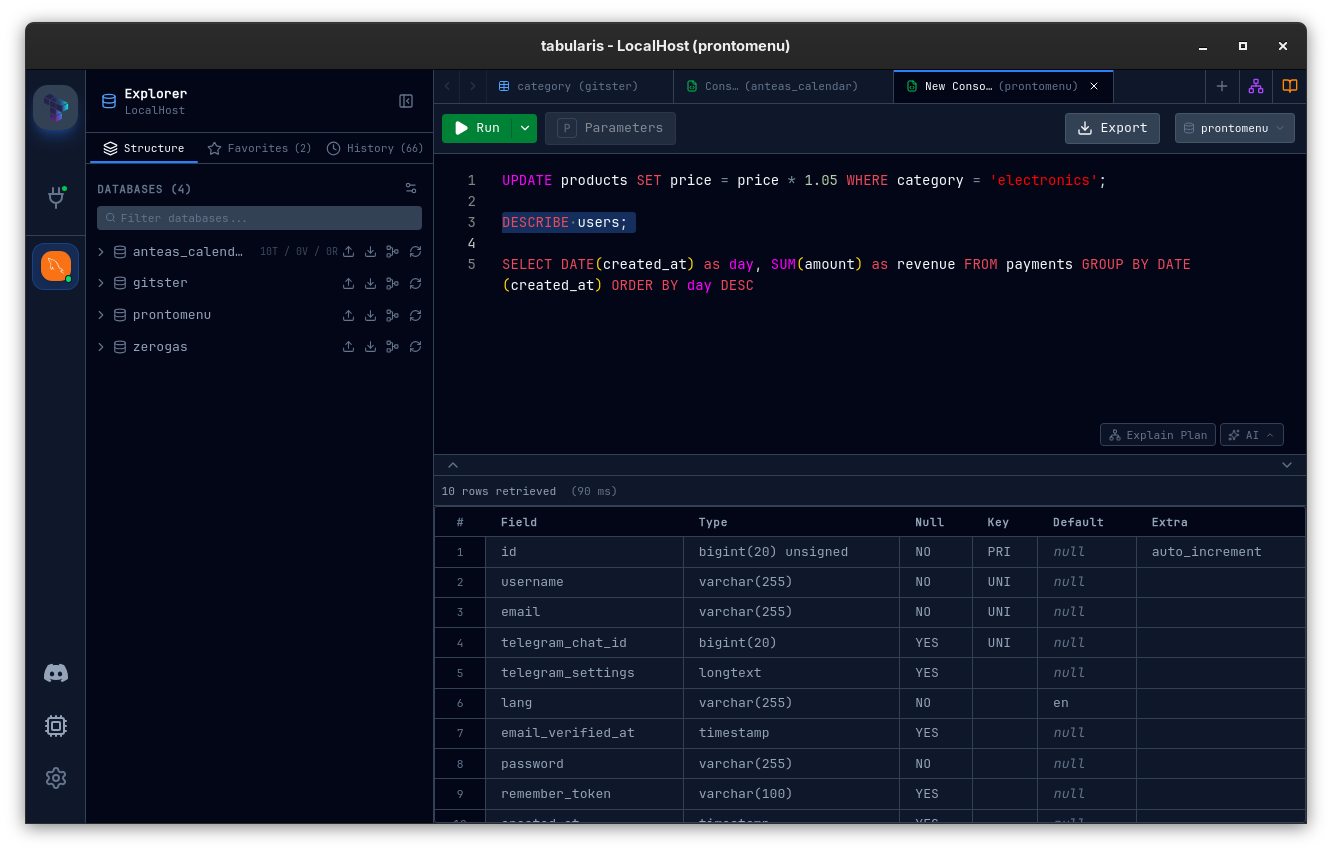
A fourth Notebooks tab lists the SQL notebooks of the connection.
- Double-click a table to open it in the Data Grid and load the first page of rows.
- Right-click a table for actions such as view schema, add a column, view the ER diagram, generate SQL, or import from the clipboard.
- Switch to Favorites to see saved queries for the active connection only.
- Switch to History to review previously executed SQL, grouped by date with search and quick re-run support.
For PostgreSQL connections with multiple schemas, use the schema selector in the sidebar header to control which schemas are visible. Your selection is persisted per connection.
3. Run a query
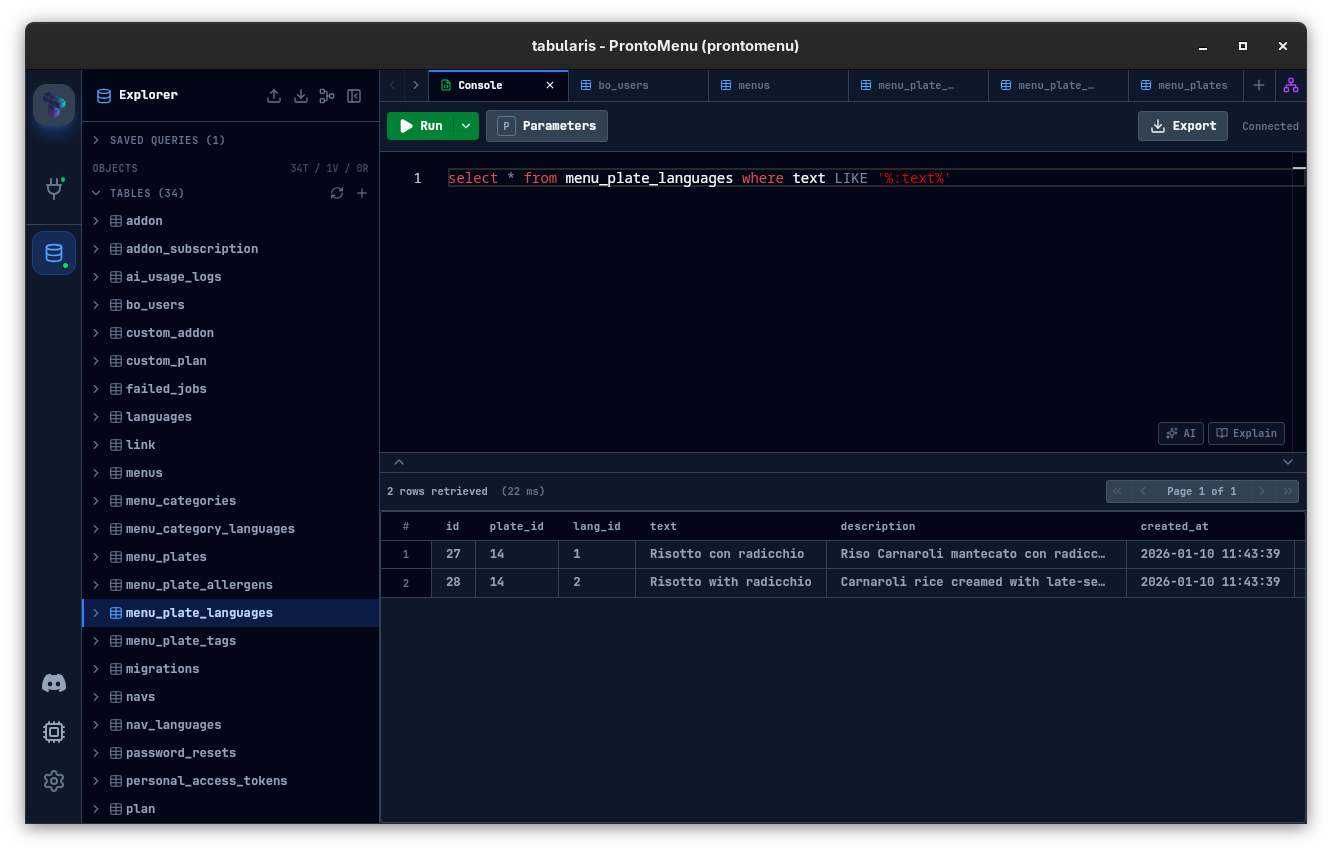
Click the SQL Editor tab or open a new editor tab. Type your SQL, then execute it with:
| Action | macOS | Windows / Linux |
|---|---|---|
| Execute (editor) | Cmd + Enter |
Ctrl + Enter |
| Execute (global) | Cmd + F5 |
Ctrl + F5 |
If you have multiple statements in the editor and no text is selected, Tabularis runs the statement under the cursor (the Run statement under cursor default). With that setting off, it prompts you to choose which statement to run instead. Select text first to execute only that portion.
Results stream into the Data Grid below the editor. Use the page controls to navigate large result sets. The page size defaults to 500 rows and can be changed via resultPageSize in Configuration.
Query History
Every executed statement is recorded in the Explorer's History tab for the current connection. Double-click any history entry to open that SQL in a new console and run it, or right-click it for actions like copy, run, run in a new tab, save as favorite, and delete.
History is isolated per connection, so a PostgreSQL session and a MySQL session keep separate timelines.
4. Edit data
Double-click any cell in the Data Grid to edit it inline. Modified cells are highlighted. When you are ready, click Submit to generate and execute the UPDATE statements using the table's primary key. Click Rollback to revert pending changes.
5. Export results
Use the Export button in the results toolbar to export the current result set to CSV, JSON, or Markdown. Large exports are streamed and can be cancelled.
Next steps
| Topic | What you will learn |
|---|---|
| Connection Management | SSH tunnels, production guard, connection groups |
| SQL Editor | Autocomplete, multi-result execution, query history, the Monaco command palette |
| Saved Queries | Favorites tab, reusing queries, saving from history |
| Visual Query Builder | Build JOIN queries without writing SQL |
| Schema Management | Alter tables, manage indexes and foreign keys |
| ER Diagram | Visualise table relationships as an interactive diagram |
| Dump & Import | Export a database to SQL and restore it |
| AI Assistant | Generate SQL from natural language using OpenAI, Anthropic, MiniMax, Ollama, or any compatible endpoint |
| Configuration | Themes, font, page size, AI provider settings |