

Task Manager
The Task Manager is a built-in system monitor focused on Tabularis itself and the plugin processes it spawns. It lets you see resource consumption at a glance and take direct action — restart a misbehaving plugin or force-kill it — without leaving the application.
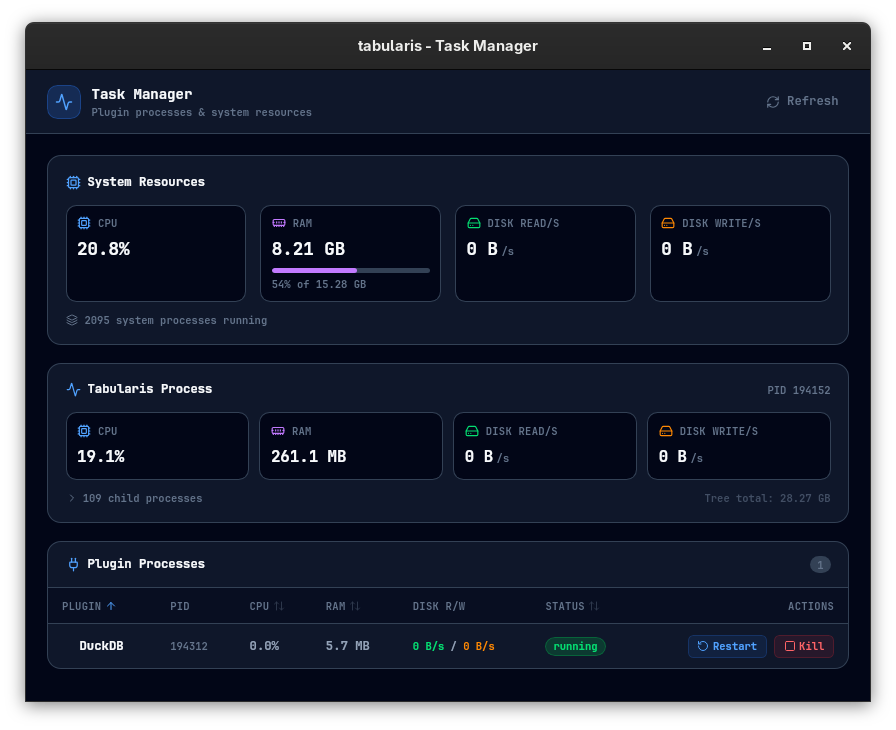
Open it from Settings → Info, using the Open Task Manager button in the Task Manager section.
Interface Overview
The Task Manager window is divided into three panels:
1. System Resources
A real-time summary of the host machine:
| Metric | Description |
|---|---|
| CPU | Total CPU usage across all cores |
| RAM | Used memory with a visual bar (used / total) |
| Disk Read/s | Aggregate read throughput |
| Disk Write/s | Aggregate write throughput |
A process count is also shown at the bottom of this panel.
2. Tabularis Process
Stats for the Tabularis process itself (the Tauri/Rust backend):
| Metric | Description |
|---|---|
| CPU | CPU usage of the main process |
| RAM | Memory consumed by the main process |
| Disk Read/s | Read I/O rate |
| Disk Write/s | Write I/O rate |
| PID | Operating system process ID |
If Tabularis has spawned child processes (e.g., WebView2 on Windows), you can expand the row to see each child's PID, name, CPU, and RAM. The panel also shows the number of child processes and a Tree total: the resident memory summed across the whole process tree (shared memory may be counted more than once).
3. Plugin Processes
A sortable table of all active plugin driver processes. Each row represents one running plugin.
Columns:
| Column | Description |
|---|---|
| Plugin | Plugin name (with child process count if any) |
| PID | OS process ID |
| CPU | CPU usage percentage |
| RAM | Resident memory usage |
| Disk R/W | Read and write throughput |
| Status | running, stopped, or other states |
| Actions | Restart / Kill buttons |
Click the Plugin, CPU, RAM or Status header to sort by that column. Click again to reverse the sort order.
If a plugin has spawned sub-processes (e.g., a language runtime), expand the row with the chevron to inspect each child process individually.
Actions
Restart a Plugin
Click Restart on any plugin row. Tabularis will send a stop signal to the process and re-launch it from the same manifest. Active queries through that plugin will be interrupted.
Kill a Plugin
Click Kill to force-terminate a plugin immediately. A confirmation modal appears before the action is executed to prevent accidental kills. The plugin process will not be restarted automatically.
Refresh
The stats refresh automatically every 2 seconds while the window is open. Click the Refresh button in the top-right corner to fetch a fresh snapshot immediately.
When to Use It
- A plugin is consuming unexpected amounts of CPU or memory.
- A plugin has crashed and is stuck in a non-running state.
- You want to reclaim resources from plugins you aren't actively using without uninstalling them.
- You need to find the PID of a plugin subprocess to attach an external debugger.
Notes
- The Task Manager only shows plugin processes in the plugin table. Native drivers (PostgreSQL, MySQL, SQLite) run inside the Rust backend and do not appear as separate processes.
- Killing a plugin does not uninstall it. It will be available again next time you open a connection that uses that driver.
- On Linux, disk I/O stats require the process to have sufficient permissions to read
/proc.