
SSH Tunneling
Tabularis includes a full SSH tunneling implementation written in Rust. It supports both password and key-based authentication, multi-hop proxy chains, and automatic dynamic port assignment. No external tools are required — everything runs inside the application process.
For databases running inside Kubernetes clusters, see Kubernetes Tunneling — the same managed-tunnel pattern over kubectl port-forward. SSH and Kubernetes tunnels are mutually exclusive on a connection.
How It Works
When a database connection has SSH enabled, Tabularis:
- Opens an SSH session to the bastion host.
- Requests the OS for a free ephemeral port on
127.0.0.1. - Forwards traffic from
127.0.0.1:<local_port>through the SSH tunnel to<remote_db_host>:<remote_db_port>. - Points the database driver at
127.0.0.1:<local_port>instead of the remote host.
You never need to choose a local port — Tabularis handles it automatically.
Two Backends
Tabularis selects the SSH backend automatically based on your authentication method.
Russh (Native Rust SSH)
Used when a password is provided. The tunnel runs entirely within the Rust process — no external ssh binary is needed.
- Host key verification via
~/.ssh/known_hosts. - Trust-on-first-use for unknown hosts (the key is saved automatically).
- Hard failure if the host key has changed (possible MITM attack).
- 30-second authentication timeout.
System SSH
Used when no password is provided (key-only authentication). Tabularis spawns your system's ssh binary, which means:
- Full
~/.ssh/configsupport —ProxyJump,IdentityFile,Hostaliases, and every other directive. - Agent forwarding works if configured in your SSH config.
BatchMode=yesis set so the process never hangs waiting for interactive input.StrictHostKeyChecking=accept-new— new hosts are accepted, changed keys are rejected.
Interactive Authentication (Passphrases & Security Keys)
Some keys can't be unlocked non-interactively. A passphrase-protected private key that isn't loaded into an agent, or a key that lives on a hardware security token (a YubiKey or any FIDO/PKCS#11 device that asks for a PIN or a touch), needs to prompt you at connect time. Tabularis serves those prompts through a native in-app dialog instead of failing the tunnel.
Video unavailable
When interactive prompts are enabled on a connection and the tunnel needs a secret mid-connect — a key passphrase, a security-key PIN, or an SSH password — a modal asks for exactly that value and hands it straight to SSH. The secret is never written to disk.
- Enable it with the Allow interactive prompts toggle in the connection modal.
- Leave it off for fully non-interactive setups (agent or stored credentials) so a connection can never block waiting for input.
- Prompt text is localized across all eleven supported languages.
This is what makes a YubiKey-backed jump host usable: when the token needs its PIN, Tabularis surfaces the request rather than giving up.
SSH Profiles
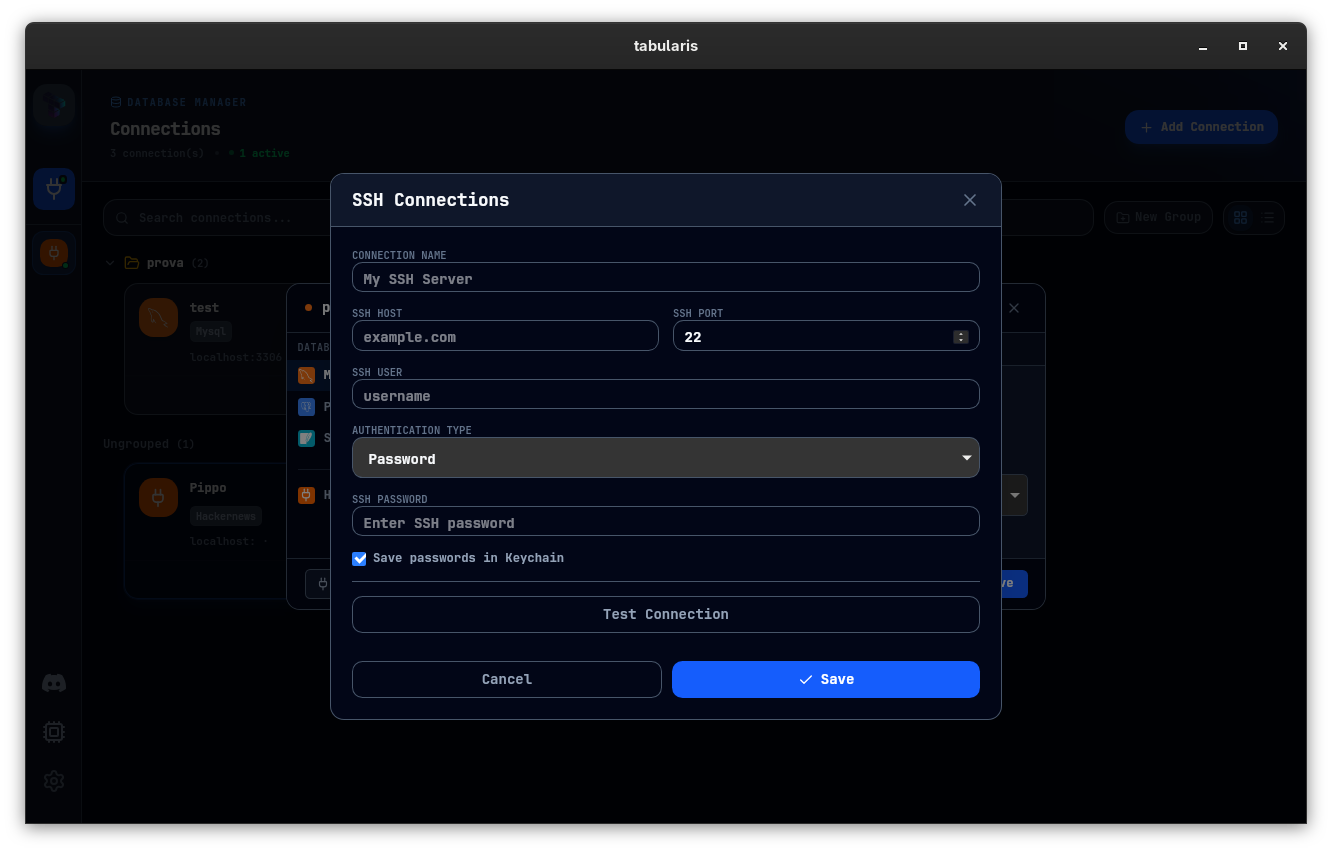
SSH connections are stored as reusable profiles in ssh_connections.json, separate from database connections. A single SSH profile (e.g., your production bastion) can be reused across multiple database connections.
Manage profiles from Settings → SSH Connections or the SSH Connections modal.
Profile Fields
| Field | Description |
|---|---|
| Name | Display label |
| Host | Bastion hostname or IP |
| Port | Default 22 |
| Username | Your user on the bastion |
| Auth type | password or ssh_key |
| Password | SSH password (triggers Russh backend) |
| Key file | Path to private key (triggers System SSH backend when no password) |
| Key passphrase | Stored in OS keychain if "Save in keychain" is checked |
Testing a Profile
Click Test before saving. Tabularis performs a real SSH handshake and reports success or the exact error message. The test uses the same backend that the connection will use.
Linking SSH to a Database Connection
- Open the connection editor (new or existing connection).
- Check SSH enabled.
- Select an SSH profile from the dropdown.
- Save the connection.
When you connect, the tunnel is established first, then the database driver connects through it. If the tunnel fails, the exact SSH error is surfaced — no generic "connection refused" messages.
Test SSH from the connection modal
The SSH tab of the connection modal has its own Test SSH button — available for both inline SSH settings and a saved connection — which verifies the host, the credentials and the tunnel without touching the database. It is the fastest way to tell an SSH problem apart from a database problem.
- The success state invalidates the moment you edit any SSH field, so a green result never describes stale settings.
- A Stop button abandons a test that hangs.
- Host, user and port are validated client-side on both Test and Save; a problem marks the SSH tab with a red dot and navigates to it.
- For a saved connection whose inline SSH secrets live in the keychain under the database connection's id, the test resolves them automatically — unless you have edited the password field, in which case it tests exactly what you typed.
A full connection test (the Test button) reports its steps as it runs — SSH tunnel, Kubernetes port-forward, database connect — and opens a diagnostics modal on failure with a classified error and a timestamped step log. With a tunnel active, a "connection refused" is attributed to the tunnel rather than to the database host. See Testing before saving.
Multi-Hop / ProxyJump
For databases behind multiple bastion layers, define the chain in ~/.ssh/config and use the System SSH backend (key-only auth, no password):
Host bastion
    HostName bastion.example.com
    User ec2-user
    IdentityFile ~/.ssh/prod.pem

Host db-host
    HostName 10.0.1.50
    User ubuntu
    ProxyJump bastion
Set the SSH profile host to db-host, auth type to ssh_key, and leave the password empty. Tabularis delegates to ssh, which resolves the chain automatically.
Tunnel Lifecycle
- Tunnels are created when you connect and destroyed when you disconnect.
- Each connection gets its own tunnel — there is no sharing between connections, even if they use the same SSH profile.
- If the tunnel drops (network interruption), the database connection will fail on the next query. Disconnect and reconnect to re-establish the tunnel.
Troubleshooting
| Symptom | Likely cause | Fix |
|---|---|---|
| "Host key verification failed" | Server key changed | ssh-keygen -R <host> then reconnect |
| "Permission denied (publickey)" | Wrong key or permissions | Check key path, chmod 600 the key file |
| Tunnel up but queries time out | DB unreachable from bastion | SSH into bastion, test nc -zv <db_host> <db_port> |
| "Connection refused" on local port | Tunnel failed silently | Check SSH logs, verify bastion is reachable |
For more details, see Troubleshooting & FAQ.