

Keyboard Shortcuts
Tabularis ships with a set of keyboard shortcuts for common actions across navigation, the editor, and the data grid. All shortcuts use Cmd on macOS and Ctrl on Windows/Linux.
Video unavailable
Navigation
| Action | macOS | Windows / Linux |
|---|---|---|
| Command palette: actions and objects together (since v0.26.0) | ⌘+K |
Ctrl+K |
| Command palette: object search (tables, views, routines, triggers) | ⌘+P |
Ctrl+P |
| Command palette: actions | ⌘+Shift+A |
Ctrl+Shift+A |
| Open settings (since v0.26.0) | ⌘+, |
Ctrl+, |
| Focus the sidebar table filter | ⌘+Shift+F |
Ctrl+Shift+F |
| Toggle sidebar | ⌘+B |
Ctrl+B |
| Toggle row editor sidebar (right) | ⌘+Shift+B |
Ctrl+Shift+B |
| Open connections page | ⌘+Shift+C |
Ctrl+Shift+C |
| New connection (opens modal) | ⌘+Shift+N |
Ctrl+Shift+N |
| Switch to Nth open connection | ⌘+Shift+1–9 |
Ctrl+Shift+1–9 |
| Paste / import from clipboard | ⌘+Shift+V |
Ctrl+Shift+V |
Editor
| Action | macOS | Windows / Linux |
|---|---|---|
| Run query | ⌘+F5 |
Ctrl+F5 |
| Run query (from Monaco editor) | ⌘+Enter |
Ctrl+Enter |
| Run all statements | ⌘+Shift+F5 |
Ctrl+Shift+F5 |
| Run all statements (from Monaco editor) | ⌘+Shift+Enter |
Ctrl+Shift+Enter |
| Trigger autocomplete suggestions | ⌘+I |
Ctrl+Space |
| New console tab | ⌘+T |
Ctrl+T |
| Close current tab (on the Settings and MCP pages: go back) | ⌘+W |
Ctrl+W |
| Reopen the last closed tab (since v0.28.0) | ⌘+Shift+T |
Ctrl+Shift+T |
| Save SQL file (file-backed console tab, since v0.23.0) | ⌘+S |
Ctrl+S |
Switch tab, most recently used first (since v0.28.0; Ctrl+Shift+Tab walks back) |
Ctrl+Tab |
Ctrl+Tab |
| Copy selection | ⌘+C |
Ctrl+C |
| Format SQL (buffer or selection) | ⇧+⌥+F |
Shift+Alt+F |
| Multi-Cursor (click) | ⌘+Click |
Ctrl+Click |
| Add next occurrence | ⌘+D |
Ctrl+D |
| Select all occurrences | ⌘+Shift+L |
Ctrl+Shift+L |
| Cursors at line ends | ⌥+Shift+I |
Alt+Shift+I |
| Copy line up | ⌥+Shift+↑ |
Shift+Alt+↑ (Windows) / Ctrl+Shift+Alt+↑ (Linux) |
| Copy line down | ⌥+Shift+↓ |
Shift+Alt+↓ (Windows) / Ctrl+Shift+Alt+↓ (Linux) |
On Linux, where Ctrl+Shift+A opens the actions palette, Shift+Alt+A toggles a block comment in the SQL editor.
Notebook
| Action | macOS | Windows / Linux |
|---|---|---|
| Run All Cells | ⌘+Shift+Enter |
Ctrl+Shift+Enter |
| Undo / redo a notebook change | ⌘+Z / ⌘+Shift+Z or ⌘+Y |
Ctrl+Z / Ctrl+Shift+Z or Ctrl+Y |
Data Grid
| Action | macOS | Windows / Linux |
|---|---|---|
| Next page | ⌘+→ |
Ctrl+→ |
| Previous page | ⌘+← |
Ctrl+← |
| Save grid changes | ⌘+S |
Ctrl+S |
| Refresh the table data | ⌘+R |
Ctrl+R |
| Jump to column (since v0.28.0) | ⌘+Shift+J |
Ctrl+Shift+J |
| Mark the selected rows for deletion | Delete / Backspace |
Delete / Backspace |
| Move the focused cell | ↑ ↓ ← → |
↑ ↓ ← → |
| Extend the cell range by one step | Shift+↑ Shift+↓ Shift+← Shift+→ |
Shift+↑ Shift+↓ Shift+← Shift+→ |
| Jump the focused cell to the grid edge | ⌘+↑ ⌘+↓ ⌘+← ⌘+→ |
Ctrl+↑ Ctrl+↓ Ctrl+← Ctrl+→ |
| Extend the cell range to the grid edge | ⌘+Shift+Arrow |
Ctrl+Shift+Arrow |
| First / last column of the row | Home / End |
Home / End |
| First / last cell of the grid | ⌘+Home / ⌘+End |
Ctrl+Home / Ctrl+End |
| Move one viewport of rows | PageUp / PageDown |
PageUp / PageDown |
| Select the row(s) of the focused cell or range | Shift+Space |
Shift+Space |
| Select the column(s) of the focused cell or range | ⌘+Space or ⌘+Shift+Space |
Ctrl+Space or Ctrl+Shift+Space |
| Edit the focused cell | Enter or F2 |
Enter or F2 |
| Select all loaded rows | ⌘+A |
Ctrl+A |
| Copy the current selection | ⌘+C |
Ctrl+C |
| Paste at the selection (staged as pending changes) | ⌘+V |
Ctrl+V |
Cell navigation is bound to the grid you last interacted with, so a notebook with one grid per SQL cell does not move them all at once. Keys are left alone inside text inputs, open cell editors, the foreign-key and BLOB buttons, and the sort buttons in column headers. See Data Grid → Keyboard Navigation.
Since v0.22.0 the selection shortcuts (Shift+Arrow, Ctrl/Cmd+Arrow, Shift+Space, Ctrl/Cmd+Space) are relative to the focused cell and are not overridable. Ctrl/Cmd+Shift+Space is offered as an alternative for column selection because plain Ctrl+Space is often captured by an input method (ibus, fcitx) on Linux or by Spotlight on macOS. Note that with a focused cell, Ctrl/Cmd+← / → jumps to the grid edge; the Next page / Previous page shortcuts still apply when no cell is focused and from the pagination buttons.
Customizing Shortcuts
Most shortcuts can be reassigned from Settings → Keyboard Shortcuts. Each row in the table shows:
- A lock icon for built-in shortcuts that cannot be changed (Monaco editor bindings, browser-level shortcuts).
- An Edit button for customizable shortcuts.
Click Edit on any customizable row, then press the key combination you want to assign. The recorder captures modifier keys (Cmd/Ctrl, Shift, Alt) plus the final key. Press Escape to cancel. Changes are saved immediately to keybindings.json in your config directory.
Since v0.26.0 the editor validates the combination before saving it. A combination without a modifier is refused with "Add a modifier key, such as Ctrl or Alt.", and one already used by another shortcut names it ("This shortcut conflicts with “Toggle sidebar”.") instead of silently replacing it.
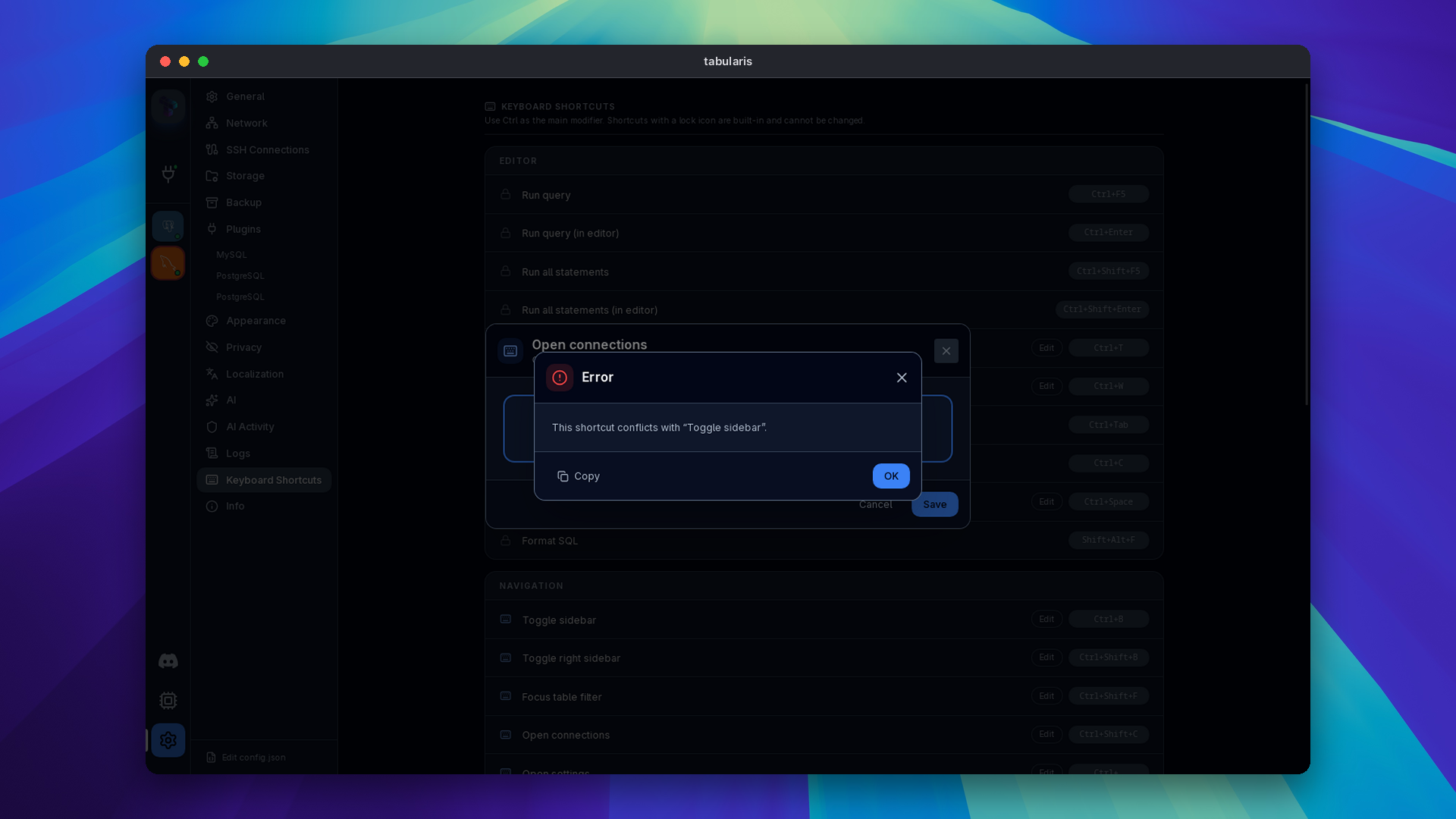
Shortcuts also record the physical key (code) next to the character (key), so they keep working on non-US layouts such as AZERTY or QWERTZ. An override matches either one, which means that on some layouts a shortcut has two triggers: on AZERTY, Open settings fires on both Ctrl+, and Ctrl+;. This is intended.
To revert a customized shortcut to its default, click the ↺ (reset) button on its row.
keybindings.json
Tabularis stores your overrides in a JSON file in the OS config directory:
| Platform | Path |
|---|---|
| macOS | ~/Library/Application Support/tabularis/keybindings.json |
| Linux | ~/.config/tabularis/keybindings.json |
| Windows | %APPDATA%\tabularis\keybindings.json |
The file is only created when you first customize a shortcut. Its format is a map from shortcut ID to platform-specific KeyMatch objects:
{
  "toggle_sidebar": {
    "mac": { "metaKey": true, "key": "e", "code": "KeyE" },
    "win": { "ctrlKey": true, "key": "e", "code": "KeyE" }
  },
  "new_tab": {
    "mac": { "metaKey": true, "key": "n" },
    "win": { "ctrlKey": true, "key": "n" }
  }
}
Each KeyMatch supports the following fields:
| Field | Type | Description |
|---|---|---|
key |
string | The key value (e.g. "b", "ArrowRight", "F5") |
code |
string | Optional physical key (e.g. "KeyB", "Digit1", "Comma"), matched independently of the keyboard layout (since v0.26.0) |
ctrlKey |
boolean | Ctrl modifier |
metaKey |
boolean | Cmd/Meta modifier |
shiftKey |
boolean | Shift modifier |
altKey |
boolean | Alt/Option modifier |
You can edit this file manually if you prefer. Tabularis reads it at startup; changes while the app is running take effect after a restart.