

MCP Server
Tabularis includes a built-in Model Context Protocol (MCP) server. Once configured, external AI assistants — including Claude Desktop, Claude Code, Cursor, Windsurf, Antigravity, and Codex — can list your saved connections, inspect schemas, describe tables, and run SQL queries, all without leaving their chat interface.
Starting with v0.13.0, MCP operations are dispatched through the same driver registry the GUI uses — so connections backed by plugin drivers (installed from the plugin registry) work over MCP exactly like the built-in MySQL, PostgreSQL, and SQLite drivers.
How It Works
Tabularis exposes an MCP server by running its own executable in a special --mcp mode. The MCP host (e.g. Claude Desktop) spawns the Tabularis binary as a child process and communicates over stdin/stdout using JSON-RPC 2.0, following the MCP specification.
Tabularis exposes:
- Resources — read-only data the AI can access passively.
- Tools — callable actions the AI can invoke on your behalf.
No network port is opened. All communication happens locally via the process's stdio pipe.
Quick Setup (One-Click Install)
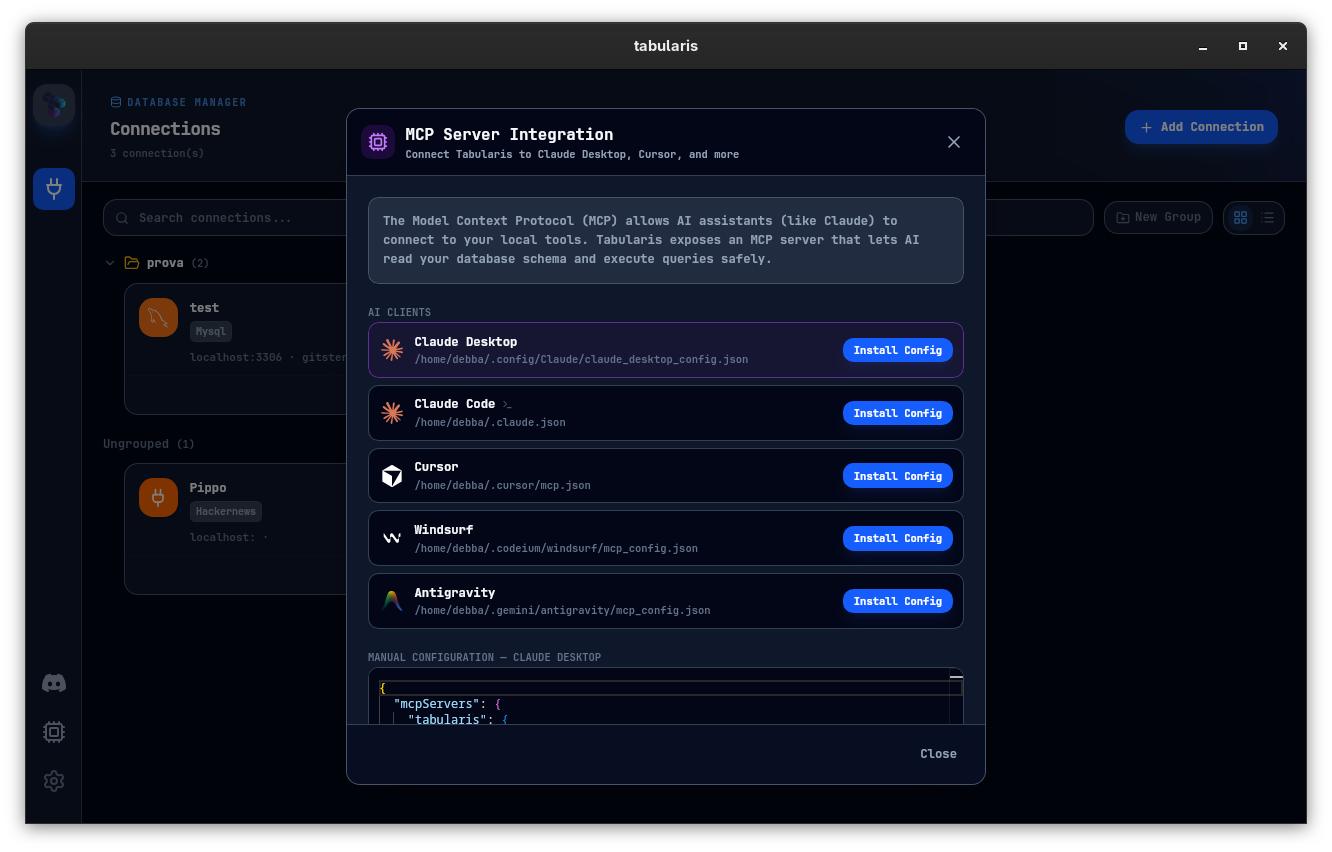
Starting with v0.9.9, Tabularis lists every supported AI client, checks whether Tabularis is already configured in each one, and lets you install the MCP configuration in a single click:
- Click the CPU icon (MCP Server) in the sidebar and open the Setup tab.
- The MCP Server Integration panel lists every supported AI client alongside the resolved path to its config file, marking the ones where Tabularis is already Installed.
- Click Install Config next to the client you want to connect. For file-based clients, Tabularis writes or patches the required
mcpServersentry directly into the config file. For command-based clients it runs the client's own CLI instead —claude mcp add --scope user ...for Claude Code,codex mcp add tabularis -- ...for Codex. - Restart the target AI client. It will immediately see Tabularis as an available MCP server.
Supported AI Clients
| Client | Config file (Linux) |
|---|---|
| Claude Desktop | ~/.config/Claude/claude_desktop_config.json |
| Claude Code | ~/.claude.json |
| Cursor | ~/.cursor/mcp.json |
| Windsurf | ~/.codeium/windsurf/mcp_config.json |
| Antigravity | ~/.gemini/antigravity/mcp_config.json |
| Codex | ~/.codex/config.toml (installed via codex mcp add) |
On macOS and Windows the paths are resolved automatically to their platform equivalents.
Manual Configuration
If you prefer to configure it manually, select a client that is not installed yet: the right-hand pane shows a Manual Configuration block with the exact JSON to paste for file-based clients (or a Manual Command for Claude Code and Codex), with the correct binary path pre-filled for your system.
The block to add looks like:
{
  "mcpServers": {
    "tabularis": {
      "command": "/path/to/tabularis",
      "args": ["--mcp"]
    }
  }
}
Config file locations by platform:
| Platform | Claude Desktop | Claude Code |
|---|---|---|
| macOS | ~/Library/Application Support/Claude/claude_desktop_config.json |
~/.claude.json |
| Windows | %APPDATA%\Claude\claude_desktop_config.json |
%USERPROFILE%\.claude.json |
| Linux | ~/.config/Claude/claude_desktop_config.json |
~/.claude.json |
Replace /path/to/tabularis with the actual path to the Tabularis binary on your system. After saving the file, restart the AI client.
For Claude Code, the equivalent manual command is:
claude mcp add --scope user tabularis /path/to/tabularis -- --mcp
For Codex:
codex mcp add tabularis -- /path/to/tabularis --mcp
Resources
Resources are read by the AI to understand your data environment without executing queries.
tabularis://connections
Returns the list of all saved connections (id, name, driver, host, database). Passwords are never included.
Example response:
[
  { "id": "abc123", "name": "Production PG", "driver": "postgres", "host": "db.example.com", "database": "myapp" },
  { "id": "def456", "name": "Local SQLite", "driver": "sqlite", "host": null, "database": "/home/user/dev.db" }
]
tabularis://{connection_id}/schema
Returns the table list for a specific connection. The {connection_id} can be the connection UUID or the exact connection name (case-insensitive). Partial names do not match.
Example:
tabularis://Production PG/schema
tabularis://abc123/schema
Tools
Tools are actions the AI can call to retrieve or manipulate data.
Output format
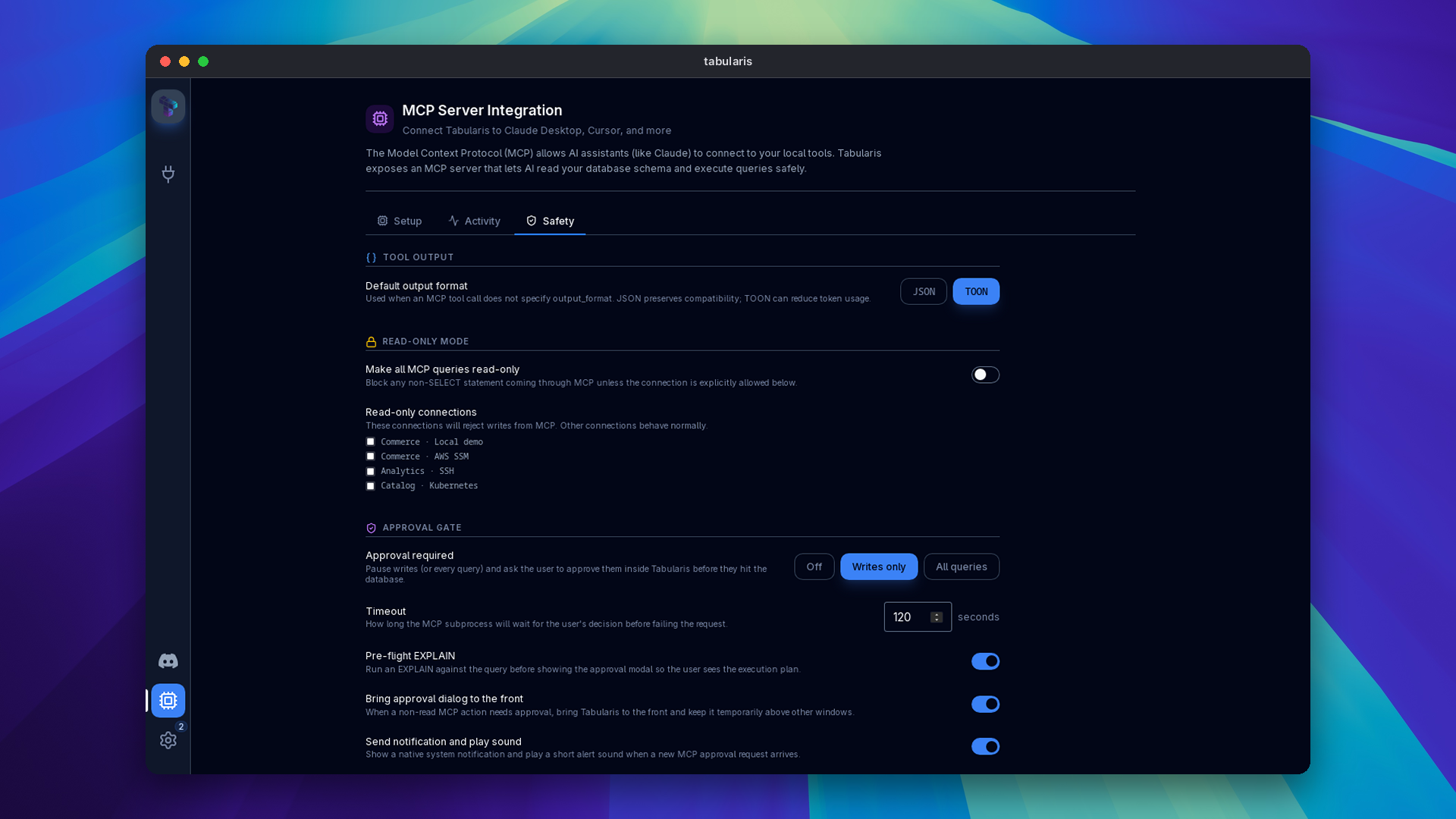
Since v0.25.0 every tool accepts an optional output_format argument with the values json (the default) and toon. TOON, Token-Oriented Object Notation, encodes repeated records compactly and reduces the tokens an agent spends reading tabular results. The MCP transport stays JSON-RPC; only the text payload inside content[0].text changes. Calls that omit the argument receive the same pretty-printed JSON as before, and an unsupported value returns a -32602 error before any connection is resolved or query executed.
MCP Server → Safety → Tool output → Default output format selects the encoding used when a call does not pass output_format. It is stored as mcpOutputFormat in config.json; a per-call argument always wins.
list_connections
Returns the same safe connection list exposed by tabularis://connections. For multi-database connections (MySQL / MariaDB, and PostgreSQL since v0.29.0), every selected database is serialized — not just the first.
list_databases
Lists the databases available on a multi-database connection.
Parameters:
| Parameter | Type | Description |
|---|---|---|
connection_id |
string |
Connection UUID or exact name |
list_tables
Lists tables for a connection.
Parameters:
| Parameter | Type | Description |
|---|---|---|
connection_id |
string |
Connection UUID or exact name |
schema |
string |
Optional schema name. Defaults to public for PostgreSQL. |
database |
string |
Optional, since v0.29.0. Database to target on a multi-database connection. Defaults to the connection's first database. |
describe_table
Returns columns, foreign keys, and indexes for one table.
Parameters:
| Parameter | Type | Description |
|---|---|---|
connection_id |
string |
Connection UUID or exact name |
table_name |
string |
Table to inspect |
schema |
string |
Optional schema name. Defaults to public for PostgreSQL. |
database |
string |
Optional, since v0.29.0. Database to target on a multi-database connection. Defaults to the connection's first database. |
run_query
Executes a SQL query on a specific connection and returns the results.
Parameters:
| Parameter | Type | Description |
|---|---|---|
connection_id |
string |
Connection UUID or exact name |
query |
string |
The SQL query to execute |
database |
string |
Optional, since v0.29.0. Database to run the query on, for a multi-database connection. Defaults to the connection's first database. |
limit |
integer |
Optional. Maximum number of rows to return (default 100). If the query already has a smaller LIMIT, the query's LIMIT wins. |
output_format |
string |
Optional. json (default) or toon. Available on every tool since v0.25.0. |
Returns: query results as JSON, or as TOON when requested. Results are capped at 100 rows per call unless the agent passes a different limit.
Before v0.29.0 these three tools always used the first selected database, so a query meant for another database returned no rows. Since v0.30.0 the database argument must name exactly one of the databases selected on the connection, and it is refused on file-based, folder-based and single-database drivers, so a tool call cannot reach a database the connection does not expose or open another SQLite file (GHSA-9x4c-wq7x-5fjq). When a run_query call with database needs approval, the approval dialog shows the target as connection / database, and the AI Activity log records it.
Example prompts:
"List all tables in my Production PG database."
"Show me the last 10 orders placed today, joining
orderswithcustomers."
"Which indexes are missing on the
eventstable in my analytics database?"
Claude (or any connected AI) will call the appropriate tool with the resolved connection_id, then format the result into a readable answer.
Security Considerations
- The MCP server runs with the same OS permissions as your Tabularis process — it can read any database you have credentials for.
- Only connections already saved in Tabularis (with credentials in the OS keychain) are accessible.
- Passwords and API keys are never exposed through MCP resources or tool outputs.
- The tool can execute any SQL, including
DELETEorDROP. Use Read-only Mode, Approval Gates, or read-only database users if you want to restrict the AI to safe operations. As of v0.13.0 the safety classifier fails closed on multi-statement payloads (a stackedSELECT 1; DROP TABLE …can no longer pass as a read), and approver-edited queries are re-validated before execution. Since v0.28.0, reads that write (SELECT … INTO, locking clauses, side-effecting functions,PRAGMAassignments) are classified as writes, and on the built-in drivers queries on read-only connections run in a read-only transaction the database enforces; see Read-only Mode. - Plugin drivers reached over MCP run with timeouts and are terminated with the MCP subprocess — a wedged plugin can't block the request loop, and no plugin process is left orphaned.
- Communication happens entirely locally — no data leaves your machine via the MCP channel.
Troubleshooting
The AI client doesn't see Tabularis as a server
- Verify the path in the config file points to the correct Tabularis binary.
- Restart the AI client after editing the config file.
- Check that the binary is executable (
chmod +x tabularison Linux/macOS). - Use the Install Config button in Tabularis to let it write the correct path automatically.
run_query returns "Connection not found"
- Tool calls match by UUID or exact connection name (case-insensitive). Use
tabularis://connectionsorlist_connectionsto see the available identifiers.
A schema resource works but shows only the public schema on PostgreSQL
- That is expected for the
tabularis://{connection_id}/schemaresource. Uselist_tablesordescribe_tablewith an explicitschemaargument when you need a different PostgreSQL schema.
A plugin-driven connection returns Unsupported driver: <id>
- Before v0.25.0 the standalone
--mcpprocess built its driver registry once at startup, so a plugin installed or enabled in the GUI was invisible until the AI client restarted Tabularis. Since v0.25.0 the process rescans installed plugins on a registry miss (rate-limited to once every two seconds) and unregisters drivers that were disabled or uninstalled. If the error persists, check that the plugin is installed and enabled in Settings → Plugins and that the connection's driver id matches it.
No resources appear in the AI client
- Tabularis reads connections from
connections.jsonin its config directory (or in the custom storage location, if you set one). If you haven't saved any connections yet, the resource list will be empty.
The client shows "Config file not found (create manually)"
- Tabularis could not resolve a config path for that client on your platform. Use the manual configuration block instead. When the path resolves, Install Config creates the config file and its directory if they do not exist yet.