Short, indexable walkthroughs for the Tabularis workflows people evaluate most: SQL editing, notebooks, Visual EXPLAIN, plugins, and AI-assisted database work.

Connect Tabularis to a local or remote database and understand the connection workflow before your first query.
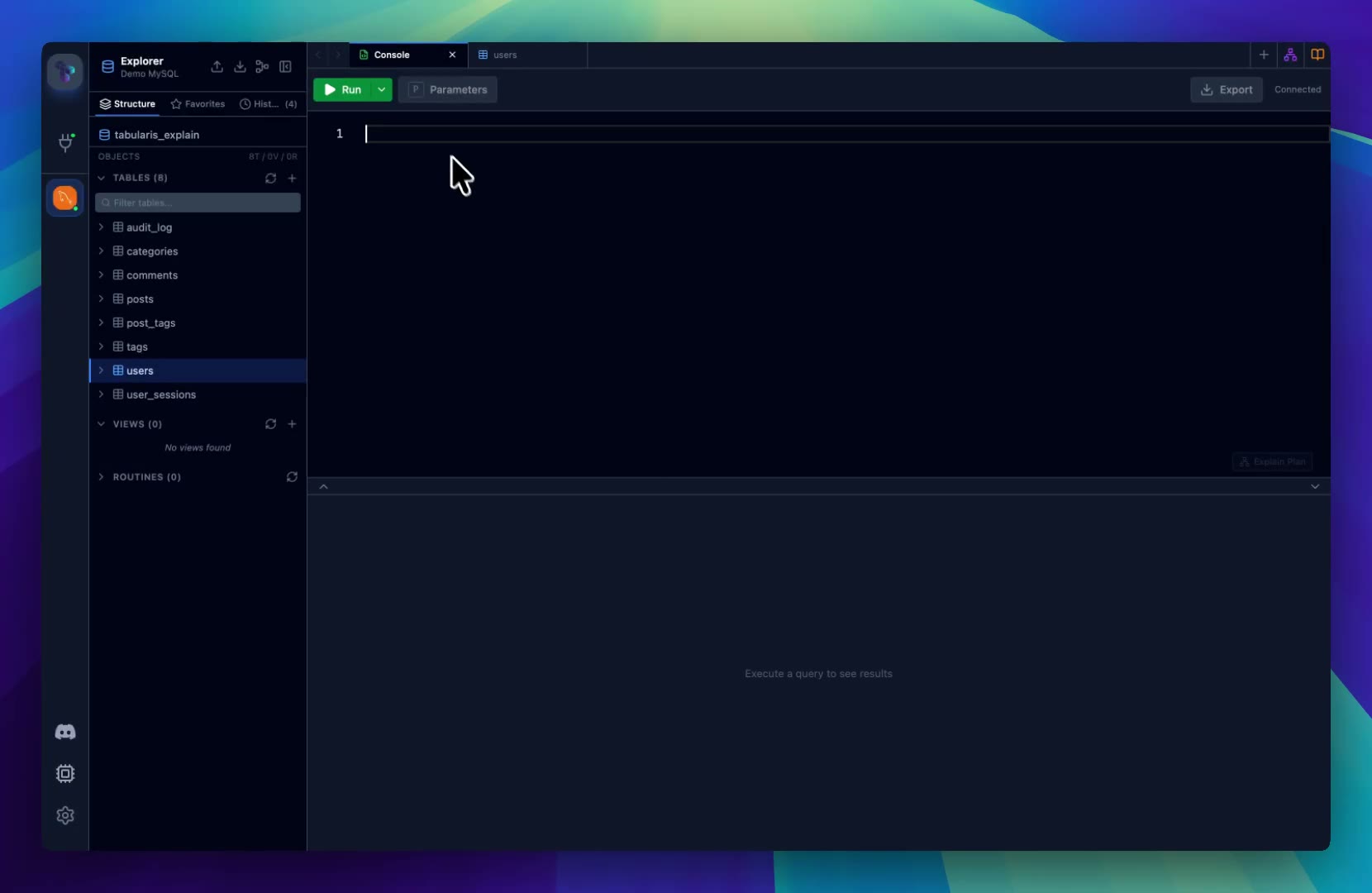
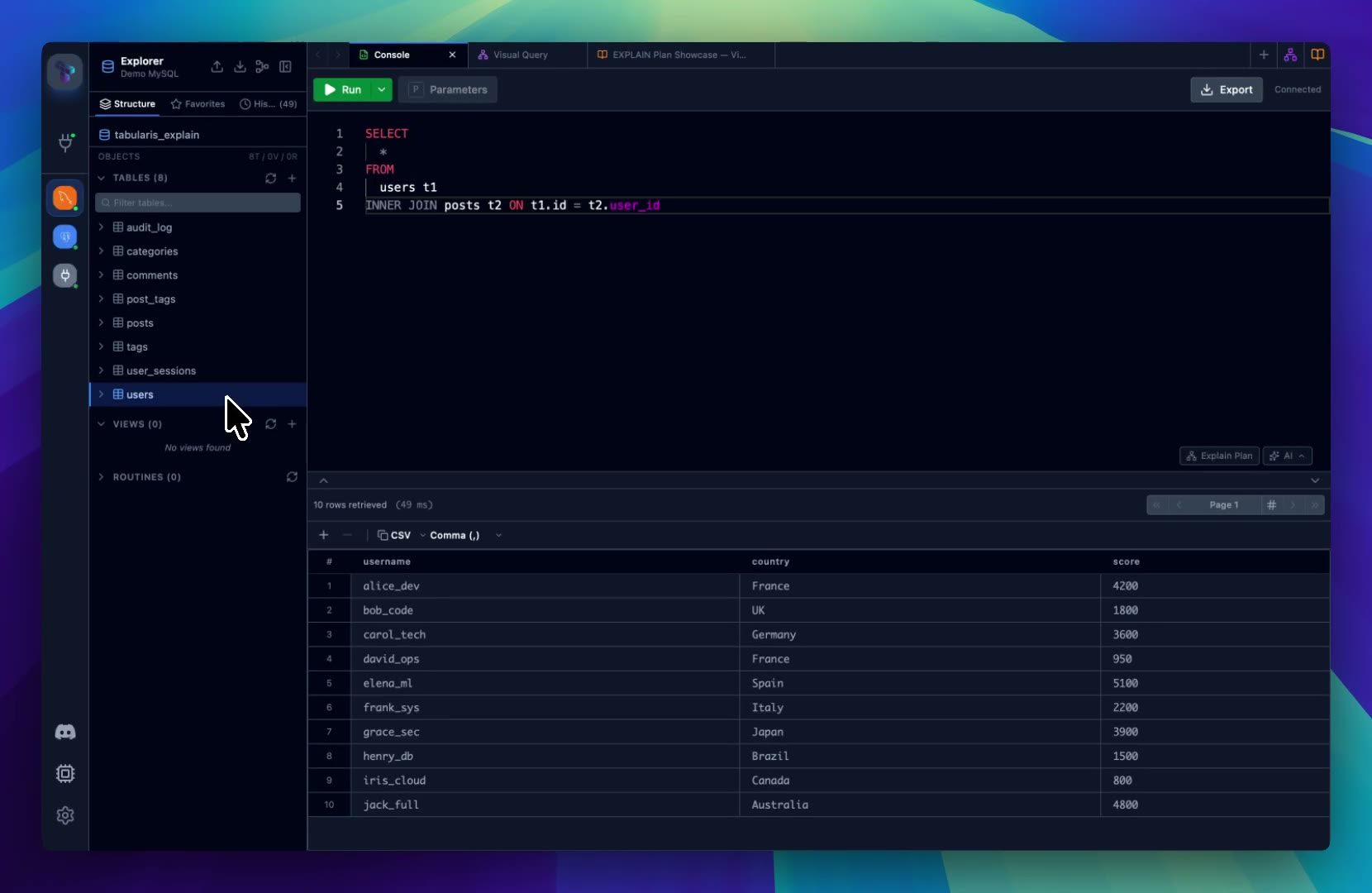
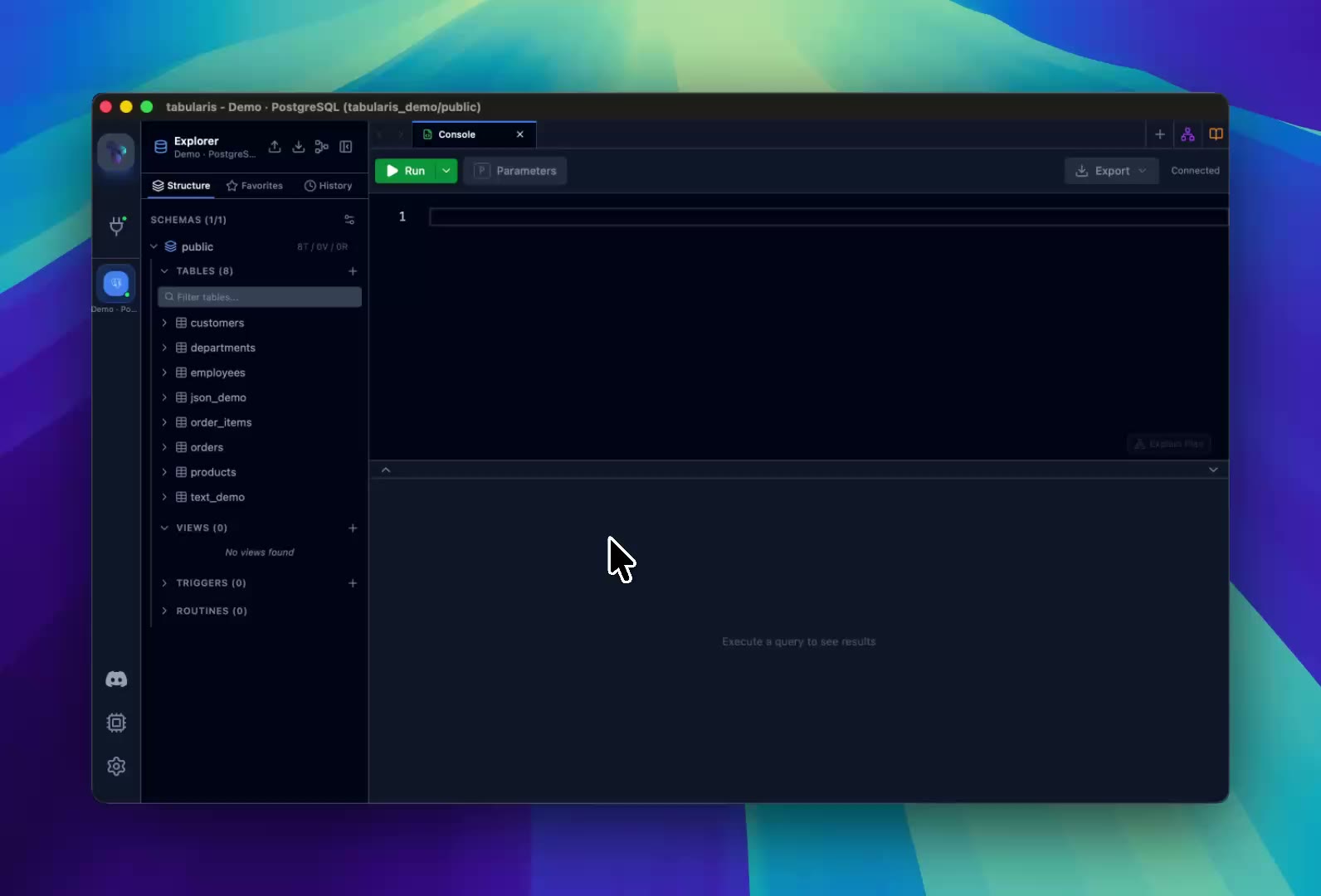
See how the SQL editor, result grid, execution controls, and query workflow fit together inside Tabularis.
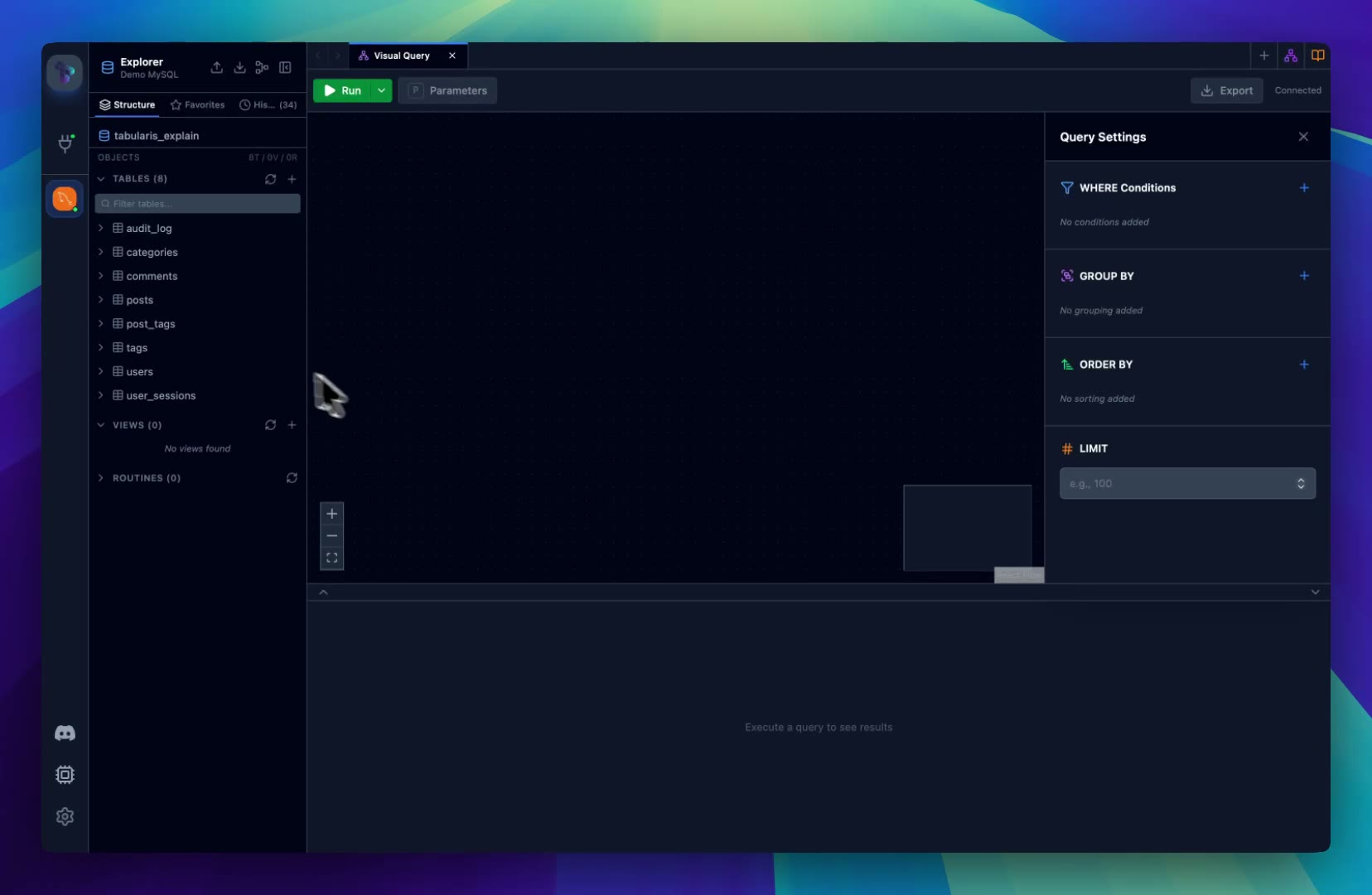
Build joins, filters, and aggregations visually, then inspect the generated SQL before running it.
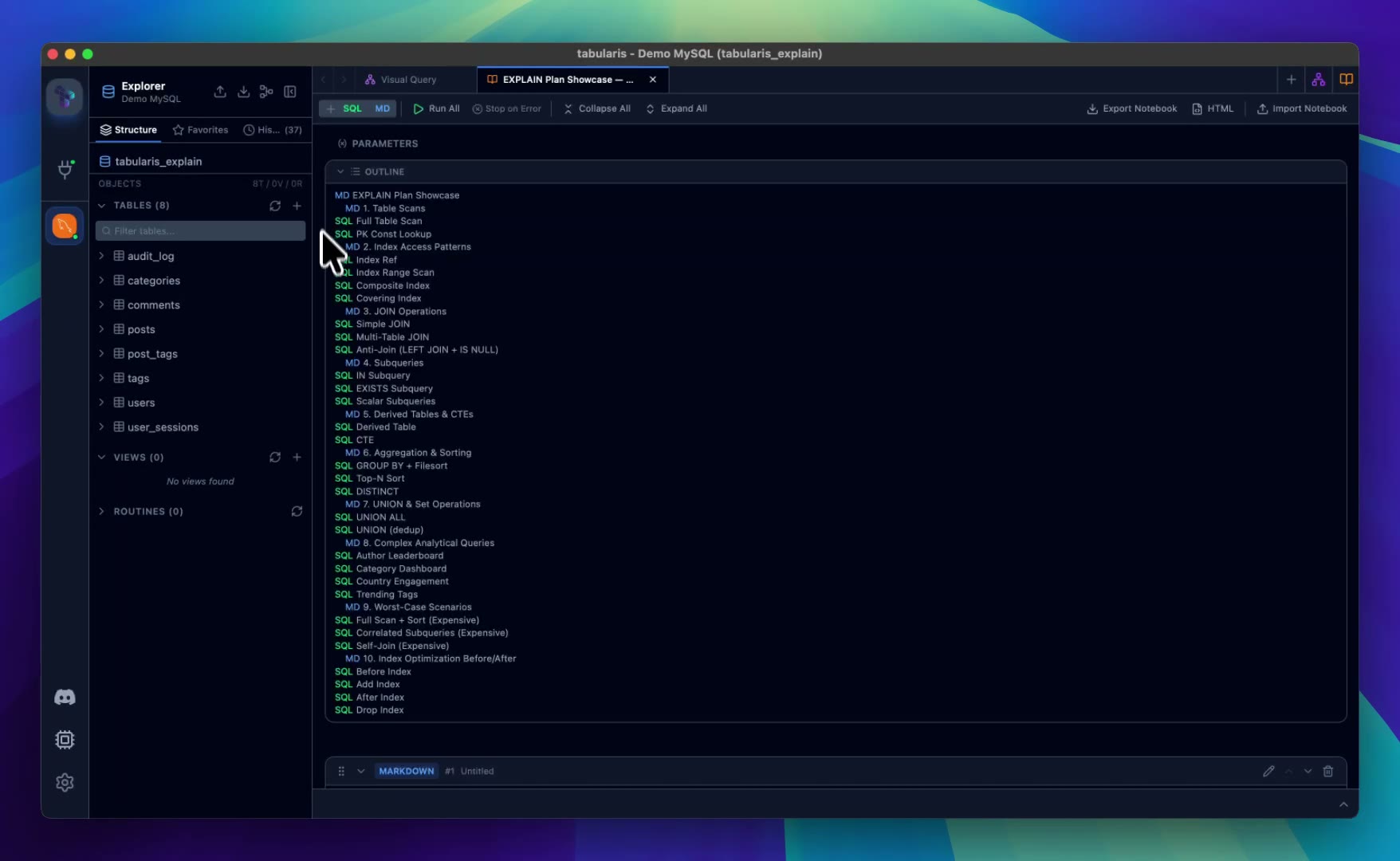
Combine SQL cells, markdown, inline results, parameters, and charts in a reusable database analysis workflow.
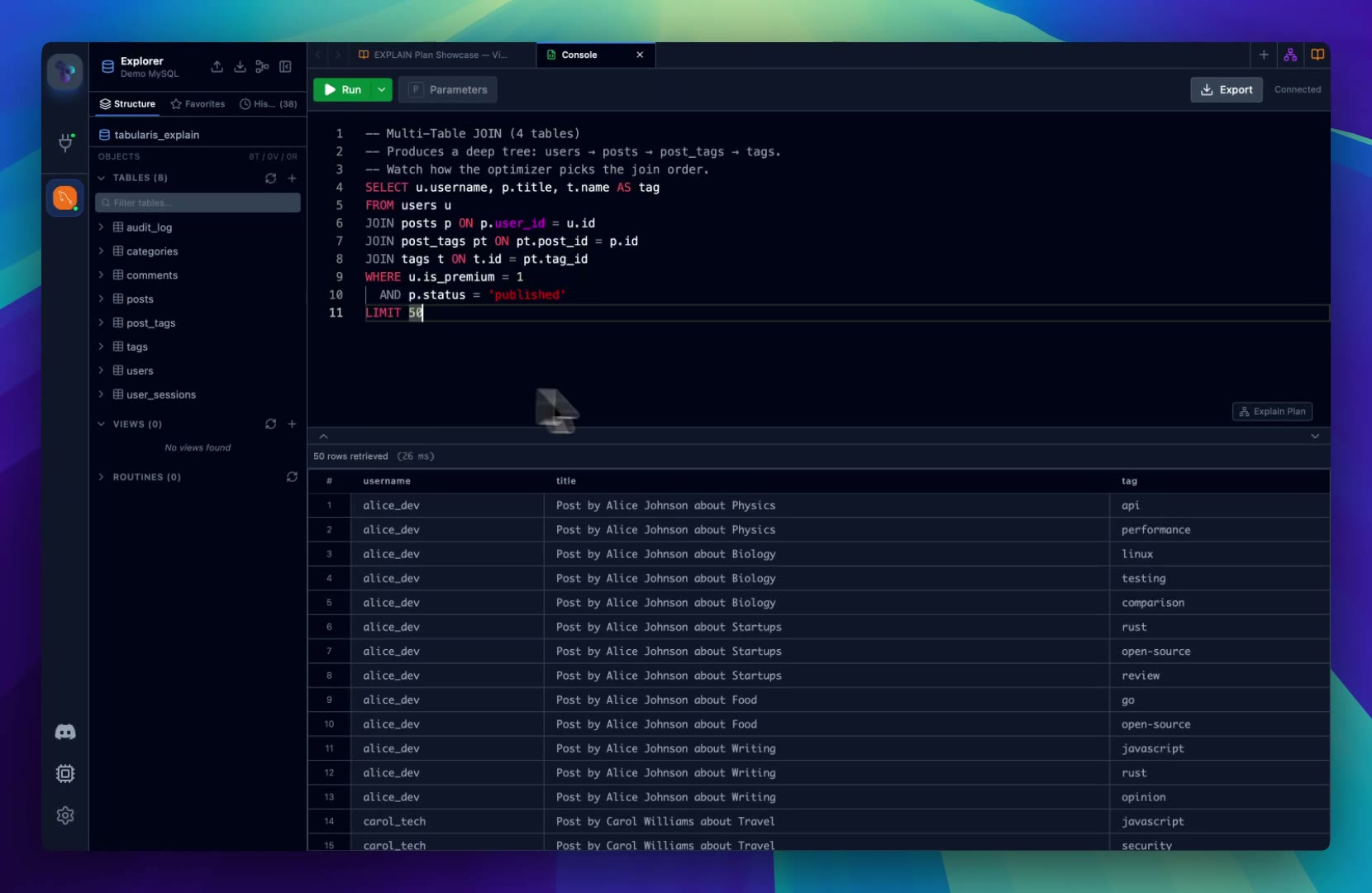
Turn database execution plans into graph views, table details, raw output, and AI-assisted recommendations.
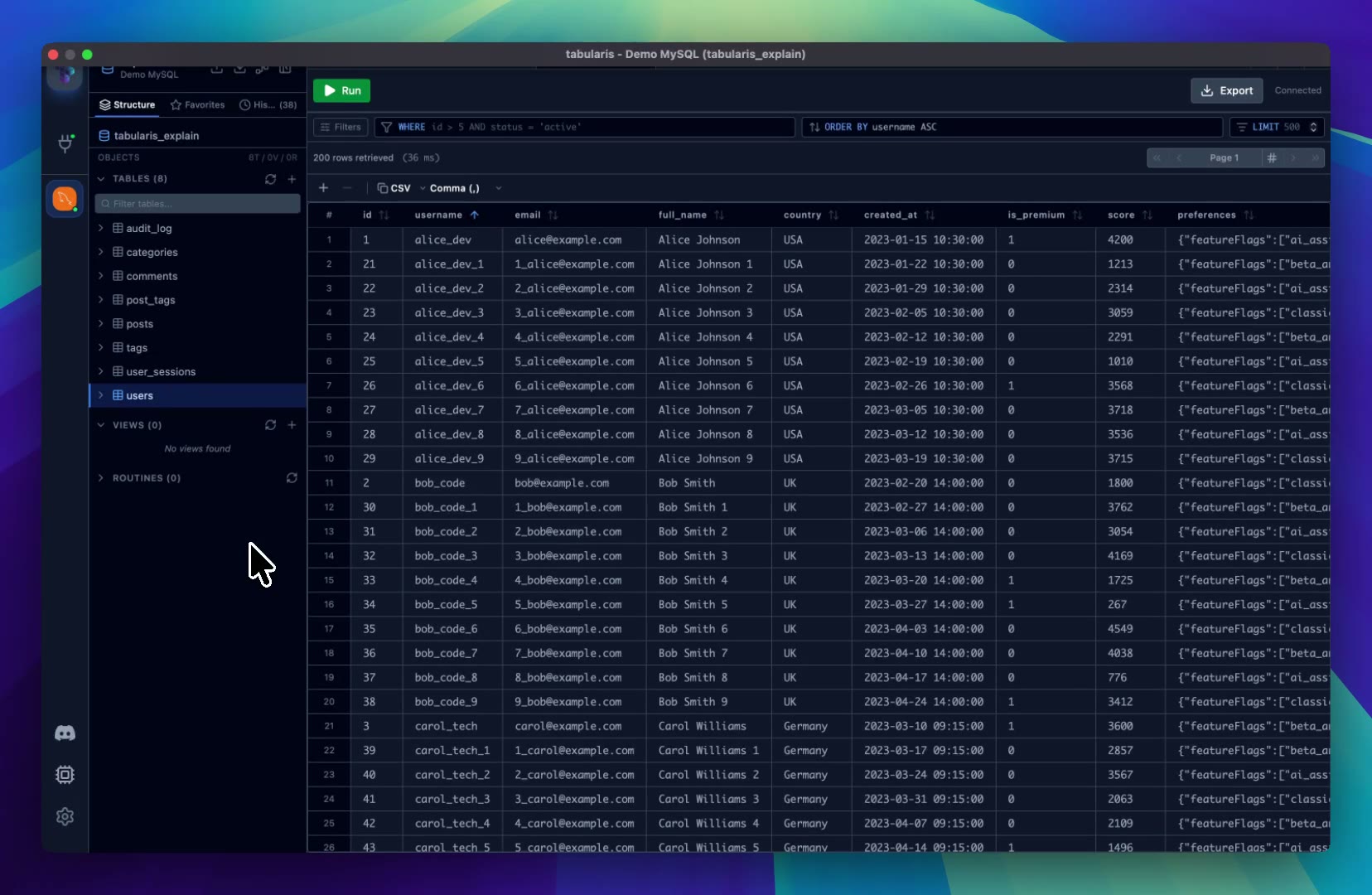
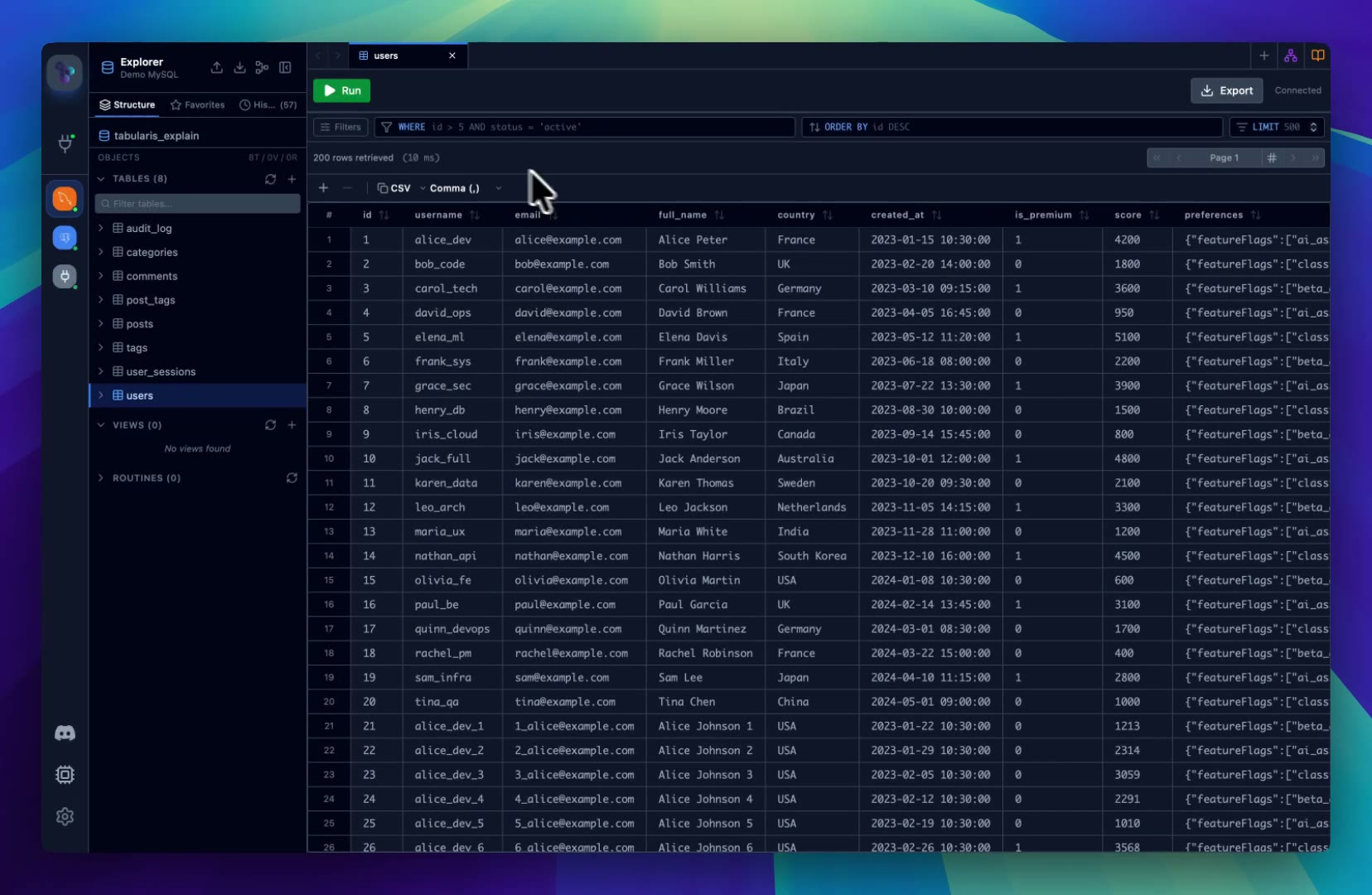
Explore query results in the Tabularis data grid with inline editing, filtering, sorting, and column tools.
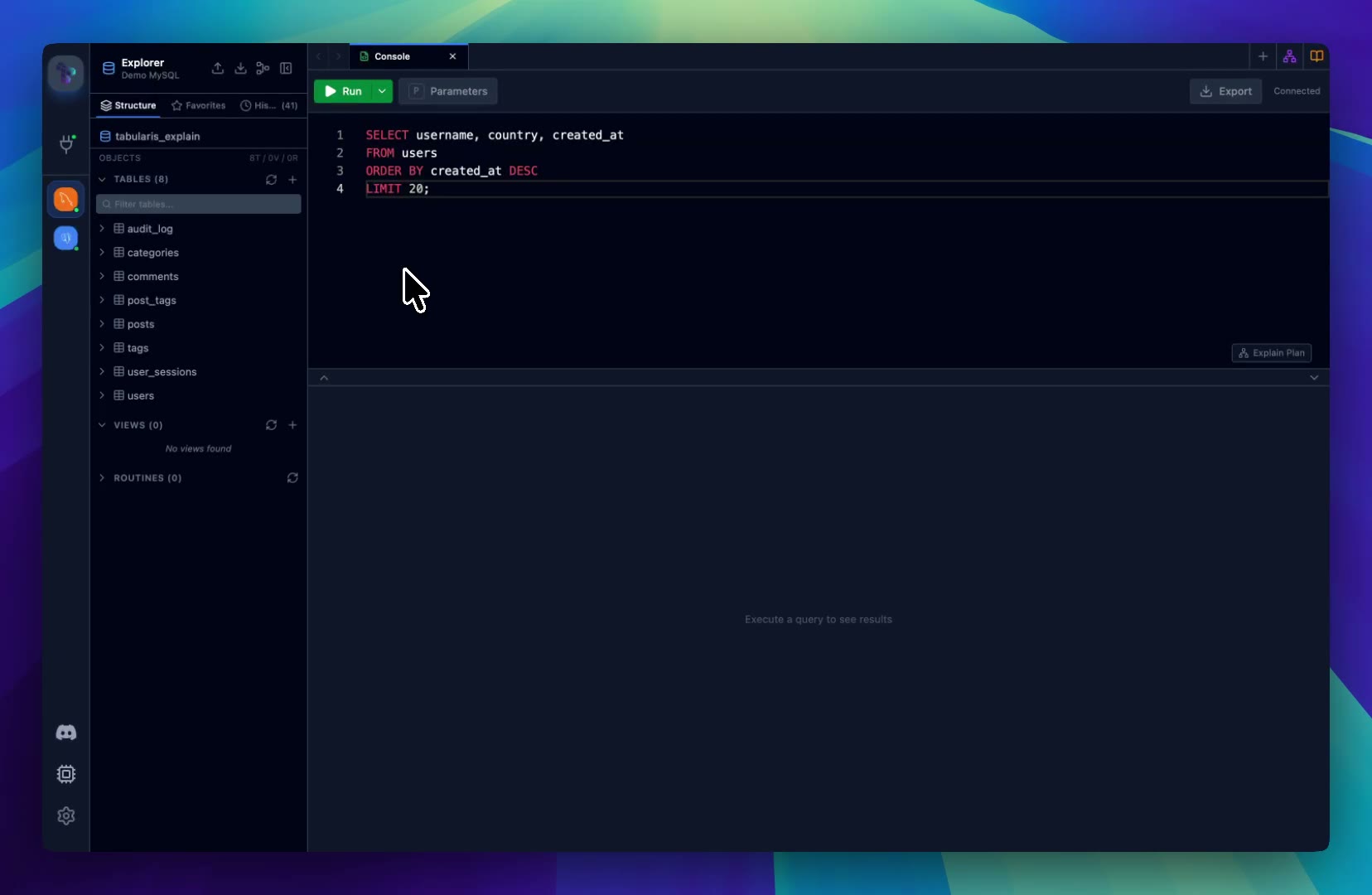
Open multiple editors, notebooks, and result grids side by side to compare queries and work across connections.
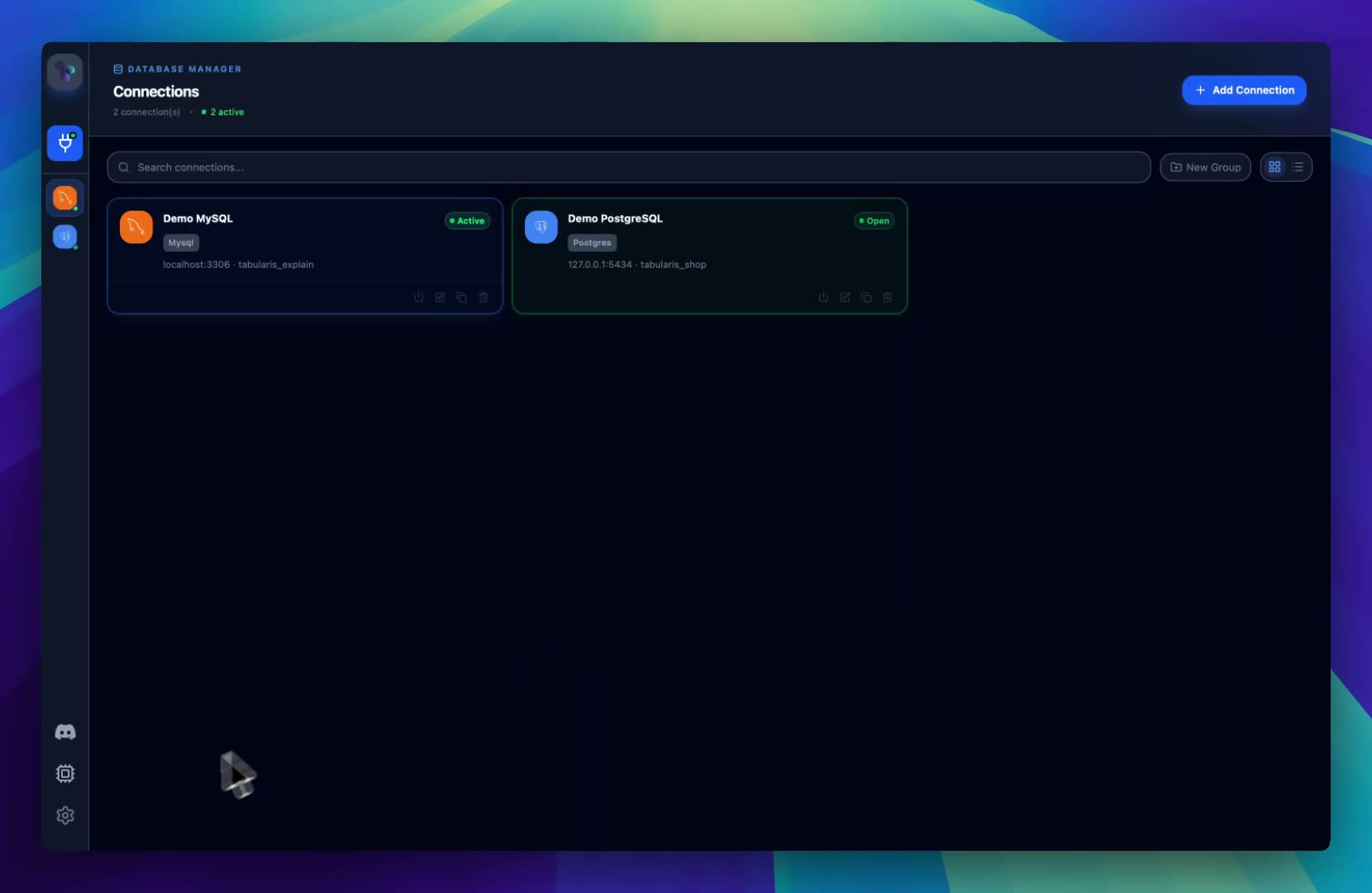
Install, update, and manage external plugins that extend Tabularis beyond the built-in database engines.
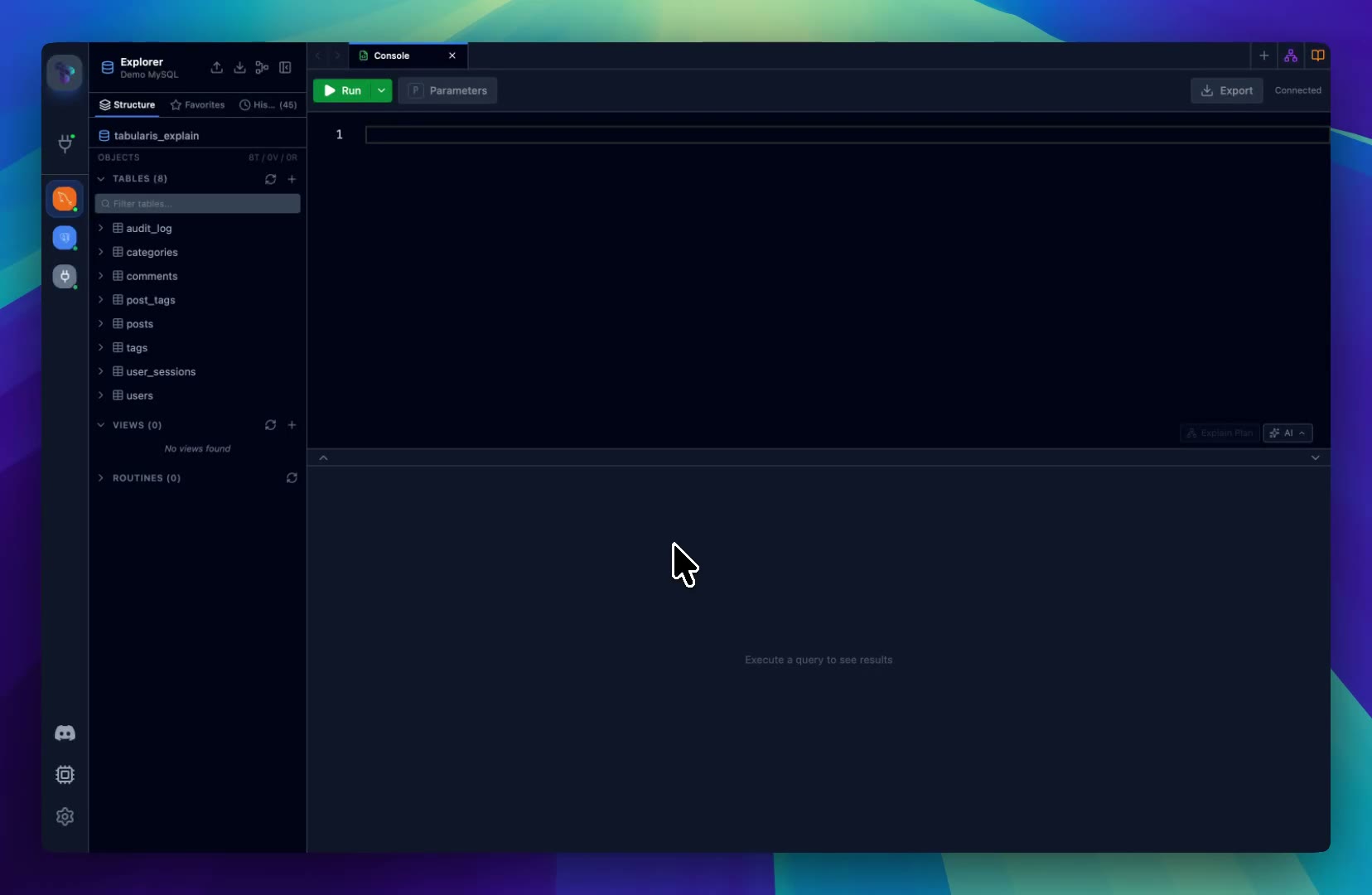
Draft, explain, and refine SQL with an assistant that works inside your local database client workflow.
Navigate Tabularis, run queries, and manage tabs with keyboard shortcuts built for keyboard-driven workflows.
Save frequently used queries, browse your query history, and quickly return to recent SQL across sessions.
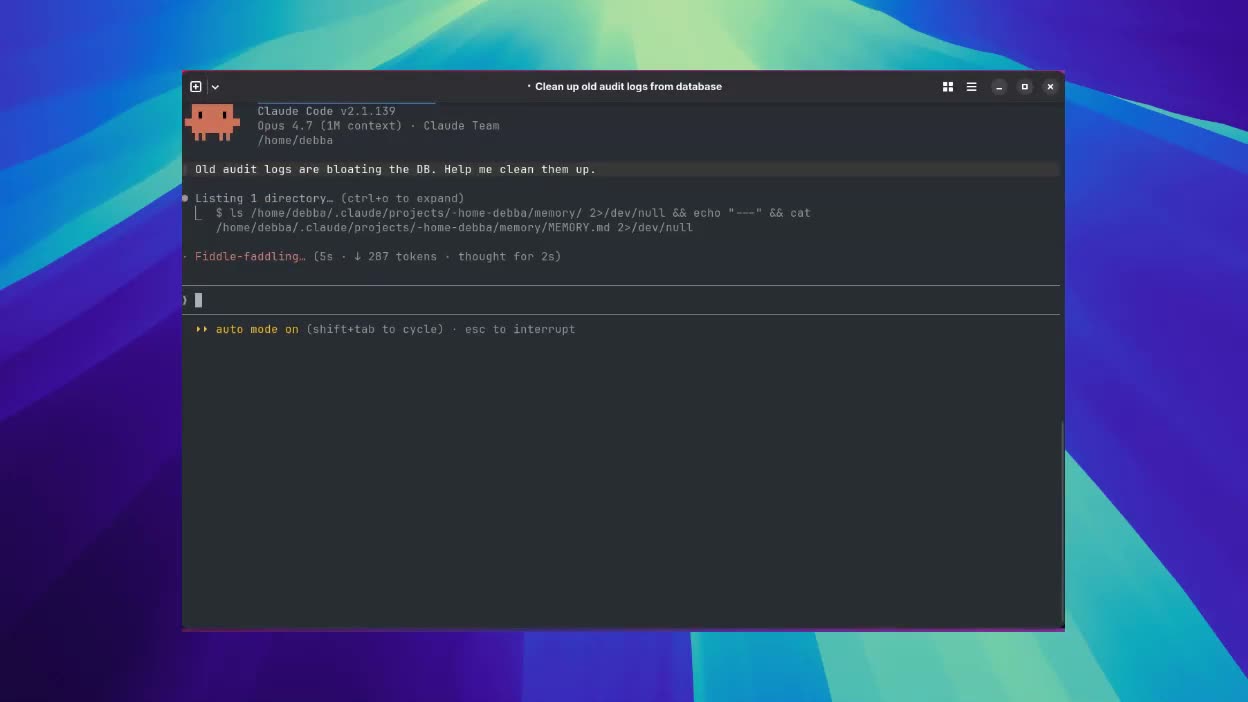
Pause an MCP write before it runs, review the SQL and the execution plan inside the approval modal, then approve, edit, or deny.
Expand JSON and JSONB cells into a Monaco editor with syntax highlighting, open them in a dedicated window, and diff edits before commit.
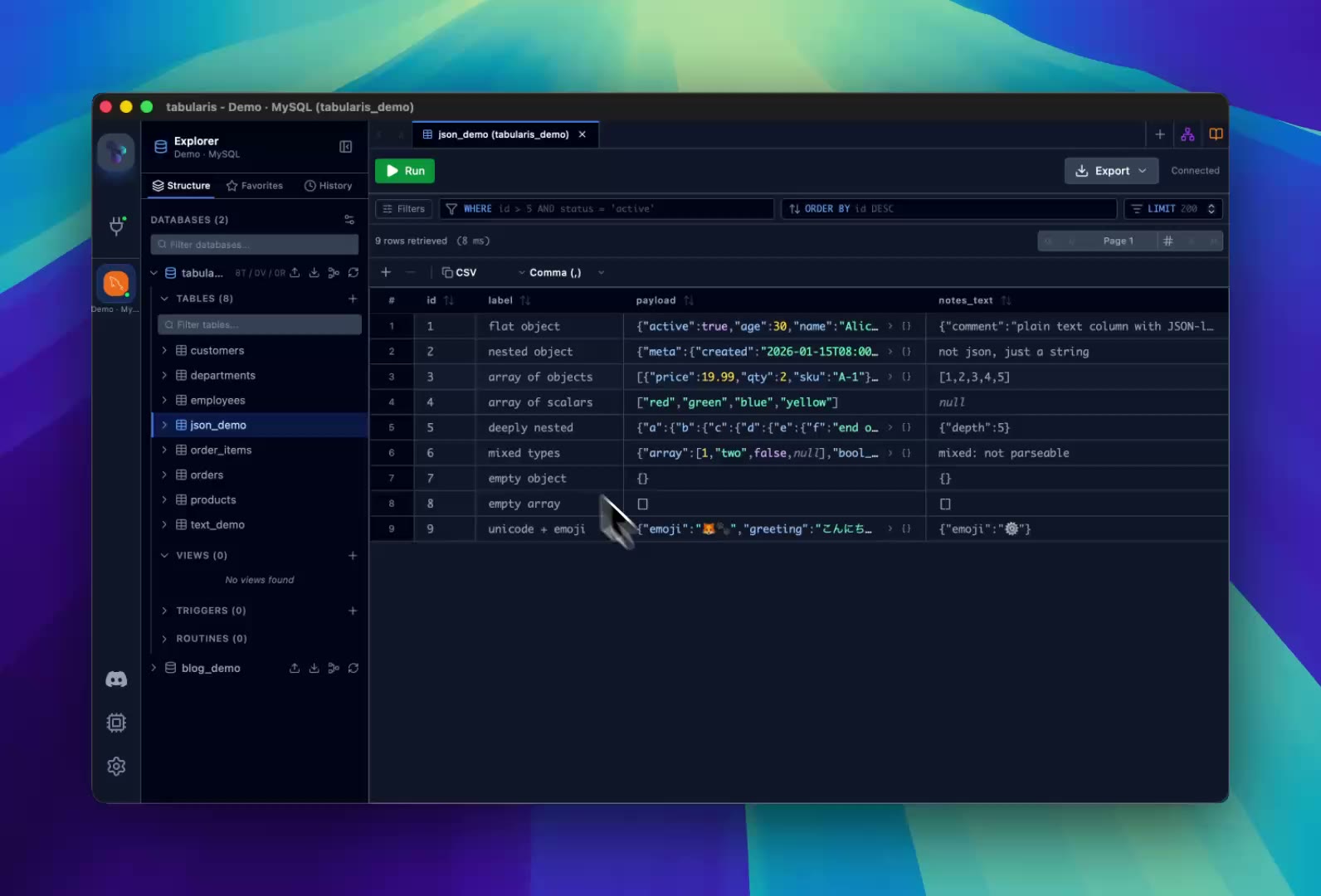
Edit TEXT, LONGTEXT, and long VARCHAR columns inline with a Monaco editor, resize the pane, and review changes side-by-side before saving.
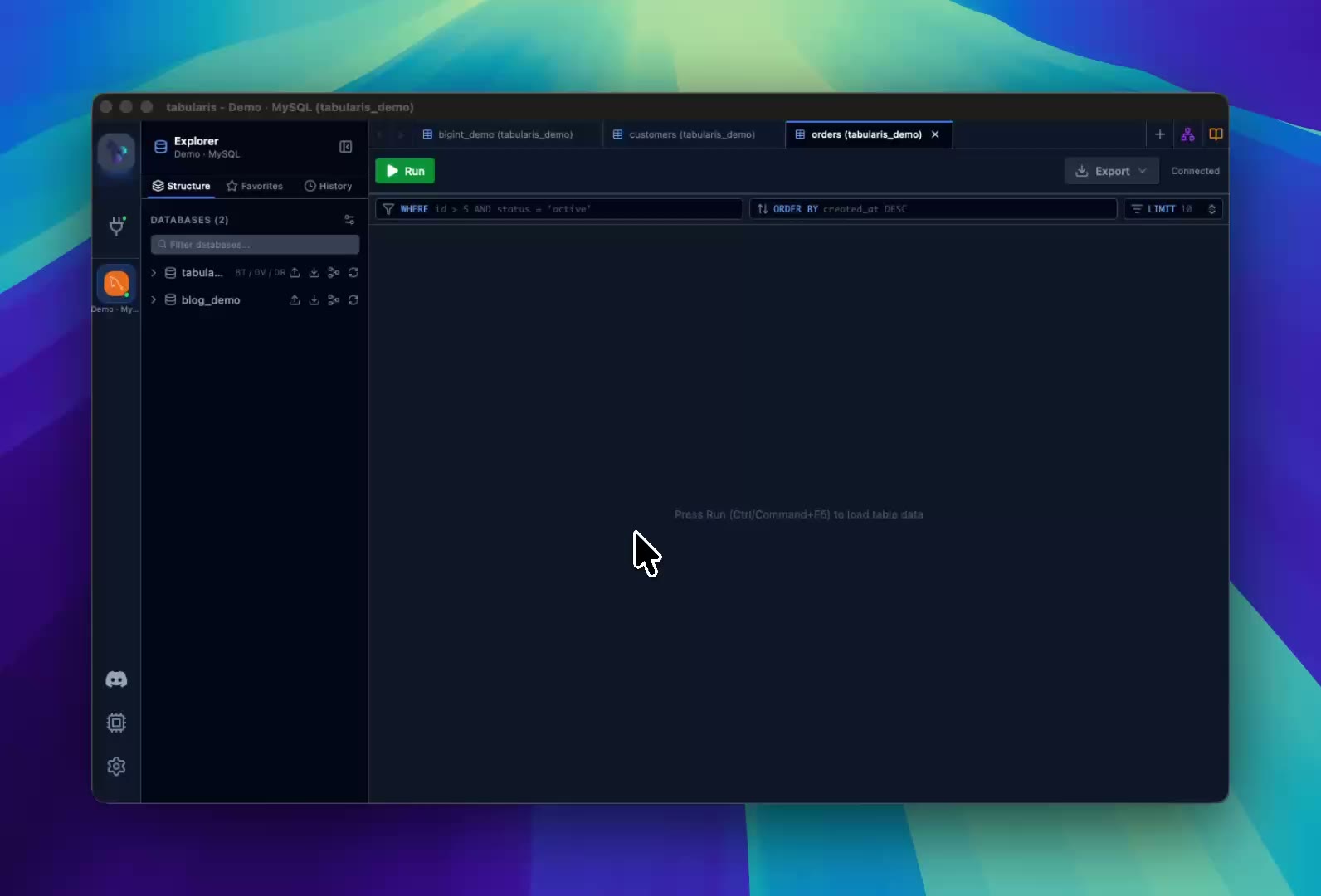
Click the ↗ icon on a foreign key cell — or use the context menu — to jump straight to the referenced row in the parent table.
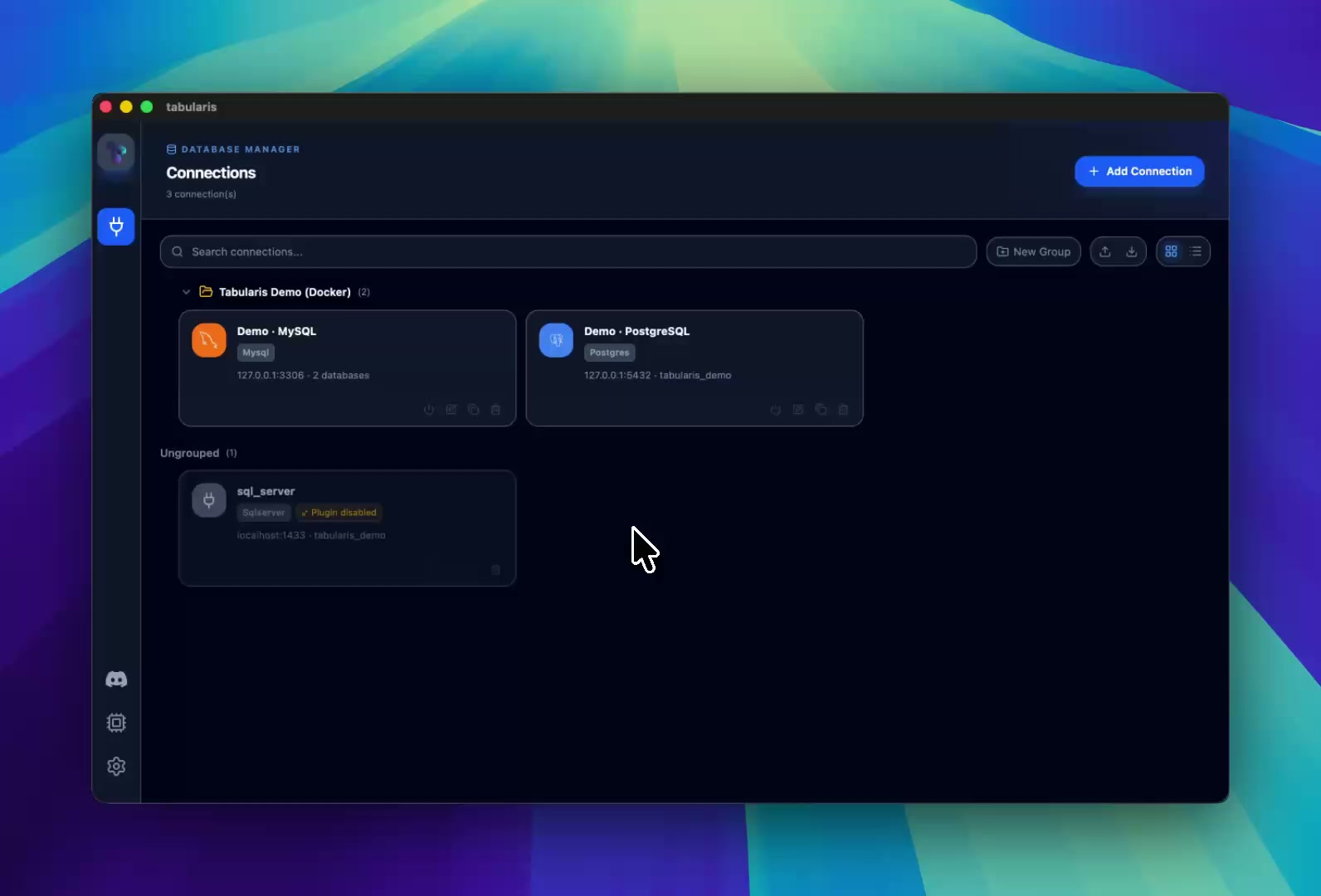
Paint each connection with its own accent color and icon — pick from a curated palette, a 30-icon pack, an emoji, or upload your own image — so two MySQL connections never look the same again.
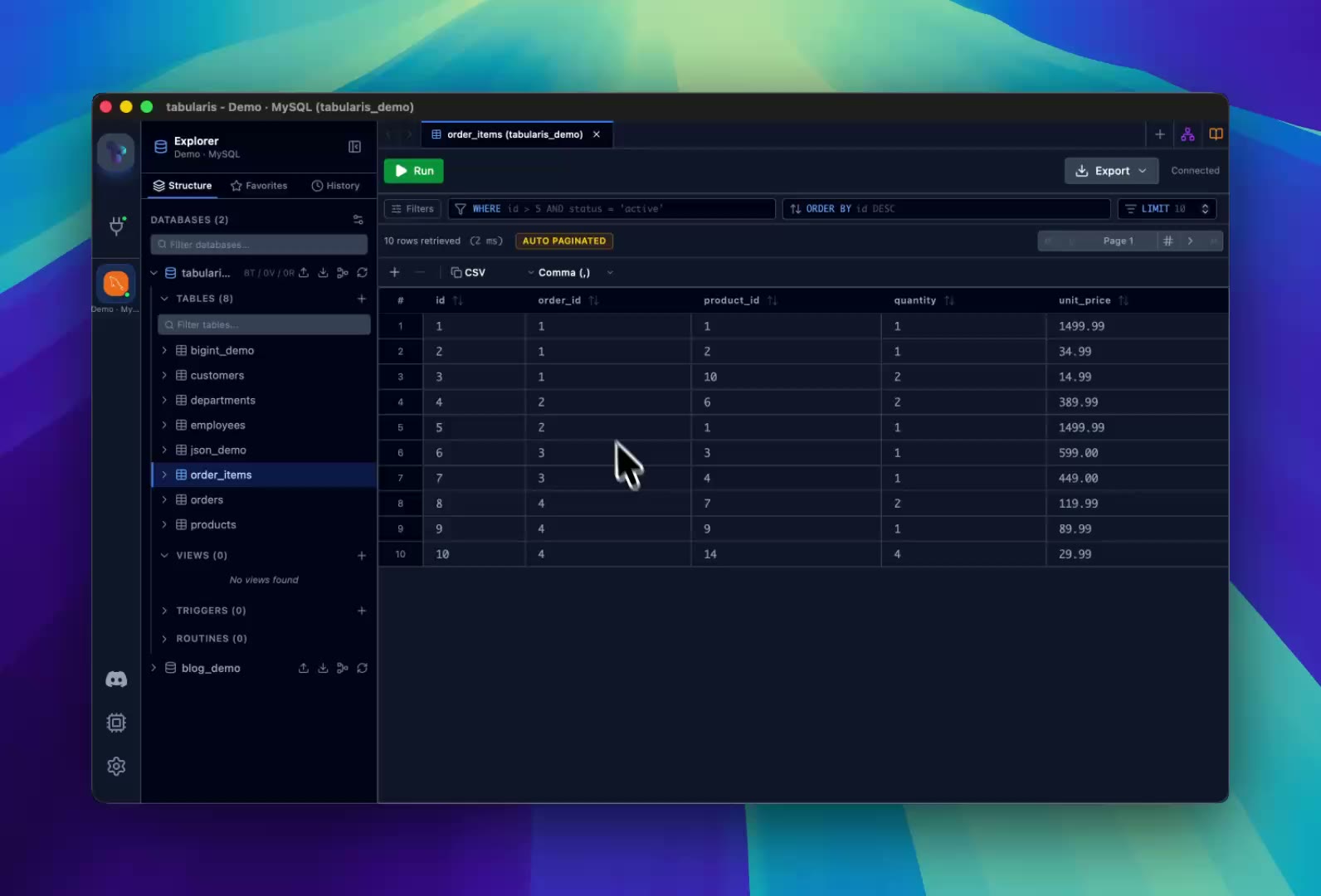
Click any foreign key value to slide up an inline panel with the referenced row — drag to resize, swap content by clicking other FKs, or hand off to a full tab when you're ready to navigate.
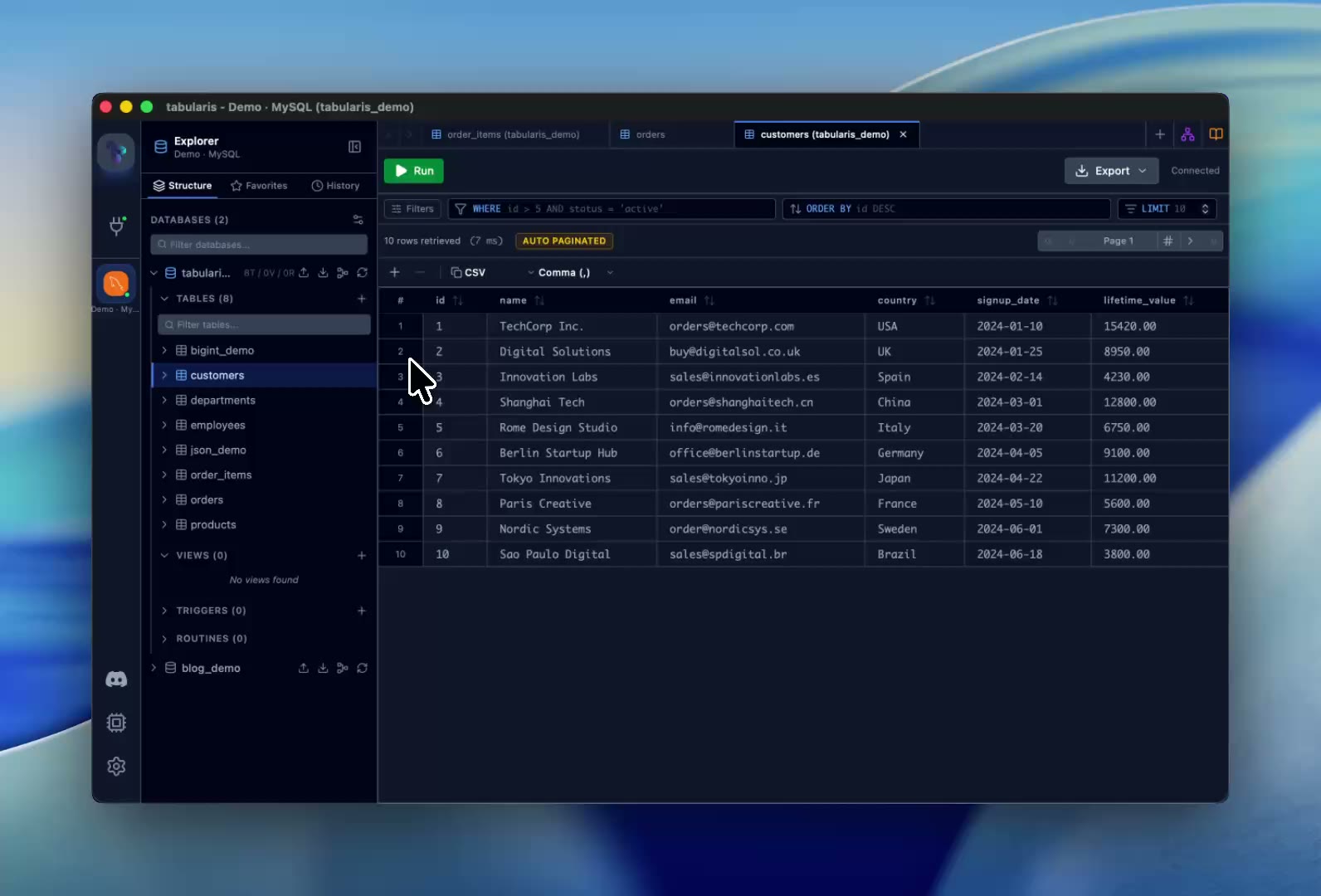
Select one or more rows and press Delete or Backspace to mark them for deletion — same behavior as the context menu, just reachable from the keyboard.
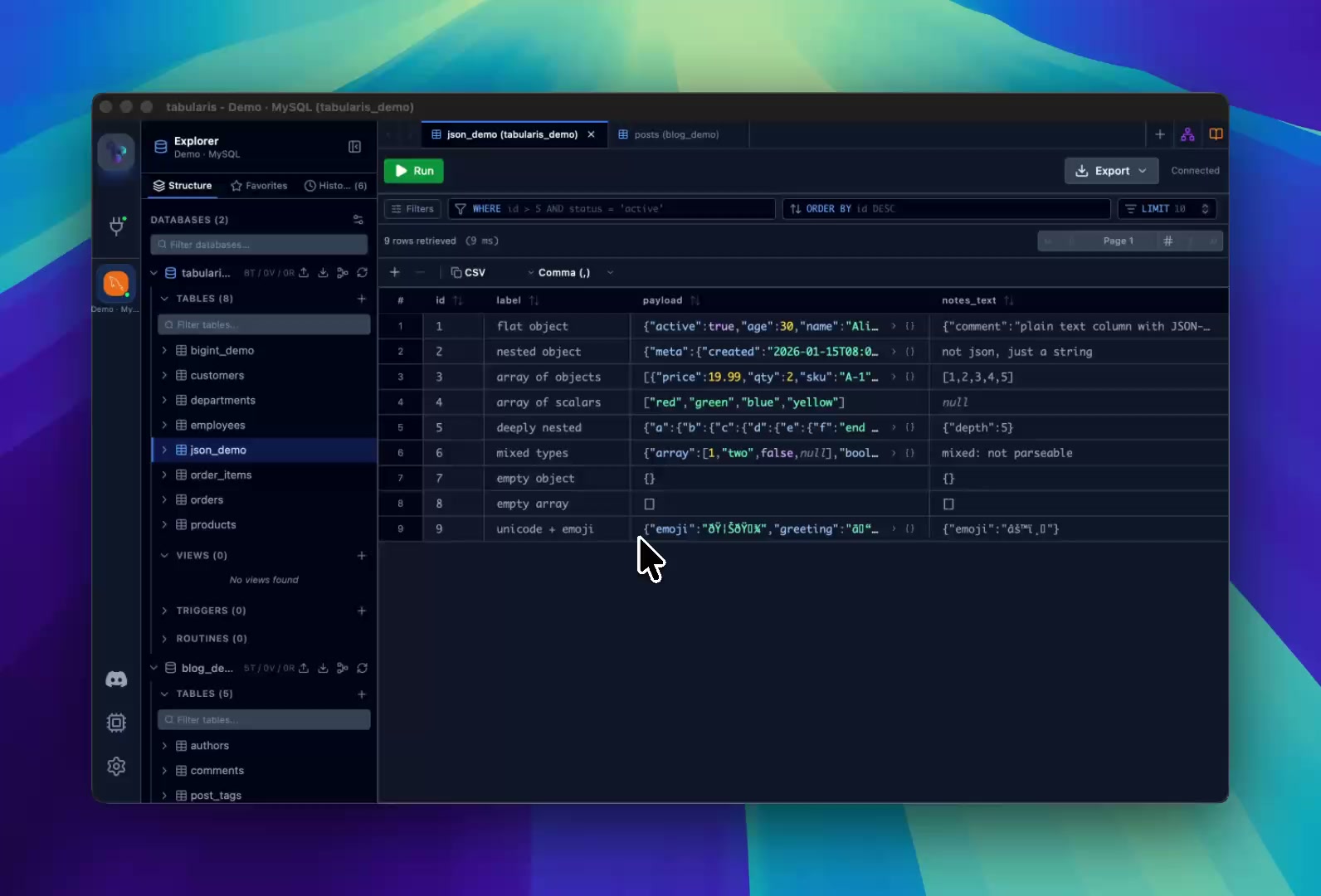
Press Cmd+P / Ctrl+P to jump to any table, view, routine, or trigger in any database or schema of the active connection — in the spirit of the "go to anything" palette every code editor has.
Import saved connections from DBeaver, Beekeeper Studio, TablePlus, DataGrip, or Sequel Ace — review what was found, resolve duplicates, and assign groups before merging.
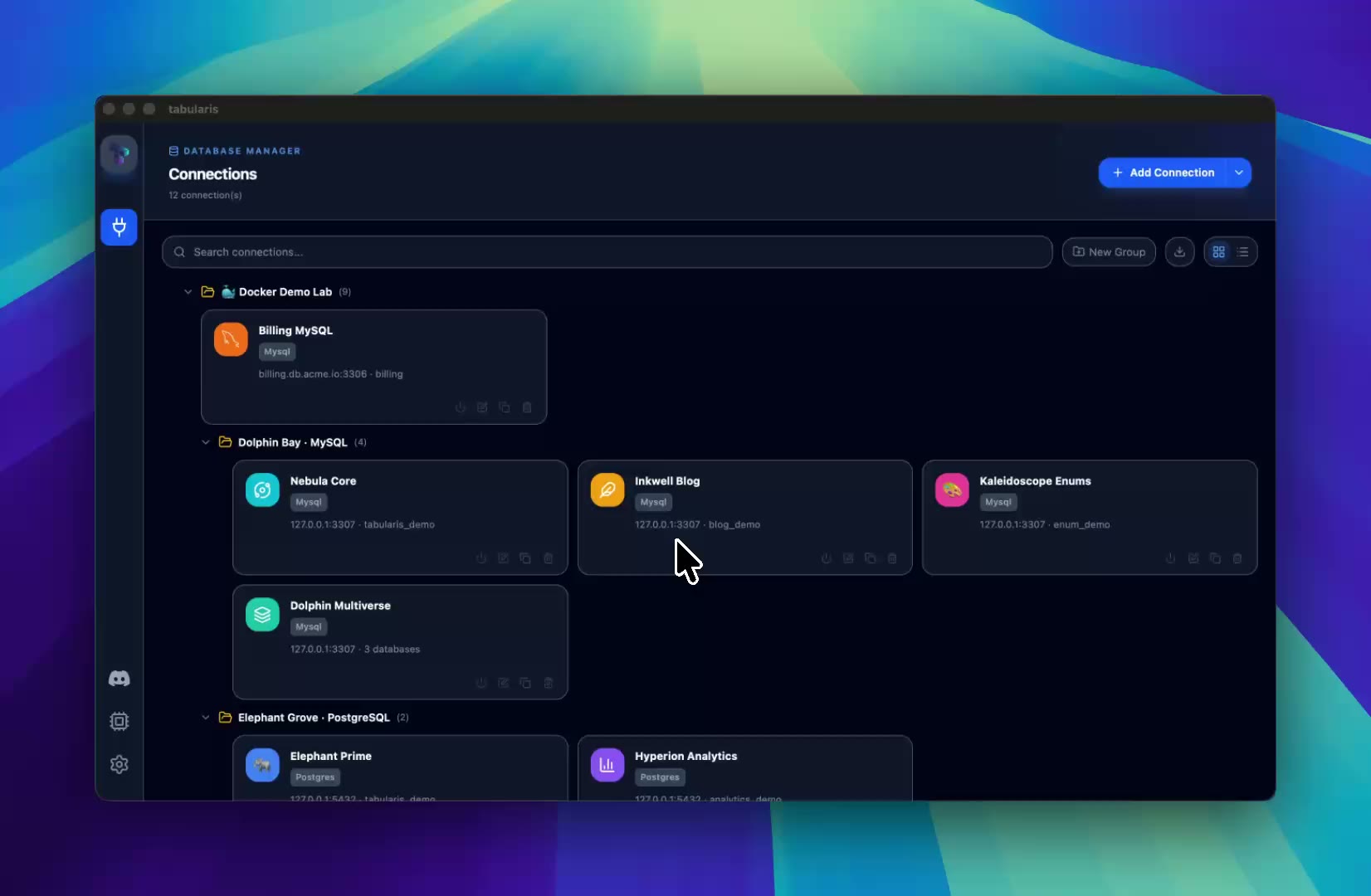
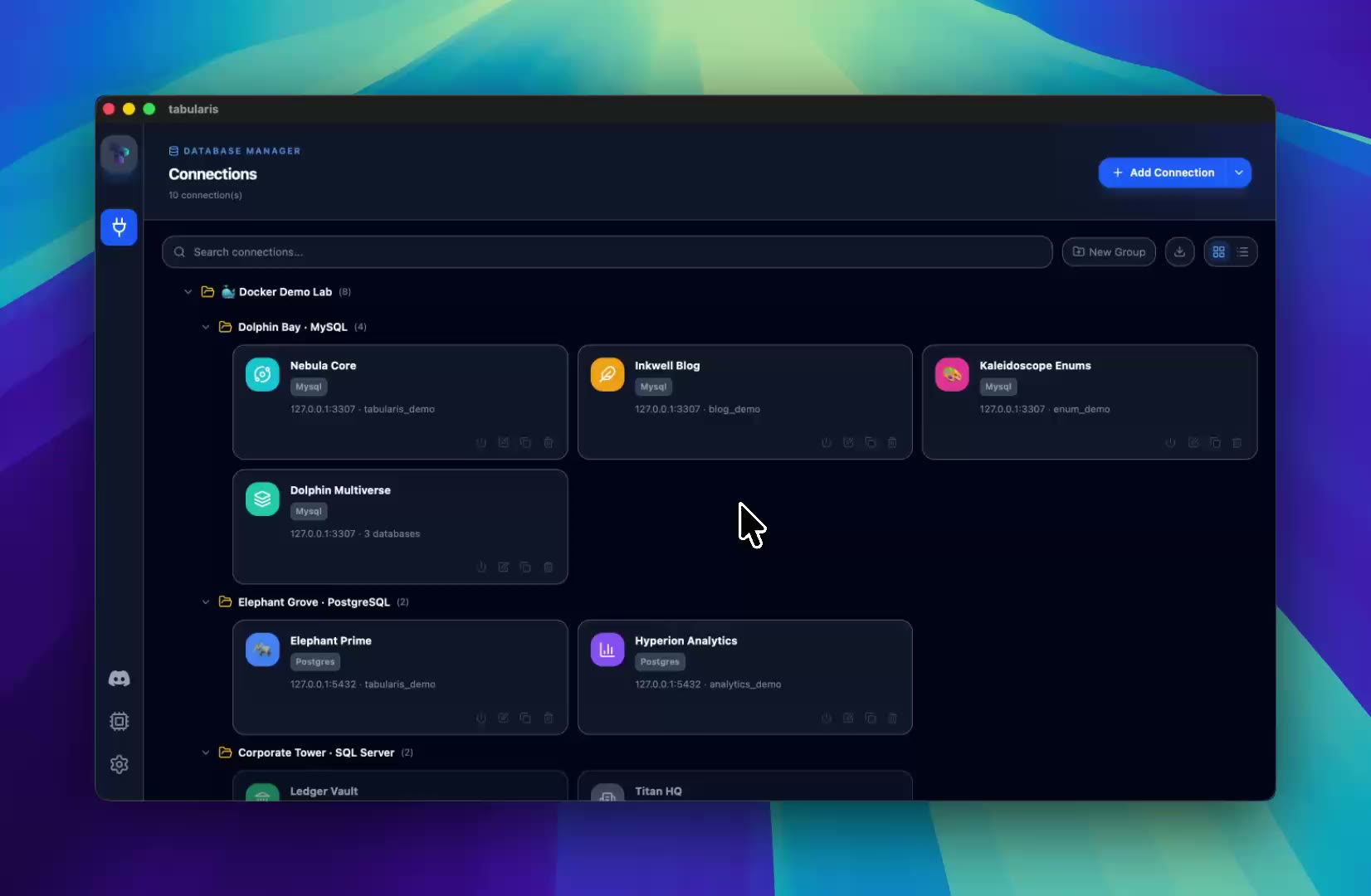
Organize connections in folders inside folders: create whole group chains with slash-separated paths, add subfolders inline, and drag groups into one another.
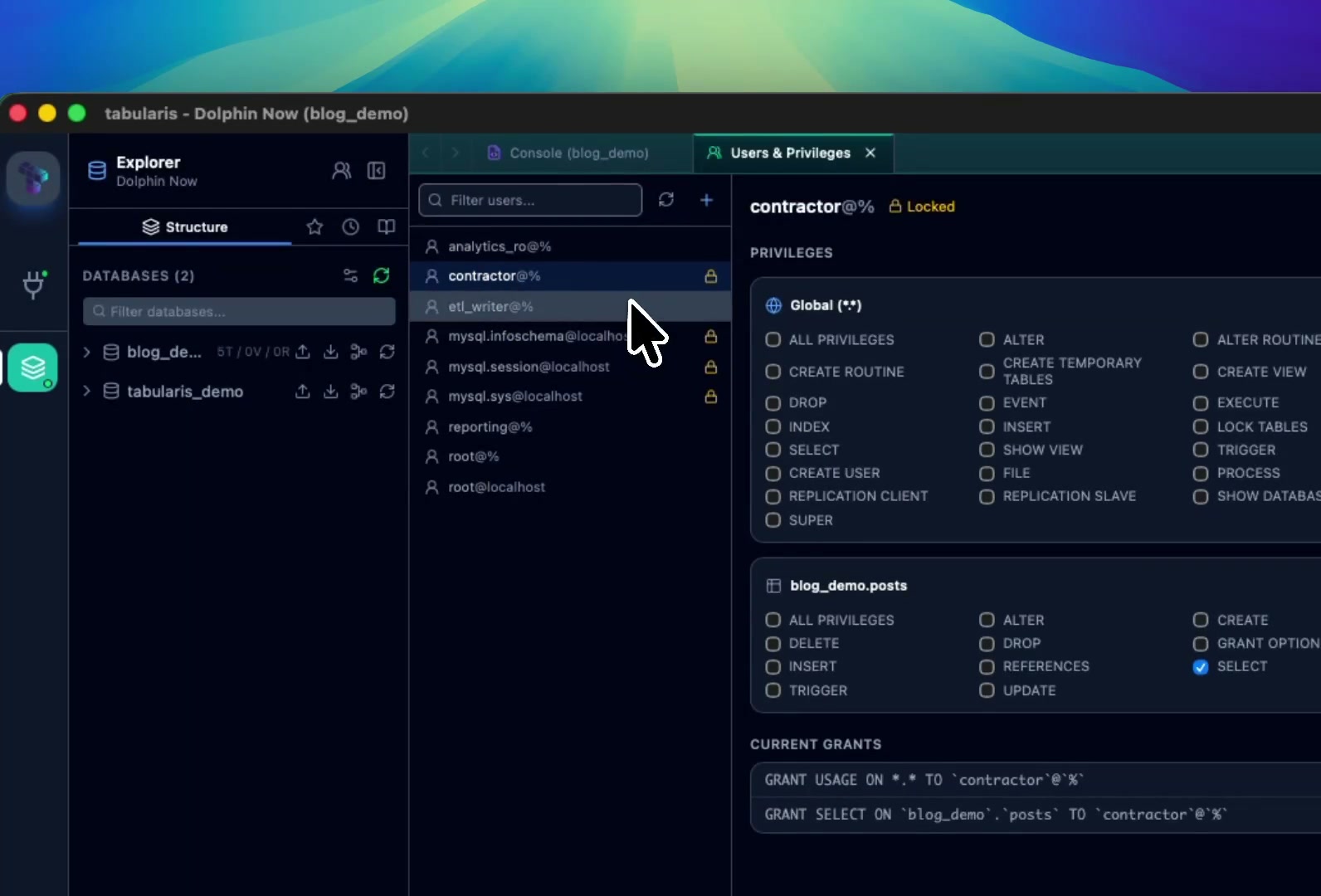
Create a MySQL or MariaDB account and grant it privileges in the same step, then narrow an ALL PRIVILEGES account down to a subset — scope by scope, with the raw SHOW GRANTS output kept in view.