

If you use Neon only as a PostgreSQL database, the regular PostgreSQL plugin works well. Use your Neon connection string and carry on with SQL, schema browsing, and the data grid. You don't need a separate Neon integration for that. There's a connection guide if you need it.
The Neon plugin is for the rest of the project too: choosing branches, working on Functions, managing Auth users, or getting a file out of Storage without leaving Tabularis. These services get their own tabs in the Explorer alongside your SQL connections.
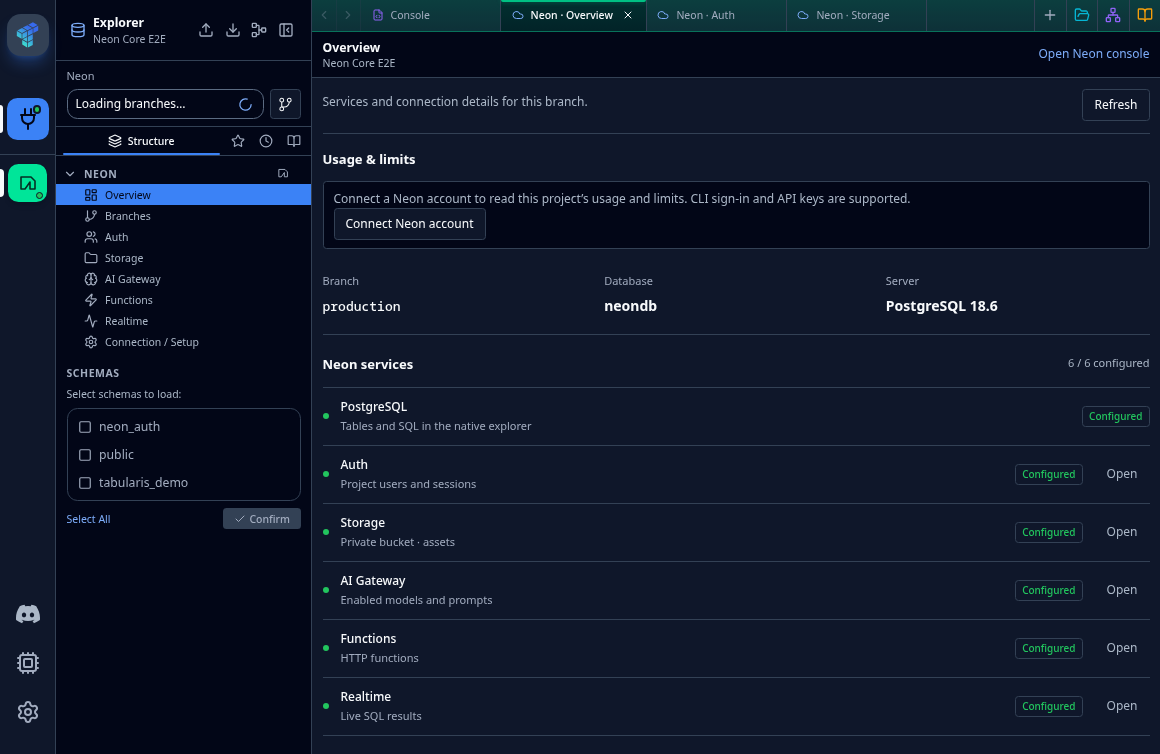
The overview in our test workspace.
Projects, branches, and SQL
Connect a Neon account with an API key or an existing Neon CLI login, then choose the project, branch, database, and role. The plugin imports that as a SQL connection.
The branch view lets you create a branch from a chosen parent, rename it, or delete it. Opening another branch creates a separate connection. Your existing SQL tabs stay on the branch they were opened with, so you can keep a query on one branch while working on another.
The overview shows the selected branch's services, connection details, and the usage and limits available from the Neon API.
Auth
The Auth directory lets you search users, inspect their profiles and sessions, create or delete users, and change user/admin roles. You can also manage invitations for your application's Auth organizations and reset a user's password.
Invitations and password resets use an application Auth login, separate from the Neon Console API key. Organization owners or admins can invite members; setting a user's password requires an Auth administrator. Invitation emails follow the Auth configuration in your project.
Storage
Browse a bucket, upload a file, or download the original object. Binary and text files are supported, with multipart uploads up to Neon's 10 GiB object limit, progress, and cancellation.
There's also a text editor for reading and changing small objects. Its preview is limited to 1 MiB; larger objects use the file download.
Functions
Functions have a JavaScript/TypeScript editor with validation, deployment controls, environment updates, and GET/POST test requests. Logs are shown when Neon makes them available. External npm dependencies need bundling through the Neon CLI.
During testing, we sometimes saw Neon report a deployment as completed while the endpoint still served the previous code for roughly two minutes. You can test the response separately to check which revision is actually running.
Realtime and AI Gateway
Realtime keeps a SQL query subscribed and updates the result as the database changes. You can start and stop subscriptions, take a one-off snapshot, or wait for a matching value.
AI Gateway lists the models enabled for your project and lets you send a small test completion through that project's gateway.
Getting started
The current plugin release is 0.4.0. It needs Tabularis 0.33.0 or newer and Node.js 22+, with Node matching your Tabularis architecture. Node runs the Neon plugin itself; it isn't needed for a normal connection through the PostgreSQL plugin. The Neon CLI is optional when you use an API key.
Packages are available for Windows, macOS, and Linux, on x64 and ARM64. The integration also works in tabularis web, with Node running on the server.
Install it from the Neon registry page, then choose Add Connection → Neon. The README covers setup, permissions, and service limits. Downloads and checksums are on GitHub Releases.